Key takeaways
- Copilot in Excel opens from a button in the lower-right corner of the sheet, or with Alt + C on Windows and Cmd + Control + I on Mac.
- It needs an eligible plan and a .xlsx, .xlsb or .xlsm workbook saved in OneDrive or SharePoint, and Microsoft's simplest advice is to keep AutoSave on.
- Microsoft retired the COPILOT formula function on September 14, 2026, and points users to the Copilot pane instead.
The short answer to how to use Copilot in Excel: open a workbook saved in OneDrive or SharePoint, select the Copilot button in the lower-right corner of the sheet (or press Alt + C on Windows), and type what you want in plain words. Copilot then edits the workbook itself: it writes formulas, builds charts and PivotTables, and sorts, filters and highlights data, according to Microsoft's Get started guide.
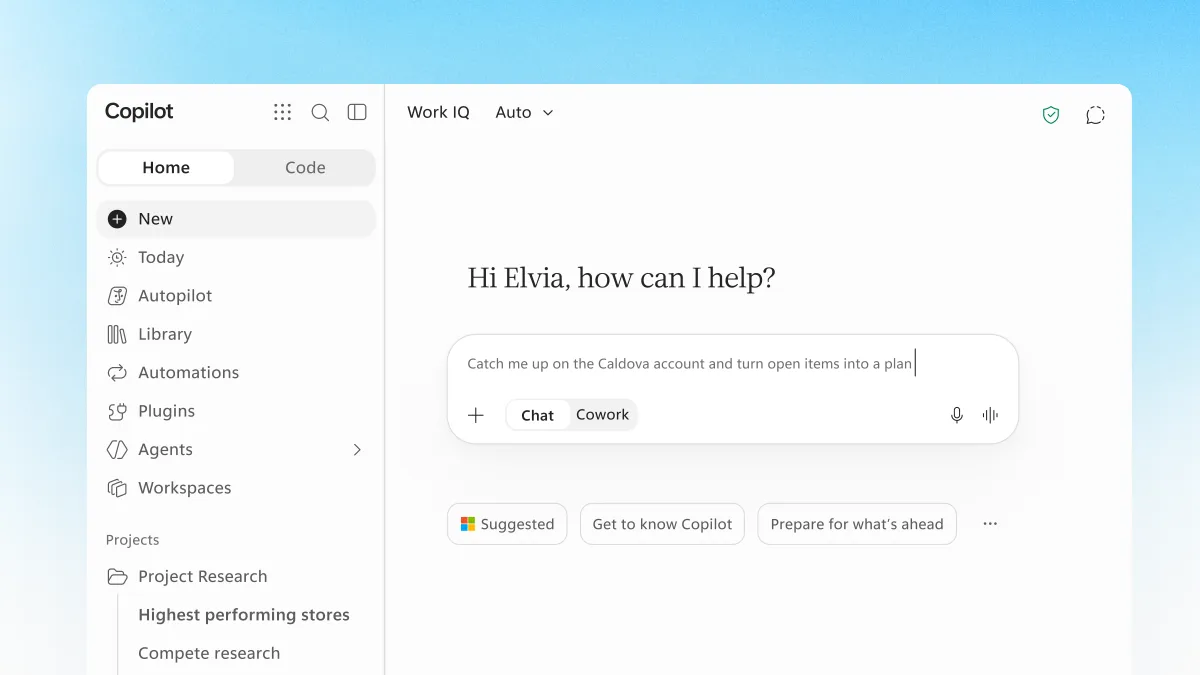
Since November 17, 2026, there is a second way in. At Ignite, Microsoft made Office in Copilot generally available, which puts Excel inside the Copilot app. This guide covers both routes, the prompts that work, what happened to the COPILOT formula function, and what to do when the button is missing. Every step comes from Microsoft's support pages, checked on November 18, 2026.
What you need before you start
Copilot in Excel has four requirements. Miss one and the button either doesn't appear or doesn't work.
A plan that includes it. Microsoft's Copilot in Excel FAQ lists these as eligible:
| Account type | Eligible plans |
|---|---|
| Personal Microsoft account | Microsoft 365 Personal or Family with an AI credits plan, or Microsoft 365 Premium |
| Work or school account | A commercial Microsoft Copilot subscription, or a business or enterprise subscription eligible for Copilot Chat |
On Family and Premium plans, the AI features in Excel work only for the subscription owner, Microsoft says. For what each plan costs, see our explainer on whether Copilot in Excel is free.
A file in the cloud, in a modern format. Microsoft's Excel tutorial for screen reader users says Copilot works with workbooks stored in OneDrive or SharePoint, saved as .xlsx, .xlsb or .xlsm. A local file "will limit or disable Copilot," and files saved in the Strict Open XML format don't work at all.
AutoSave, to be safe. Microsoft's pages disagree here. The Microsoft 365 subscriptions FAQ says Copilot in Excel "requires AutoSave to be enabled." The newer tutorial says that as of the July 2026 update, Copilot also works on cloud workbooks with AutoSave off. Both agree on the simple path: save to OneDrive and leave AutoSave on.
Automatic calculation. Copilot can't edit a workbook when Calculation Options are set to Manual. Check that Automatic is selected under Calculation Options on the Formulas tab.
How to open Copilot in Excel
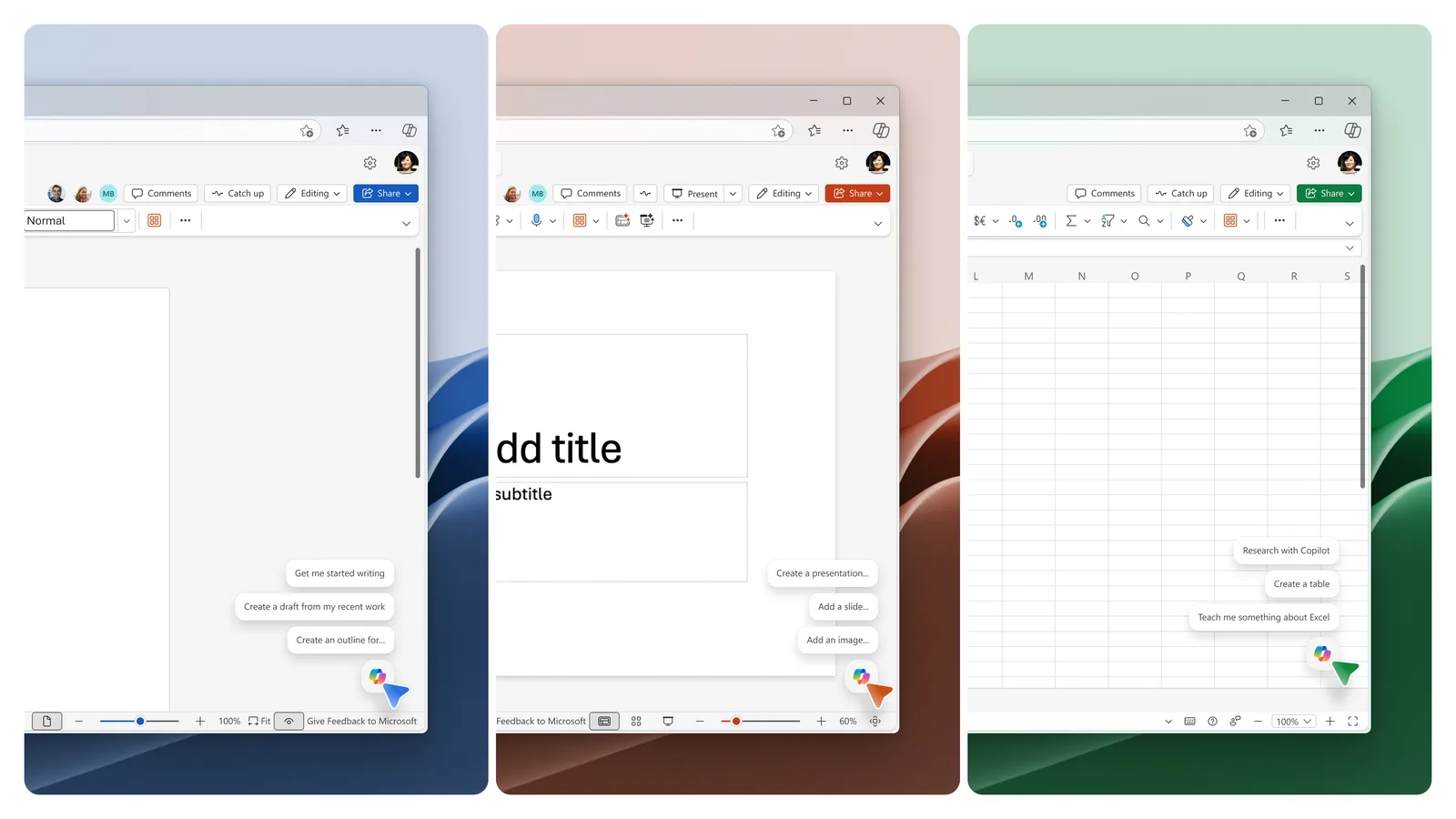
Copilot no longer lives on the ribbon by default. Microsoft replaced it with the Copilot Dynamic Action Button, a single button anchored in the corner of the document in Word, Excel and PowerPoint on Windows, Mac and the web. The worldwide rollout ran from April to June 2026.
- Open a workbook saved in OneDrive or SharePoint.
- Select the Copilot button in the lower-right corner of the sheet. A chat pane opens on the right.
- Or use the keyboard: Alt + C on Windows (desktop and web), Cmd + Control + I on Mac (desktop and web), or F6 on any platform.
- Type a request and send it.
If you prefer the old place, right-click the button and select Move to ribbon. On Windows and Mac, Excel remembers that choice across sessions; on the web it lasts for the current session. It needs Windows build 16.0.20129.15140 or later, or macOS build 16.109.525.2 or later. You can also right-click and select Dock to tuck the button against the side of the window.
Choose a mode: edit, plan or chat
Copilot in Excel has three modes, according to the Get started page:
- Edit (the default, labeled Allow editing): Copilot changes the workbook directly. Use it for multi-step jobs such as reshaping data, merging sheets or building a report.
- Plan: Copilot writes a plan first and waits for you to confirm it.
- Chat: Copilot analyzes the data and answers in the pane without touching the workbook.
In edit mode Copilot makes a step-by-step plan, carries it out, checks the result and shows its reasoning in the pane. To stop it, select the Stop button on the right side of the chat box.
Not every device gets every mode. Windows, Mac and Excel for the web have all three. The iPad has chat and plan, the iPhone and Android have chat, and Microsoft says edit mode is rolling out to the iPad and iPhone.
If you have read about Agent Mode in Excel, the Excel team's December 9, 2025 post told users to start it from the Tools menu. Microsoft's current Get started page doesn't describe a separate Agent Mode. It describes the three modes above and links to the Excel team's post on building Agent Mode for background.
Example prompts that work
Be specific and name the columns, sheets or cells you mean. These prompts come from Microsoft's own pages:
- "Describe the structure of this workbook."
- "Are there any blank cells, duplicated rows, or inconsistent data types in this table? Tell me exactly where."
- "Explain the formula in cell F14 in plain language, including what it depends on."
- "Create a simple project tracker with columns for task name, owner, start date, due date, status, and percentage complete."
- "Create a PivotTable on a new sheet with the sum of revenue, with month in rows and product category in columns."
- "Highlight every row in SalesData where the gross margin falls below 15%."
- "Add a second chart showing expenses by category as a percentage of the total."
You can also set standing rules, such as "Never merge cells" or "Use the date format DD-MMM-YYYY," which Microsoft lists among its sample prompts. After a big edit, ask Copilot to "list every cell, range, and sheet you just modified, and what you changed in each one" so you can check its work.
Check what it does. Microsoft's FAQ says the output can be wrong and warns against relying on it for sensitive finance, legal or medical decisions. Saved changes are visible to everyone with access to the file, and you can roll back with undo or the file's version history.
The COPILOT function is gone
People still search for the COPILOT formula, and older guides still explain it. It no longer works. Microsoft's COPILOT function page says: "Starting September 14, 2026, the COPILOT function is no longer available in Microsoft Excel." It had only ever been a preview for the Frontier and Microsoft 365 Insider programs.
What that means for your workbooks:
- Results calculated before the retirement stay in the cells as stored values.
- When a cell with the function recalculates, it returns a
#NAME?error.
Microsoft's replacement is the Copilot pane. Turn the formula into a request:
| Old formula | Ask Copilot instead |
|---|---|
=COPILOT("Summarize this feedback", A2:A20) |
"Summarize the feedback in A2:A20" |
=COPILOT("Classify sentiment", B2:B100) |
"Classify each of the sentiment entries in B2:B100 and add the result in a new column" |
=COPILOT("Look up upcoming holidays or major events in Seattle") |
"Look up upcoming holidays or major events in Seattle" |
For ordinary formulas, ask Copilot in edit mode to write one ("Add a column that calculates margin as profit divided by revenue") and it will put a normal Excel formula in the sheet, which you can read and change.
The other route: Excel inside the Copilot app
Office in Copilot works the other way round. You start in the Copilot app, describe what you need, and get a real Excel file. Microsoft's Ignite Book of News says you can shape the work with Copilot or edit it directly with Office's formatting, comments and real-time coauthoring, then move into the full Excel app when you need it. Files save to OneDrive and keep Microsoft 365 permissions and sensitivity labels.
Microsoft's blog says creating an Excel spreadsheet this way is included in the Copilot subscription license, with no usage meter. Neither the blog nor the Book of News lists step-by-step instructions or the plans that qualify. Our news story on Office in Copilot has what Microsoft announced.
Which route to use: if the workbook already exists, open it in Excel and use the button. If you are starting from an idea or a conversation, the Copilot app can get you to a first draft.
Copilot button not showing in Excel
Microsoft's missing button article says there are usually two causes: the button moved, or something is wrong with your license or account.
- Look in the lower-right corner. The ribbon button was replaced by the Dynamic Action Button. Use Move to ribbon if you want it back there.
- Check your license. For a work or school account, sign in at microsoft365.com, scroll to the bottom of the home page and read the label under your name, as Microsoft's license check page describes. "Copilot Chat (Basic)" means no Copilot in Excel. For a personal account, check your plan at account.microsoft.com/services.
- Update Excel. Make sure you are on the latest build.
- Refresh the license. On Windows, go to File > Account and select Update License, then close and restart all Microsoft 365 apps. On a Mac, open the app name menu, select About Excel > More Info... > Refresh License, then restart.
- Check the update channel (business users). Semi-Annual Enterprise Channel doesn't support these Copilot features. Under File > Account, look at Product Information. Ask your help desk to move you to Current Channel or Monthly Enterprise Channel.
- Turn on connected experiences. On Windows, go to File > Account > Manage Settings under Account Privacy, and turn on "Experiences that analyze your content" and "All connected experiences." On a Mac, Microsoft's example is Word > Preferences > Privacy; the same two settings apply. If your organization manages them, ask IT.
- On the web, refresh the page and allow third-party cookies, which Copilot can need to validate your license.
If the button shows but Copilot won't work on a file, check the file. An "Unsupported file state" message often means the file is checked out in SharePoint: check it in, then close and reopen it. Sites that require check-out don't support Copilot in Excel on Windows or Mac, but Excel for the web still works. For more fixes across Word and Outlook too, see our guide to Copilot not working in Word, Excel and Outlook.
On a personal Microsoft account, Copilot can also be switched off in Excel's settings. The Dynamic Action Button page says clearing the Enable Copilot checkbox hides it, so check that box if someone turned it off.
Frequently asked questions
How do I turn on Copilot in Excel?
Sign in with an account whose plan includes Copilot, open a workbook saved in OneDrive or SharePoint, and select the Copilot button in the lower-right corner. On a personal account, check that the Enable Copilot checkbox in Excel's settings is selected.
Why is Copilot not showing in the Excel ribbon?
Microsoft moved it to the Copilot Dynamic Action Button in the lower-right corner of the sheet. Right-click that button and select Move to ribbon to put it back; if there is no button at all, check your license, update Excel and refresh the license under File > Account.
Does the COPILOT function still work in Excel?
No. Microsoft says the COPILOT function is no longer available starting September 14, 2026, and cells that recalculate return a #NAME? error. Microsoft suggests asking for the same thing in the Copilot pane.
Where is Agent Mode in Excel?
In December 2025 Microsoft said to start Agent Mode from the Tools menu. Its current Get started page instead describes three modes in the Copilot pane: edit, which changes the workbook directly and is the default, plan and chat.
Sources
- Get started with Copilot in ExcelMicrosoft
- Frequently asked questions about Copilot in ExcelMicrosoft
- The Copilot Dynamic Action Button in Word, Excel and PowerPointMicrosoft
- How to find and enable missing Copilot button in Microsoft 365 appsMicrosoft
- COPILOT functionMicrosoft
- Microsoft Copilot in Excel for Microsoft 365: a tutorial for screen reader usersMicrosoft
- Frequently asked questions about Copilot in Microsoft 365 subscriptionsMicrosoft
- Check your Copilot licenseMicrosoft
- Copilot at Microsoft Ignite: Expanding what's possible with intelligence built for workMicrosoft
- Microsoft Ignite 2026 Book of NewsMicrosoft
- Agent Mode in Excel is now generally available on Excel for webMicrosoft Excel Blog