Key takeaways
- In Microsoft 365 Copilot Chat, run a prompt, hover over it, select the bookmark icon and choose Save prompt.
- Saved prompts appear under Your prompts in the Copilot Prompt Gallery, are private to you, and also show in the Copilot pane in Word, Excel and PowerPoint.
- You can share a saved prompt by link or to a Microsoft Teams team, where it shows under Team prompts.
To save a prompt in Copilot, run the prompt once in Microsoft 365 Copilot Chat, hover over it, select the bookmark icon and choose Save prompt. It then sits under Your prompts in the Copilot Prompt Gallery, where you can run it again with one click. Those are the steps in Microsoft's support article Save your favorite prompts to use again, checked on November 15, 2026.
This guide covers the work version of Copilot: Microsoft 365 Copilot and Copilot Chat, signed in with a work or school account. That is the version Microsoft documents. The consumer Copilot app is covered in its own section near the end.
What a saved prompt is
A saved prompt is a copy of a prompt you wrote, or one Microsoft wrote, kept in a private list so you don't have to type it again. Microsoft's support page says the list is private to you. Nobody else in your organization sees it unless you share a prompt on purpose.
Saving is not the same as scheduling. A saved prompt runs only when you pick it. A scheduled prompt runs on its own at a time you set. For that, see how to schedule a prompt in Microsoft 365 Copilot.
How to save a prompt in Copilot, step by step
- Open Copilot Chat and sign in with your work account.
- Type your prompt and send it. Microsoft's own example is "Review and summarize today's emails and provide a list of action items."
- Wait for Copilot to answer. The save option only shows up after the prompt has run successfully.
- Hover over your prompt in the chat. Select the bookmark icon, then Save prompt.
- Give it a clearer title if you want. Microsoft suggests renaming it so it is easier to find later, for example "Daily email action items" instead of the first words of the prompt.
That's it. The prompt now appears in your saved list.
If you use a keyboard or a screen reader, Microsoft's screen reader guide says to press Tab until you reach the Save prompt button, press Enter, and press Ctrl+M to hear the confirmation.
How to save one of Microsoft's prompts
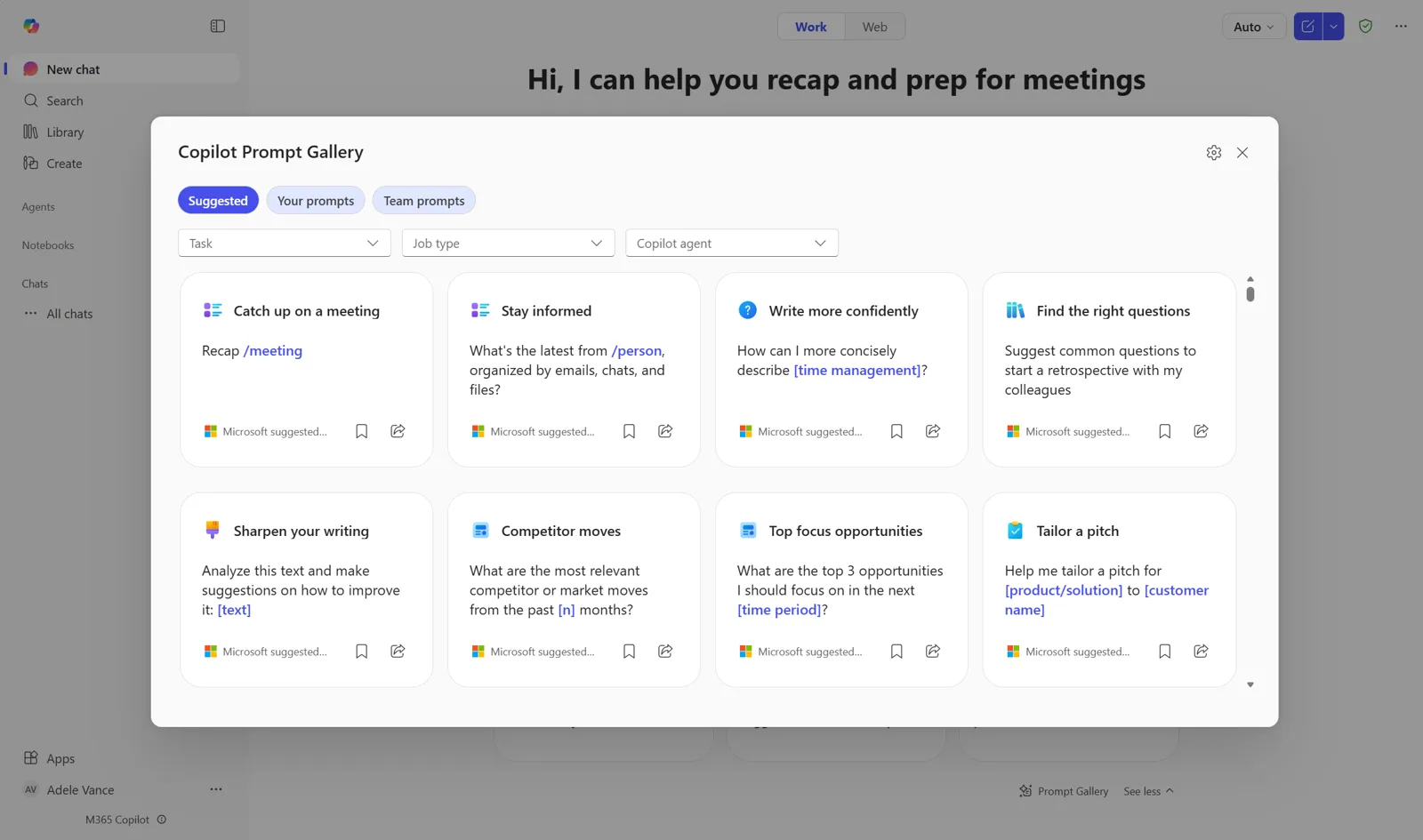
The gallery also holds prompts Microsoft wrote, such as "Recap /meeting" or "Help me tailor a pitch for [product/solution] to [customer name]". Each card has a bookmark icon and a share icon. Select the bookmark to add that prompt to your own list as it is. You can also change the words first, run your version, and save that one instead.
Where to find your saved prompts
Microsoft calls this place the Copilot Prompt Gallery in some pages and the Prompt Lab in others. The two names point to the same list. Inside it there are three tabs:
| Tab | What's in it | Who sees it |
|---|---|---|
| Suggested | Prompts written by Microsoft | Everyone |
| Your prompts | Prompts you saved | Only you |
| Team prompts | Prompts shared to a team in Microsoft Teams | Members of that team |
To open it:
- In Copilot Chat: select a prompt pill or the ... below the message box, then open the Prompt Gallery and pick Your prompts. Microsoft's Copilot Chat FAQ describes the same thing as selecting "... Prompt Lab" below the Message Copilot box. Copilot also suggests prompts while you type.
- In Word, Excel and PowerPoint: open the Copilot Chat pane and use the same steps. According to Microsoft's page on changes to the Copilot Prompt Gallery app, these apps show Microsoft's prompts and your prompts, but not team prompts.
Click a saved prompt to view it, edit it or run it.
How to share a saved prompt
There are two ways, both from the Prompt Gallery.
Copy a link. Hover over the prompt, select Share prompt, then Copy link. Paste the link into a Teams chat or a OneNote page. Microsoft's article Share your best prompts says this needs a Microsoft Copilot license for work or school.
Share to a team. From Microsoft's article Sharing prompts with a team:
- Save the prompt first, as above.
- Open the Prompt Gallery in Copilot Chat, Teams or Outlook.
- Select the Your prompts tab.
- Hover over the prompt and select Share prompt.
- Select Share to team and pick the team.
Team members then find it under Team prompts. To take a shared prompt down, open Team prompts, choose the team, and use the remove option at the top right of the prompt card.
Who can save prompts
Microsoft's help pages on saving don't list a license requirement, and the sharing pages say sharing is for people with a Microsoft Copilot work or school license. A September 2025 post on Microsoft's Tech Community blog adds detail: people on the free Copilot Chat, without a full Microsoft 365 Copilot license, can still save their own prompts. Prompts that read work data, such as your calendar or email, need the full license to work.
The same post notes that the Team prompts tab only appears after someone has shared a prompt to a team. If you don't see it, that doesn't mean the feature is off.
Saved prompts for agents
When you save a prompt inside a Copilot agent, the prompt stays linked to that agent. Microsoft's page on saved prompts for uninstalled agents explains what happens when the agent goes away:
- A copy of the prompt stays under Your prompts.
- If the agent is reinstalled, the prompt attaches to it again. That may need your admin.
- If it can't be reinstalled, copy the prompt into Copilot Chat or another agent, then edit and save it there.
- To delete it, select the bookmark-style Remove button in the gallery.
Common problems
There is no Save prompt option. The prompt has to finish running first. Send it, wait for the answer, then hover over your prompt, not over Copilot's reply.
You can't find the gallery. Microsoft retired the standalone Copilot Prompt Gallery app. New installs stopped in June 2025 and access ended on July 15, 2025, according to Microsoft's changes page. Everything now lives inside Copilot Chat and the Copilot pane in Office apps. Look for the ... under the message box.
Prompts from the old app are missing. Microsoft's changes page doesn't say whether prompts saved in the old app carried over. In a June 2026 thread on Microsoft's Tech Community forum, users reported old prompts missing, saves that didn't stick, and a search box that finds Microsoft's prompts but not their own. No Microsoft reply appears in the thread. If this happens to you, keep a copy of important prompts in a note and open a support ticket through your admin.
The labels don't match this guide. Microsoft's own pages use "Your prompts" and "Your saved prompts", and "Prompt Gallery" and "Prompt Lab", for the same things. Different apps and rollouts show different wording.
For admins: where saved prompts are stored
Saved and team prompts are stored in the Microsoft 365 Substrate data store, inside your tenant boundary, according to Microsoft Learn's page Understand Prompt Gallery in Copilot. Admins can export a user's saved, liked and shared prompts, or the prompts shared to a team, with a PowerShell module Microsoft provides. The export guide uses the Export-PromptsUserContent and Export-PromptsGroupContent cmdlets and needs an account with the Global Administrator role:
Export-PromptsUserContent -UserAadIdOrPrincipalName user@contoso.com -ExportDirectory C:\PromptsExport -PromptType saved
What about the consumer Copilot app
Microsoft's help pages for saving prompts are filed under Microsoft 365 Copilot and describe the work experience. Microsoft's general page on writing prompts in Copilot applies to personal accounts too, but it doesn't cover saving. No Microsoft help page found for this guide describes a saved-prompts list in the consumer Copilot app at copilot.microsoft.com or on Windows with a personal Microsoft account. If you use that version and see no Save prompt option, keep your best prompts in a note and paste them in.
GitHub Copilot, the coding assistant, is a separate product with its own ways to reuse prompts. This guide doesn't cover it.
Frequently asked questions
Can Copilot save prompts?
Yes. Microsoft 365 Copilot Chat lets you save any prompt after it runs by hovering over it and selecting Save prompt. Saved prompts go to a private Your prompts list in the Copilot Prompt Gallery.
Where are my saved Copilot prompts?
Open the Prompt Gallery from the ... below the Copilot Chat message box and select Your prompts. In Word, Excel and PowerPoint, open the Copilot Chat pane and use the same steps.
Can I save Copilot prompts in Excel?
Microsoft says your saved prompts show in the Copilot Chat pane in Excel, Word and PowerPoint. Microsoft's save article lists Word and PowerPoint, so the most reliable way to save one is from Copilot Chat.
Does the free Copilot Chat let you save prompts?
A September 2025 Microsoft Tech Community post says free Copilot Chat users can save their own prompts, but prompts that use work data such as email or calendar need a Microsoft 365 Copilot license.
Sources
- Save your favorite prompts to use againMicrosoft Support
- Changes to the Copilot Prompt Gallery appMicrosoft Support
- Sharing prompts with a teamMicrosoft Support
- Share your best promptsMicrosoft Support
- Use Copilot Prompt Gallery with a screen readerMicrosoft Support
- Managing saved prompts for uninstalled agentsMicrosoft Support
- Frequently asked questions about Microsoft Copilot ChatMicrosoft Support
- Get started writing prompts in Microsoft CopilotMicrosoft Support
- Understand Prompt Gallery in CopilotMicrosoft Learn
- Export prompts that users saved, liked, or shared in Copilot Prompt GalleryMicrosoft Learn
- How to save personal prompts and create team prompts in CopilotMicrosoft Tech Community
- Prompt Lab: three critical bugs (forum thread)Microsoft Tech Community