Key takeaways
- Claude artifacts start private, and you share one by clicking Share on the web or in Claude Desktop, choosing who has access and copying the link.
- On Team and Enterprise plans artifacts stay inside the organization unless an owner turns on External sharing or allows a single artifact.
- Unpublishing a legacy chat artifact is permanent and deletes its stored data, while newer artifacts are unshared by switching access back to Only you or Only people invited.
To share a Claude artifact, open it on the web or in Claude Desktop, click "Share," pick who has access ("Anyone with the link," your organization, or people you invite by email), then copy the link and send it. Artifacts start private, so nothing is visible to anyone until you do this. The exact options depend on your plan, and older artifacts made in a chat use a separate "Publish" button, as Anthropic's help center article Share artifacts explains.
This guide covers each way to share, who can see what you share, how to stop sharing, how to export an artifact as a file, and what each plan allows, as of November 24, 2026.
What you need first
- A plan that can share. Link sharing and email invitations work on Pro, Max, Ultra, Team and Enterprise. The Free plan can create artifacts, but the sharing table gives it only one option: publishing a legacy artifact made in a chat before September 16, 2026 (more on those below).
- Claude on the web or Claude Desktop. The iOS and Android apps let you view and edit artifacts, but you can't change sharing settings there.
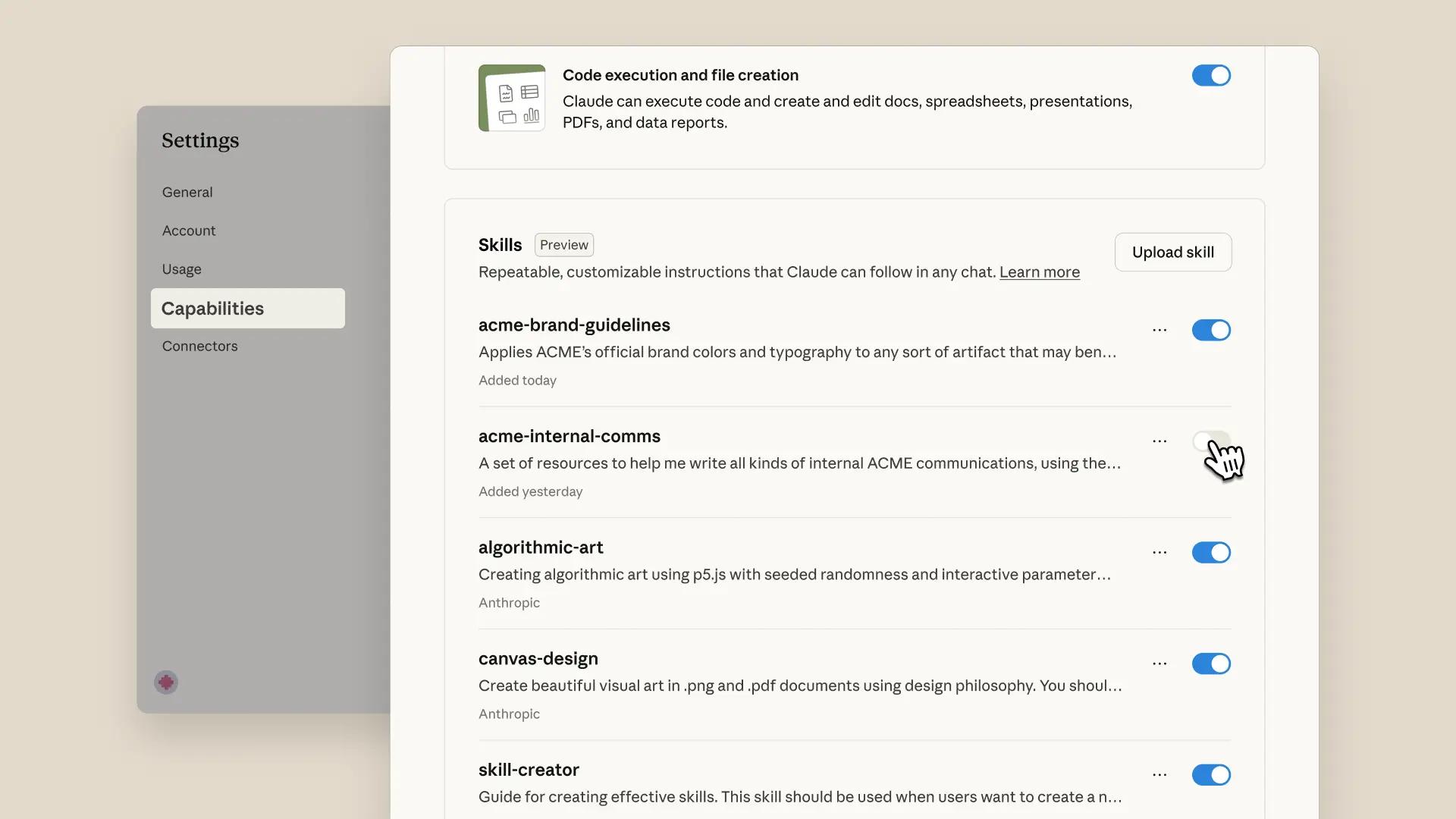
- Artifacts turned on. They need the "Cloud code execution and file creation" capability, called "Create and edit files" in the newer Settings layout, under Settings > Capabilities. On Team and Enterprise plans an owner turns it on under Organization settings > Capabilities, according to What are artifacts and how do I use them?
Everything you make is saved in the Artifacts tab in the Claude sidebar, so you can find an artifact again without digging through old chats.
How to share a Claude artifact by link
- Open the artifact and click "Share."
- On Team and Enterprise plans, add people from your organization and choose an access level for each one. Enterprise plans can also add groups.
- Under Who has access, choose who else can open it.
- Copy the link and send it.
The access choices differ by plan:
- Pro, Max and Ultra: "Only you" or "Anyone with the link."
- Team and Enterprise: "Only people invited," "Anyone at [your organization's name]," or "Anyone with the link." The last one is grayed out unless an owner has turned on External sharing or allowed that one artifact.
Each person you add gets one of three access levels:
| Access level | What they can do |
|---|---|
| Can view | Open the artifact and read its comments |
| Commenter | Everything in Can view, plus add comments and download any files the artifact offers |
| Can edit | Everything in Commenter, plus make changes |
How to invite specific people by email
Email invitations are in beta on Pro, Max, Ultra, Team and Enterprise. Unlike a link, an invitation works only for the person you send it to.
- Open the artifact and click "Share."
- In the field at the top of the Share menu ("Add people," or "Invite people by email" on Pro, Max and Ultra), type the person's email address.
- Select the Invite option that shows their address.
- Under Their access, choose "Can view," "Commenter" or "Can edit."
- Click "Invite."
The person must sign in to Claude with that exact email address. If they don't have an account, they need to create one with it first, and Claude won't tell you whether they have one. Pending invitations expire after 30 days, and you can invite up to 50 people from outside your organization per artifact. On Team and Enterprise plans, typing the address of a colleague adds them directly instead of sending an invitation.
Some artifacts can't be shared outside your organization at all, by link or by email: those that connect to other websites, and those with an uploaded file that is still being checked or failed the check. The Share menu tells you when this applies.
Sharing inside a Team or Enterprise organization
On Team and Enterprise plans, artifacts stay inside your organization by default. "Anyone at [organization]" opens the artifact only to people signed in to that organization.
Sharing outside depends on two separate settings that an Owner or Primary Owner controls in Organization settings > Artifacts, according to the Artifacts admin guide for Team and Enterprise plans:
- External sharing allows "Anyone with the link." Turning it off also breaks existing public links until it is turned back on, except for artifacts allowed one by one.
- Email invitations outside your organization allows inviting named outsiders. It is on by default on Team plans and off by default on Enterprise plans.
While External sharing is off, an owner can still open one artifact under Published artifacts, open its menu and select "Allow external sharing." The artifact must already be shared with the organization or with invited people to appear in that list. Owners can also find artifacts marked "Shared outside," choose "Manage outside access" and remove people, though they can't change anyone's access level.
Who can see a shared artifact
- Anyone with the link: most artifacts open without a Claude account or sign-in. Docs and sheets are the exception: they open only for people signed in to Claude, who can only view them.
- Link viewers see less. For someone outside your organization, or not signed in, the parts that use connected apps or Claude don't work, and they can't see or add comments. On Pro, Max and Ultra plans, "outside your organization" means anyone other than you.
- Viewers use their own connections. An artifact that pulls from connected apps shows each viewer data from their own accounts, not yours. A Claude Data dashboard with live sharing (beta) is the exception inside an organization.
- Stored data may be shared. Some artifacts, like a shared tracker, save information everyone who opens them can see. Check before you type anything sensitive into one.
The help center also warns readers to open shared artifacts only from people they trust, and to treat one like a file from an unknown sender.
How to stop sharing or unpublish
For current artifacts, open the artifact, click "Share," and under Who has access choose "Only you" (Pro, Max, Ultra) or "Only people invited" (Team, Enterprise). To remove one person, open their access level and select "Remove." Removal takes effect right away.
Two details matter here. On Pro, Max and Ultra, switching to "Only you" does not remove people you invited by email; they keep access until you remove them. On Team and Enterprise, the same switch removes everyone invited from outside the organization. Deleting the artifact removes access for everyone.
If a creator leaves a Team or Enterprise organization, artifacts shared with the organization stay shared. An Owner or Primary Owner can find the artifact under Published artifacts and choose "Stop sharing with [organization name]" or "Delete."
Legacy artifacts: Publish and Unpublish
Legacy artifacts are ones made in a chat before September 16, 2026. They still work, but they show "Publish" or "Share & copy link" instead of "Share."
On Free, Pro, Max and Ultra plans:
- Open the artifact.
- Click "Publish."
- Copy the public link and send it.
Anyone with the link can view and use a published chat artifact without a Claude account. Signed-in users on Free, Pro, Max or Ultra can also copy it and build their own version. After publishing you can click "Get embed code" to put it on another website, listing allowed domains separated by commas.
Clicking "Unpublish" revokes access, and it is permanent. You can't publish that artifact again, and unpublishing deletes any personal and shared storage data it used.
On Team and Enterprise plans, open the artifact, click "Share," then "Share & copy link." To undo it, click "Share" and then "Unshare." Be careful: viewers of a shared chat artifact also get access to the attachments and files in that chat. Only the creator can unshare a legacy artifact.
How to download or export an artifact
Exporting gives you a file you can send without sharing a link at all.
| Artifact | Export formats |
|---|---|
| Docs | Word, PDF, Markdown, Google Docs |
| Slides decks | PowerPoint, PDF, or Google Slides as editable files |
| Designs | .zip, PDF, PowerPoint, standalone HTML |
| Motion animations | MP4 video |
| Legacy artifacts | View the code, copy the content, or download it from the top of the panel |
For template-based artifacts, click "Export." For legacy artifacts, use the controls at the top of the artifact panel.
Plan differences at a glance
| Sharing option | Free | Pro, Max, Ultra | Team | Enterprise |
|---|---|---|---|---|
| Anyone with the link | No | Yes | Yes, if allowed | Yes, if allowed |
| Share with your organization | No | No | Yes | Yes |
| Share with groups | No | No | No | Yes |
| Email invitations (beta) | No | Yes | Yes | Yes |
| Publish a legacy artifact | Yes | Yes | No | No |
| "Share & copy link" for legacy artifacts | No | No | Yes | Yes |
Source: Share artifacts, checked November 24, 2026.
New: install an artifact as a desktop app (beta)
On November 24, 2026, Anthropic's release notes added "Install as app," in beta. It turns an artifact into an app with its own window and icon on a Mac or Windows computer. According to Install an artifact as an app, it is rolling out on every plan and needs Claude Desktop version 6.28899.0 or later. You open the artifact in Claude Desktop, open its title menu or right-click it, and select "Install as app." The option also sits under Share. On Enterprise plans it stays off until an owner turns it on.
An installed app is still the same artifact, so edits show up in the app. Our news article on Install as app covers the permission levels in detail. Apps must ask before using notifications, shortcuts or full access to your computer, and the help center notes that Anthropic doesn't review apps before you install them. If you don't have Claude Desktop yet, see our guide to downloading Claude for Mac and Windows.
Frequently asked questions
Are Claude artifacts public or private?
Private by default. Nothing is shared until you click Share and choose a wider option such as Anyone with the link, and on Team and Enterprise plans artifacts stay inside the organization unless an owner allows outside sharing.
How do I download a Claude artifact?
For artifacts made from a template, click Export: docs go to Word, PDF, Markdown or Google Docs, decks to PowerPoint or PDF, and designs to .zip, PDF, PowerPoint or HTML. For legacy chat artifacts, use the controls at the top of the artifact panel to copy or download the content.
Can I save a Claude artifact as a PDF?
Yes for docs, slide decks and designs, which all list PDF as an export format under Export. Animations made with Motion export as MP4 video instead.
Can I export a Claude artifact to HTML?
Designs export as standalone HTML through Export. For a legacy chat artifact, you can view its code and copy or download it from the top of the artifact panel.
Sources
- Share artifactsAnthropic
- What are artifacts and how do I use them?Anthropic
- Artifacts admin guide for Team and Enterprise plansAnthropic
- Install an artifact as an appAnthropic
- Release notesAnthropic