Key takeaways
- Figma recommends the remote MCP server at https://mcp.figma.com/mcp, which works without the desktop app and is the only one that writes to the canvas.
- View and Collab seats get up to 20 MCP calls a month, while Full and Dev seats get 200 to 600 a day depending on the plan.
- Claude Code users can install it with `claude plugin install figma@claude-plugins-official` or `claude mcp add --transport http figma https://mcp.figma.com/mcp`.
The Figma MCP server lets a coding agent such as Claude Code, Cursor, VS Code with GitHub Copilot or Codex read your Figma designs and, on the remote server, write back to the canvas. To set up Figma MCP, point your agent at https://mcp.figma.com/mcp and sign in with your Figma account; Figma's developer docs give a one-line command or a short JSON config for each agent. Below are the exact steps for both the remote and the desktop server, the plan and rate limits, and the fixes for the errors people hit most.
MCP, the Model Context Protocol, is a standard way for an AI agent to call tools in another app. There is a longer explainer on MCP if the term is new. Every command and config below comes from Figma's docs or the agent's own docs, checked on November 20, 2026.
What the Figma MCP server does
The server gives an agent tools that fetch design context from Figma: the code-like structure of a frame, the variables and styles it uses, a screenshot, Code Connect mappings to your real components, FigJam diagrams and comment threads. You paste a link to a frame and ask the agent to build it. By default get_design_context returns React with Tailwind, and you can ask for another framework ("Generate my Figma selection in Vue").
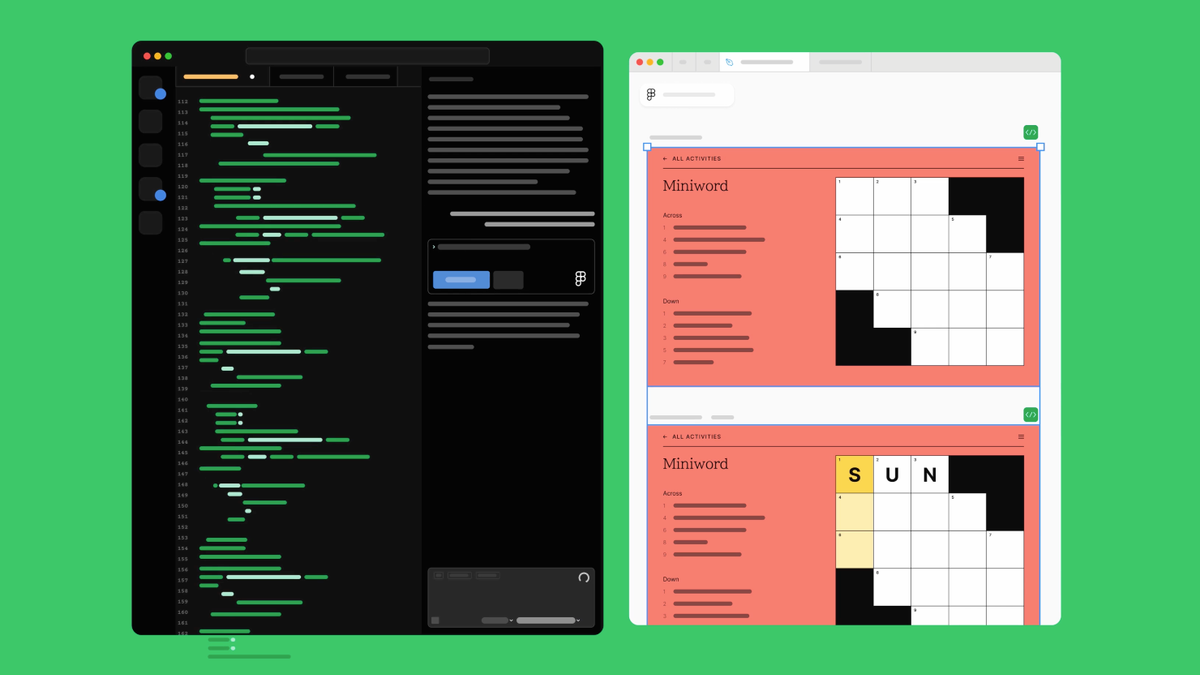
On the remote server it can also write. Figma lists tools such as use_figma (create and edit content in a file), generate_figma_design (send a live web UI into Figma as layers), create_new_file and generate_diagram. The full list is on the tools and prompts page.
Remote or desktop server
Figma runs two versions of the server.
| Remote server | Desktop server | |
|---|---|---|
| Address | https://mcp.figma.com/mcp |
http://127.0.0.1:3845/mcp |
| Needs the Figma desktop app | No | Yes, with a Design file open |
| Who can use it | All plans, from a client in Figma's MCP catalog | Dev or Full seat on a Professional, Education, Organization, Government or Enterprise plan |
| Writes to the canvas | Yes | No |
| How you point it at a design | A link to a frame or layer | A link, or the current selection |
| Figma's advice | Recommended for most users | For specific organization and enterprise needs |
Figma's guide to the MCP server recommends the remote server. Pick the desktop server only if your company requires it. Government accounts use a separate remote address, https://mcp.figma-gov.com/mcp, and the one-click setups below don't configure it.
Figma MCP rate limits by plan and seat
Limits apply to tools that read from Figma. According to Figma's rate limits page, as of November 20, 2026:
| Seat | Starter | Professional | Organization | Enterprise |
|---|---|---|---|---|
| View, Collab | Up to 20 calls per month | Up to 20 per month | Up to 20 per month | Up to 20 per month |
| Full, Dev | Not offered | Up to 200 per day, 10 per minute | Up to 200 per day, 15 per minute | Up to 600 per day, 20 per minute |
Education plans get the same limits as Full and Dev seats on Professional. Some tools are exempt, including those that write to Figma files, such as add_code_connect_map, create_new_file and generate_figma_design, plus whoami. Actions that spend Figma AI credits, like generating images, don't count either. Writing to the canvas needs a Full seat outside your drafts. Figma says it is free during the beta and "will eventually become a usage-based paid feature."
So the free Starter plan works, but 20 calls a month is enough to try the server, not to build with it. You can also only reach files you already have access to.
Before you start
- A Figma account, and for real use a Full or Dev seat on a paid plan.
- One of the agents below, installed and signed in.
- For the desktop server only: the current Figma desktop app.
Set up the remote server in Claude Code
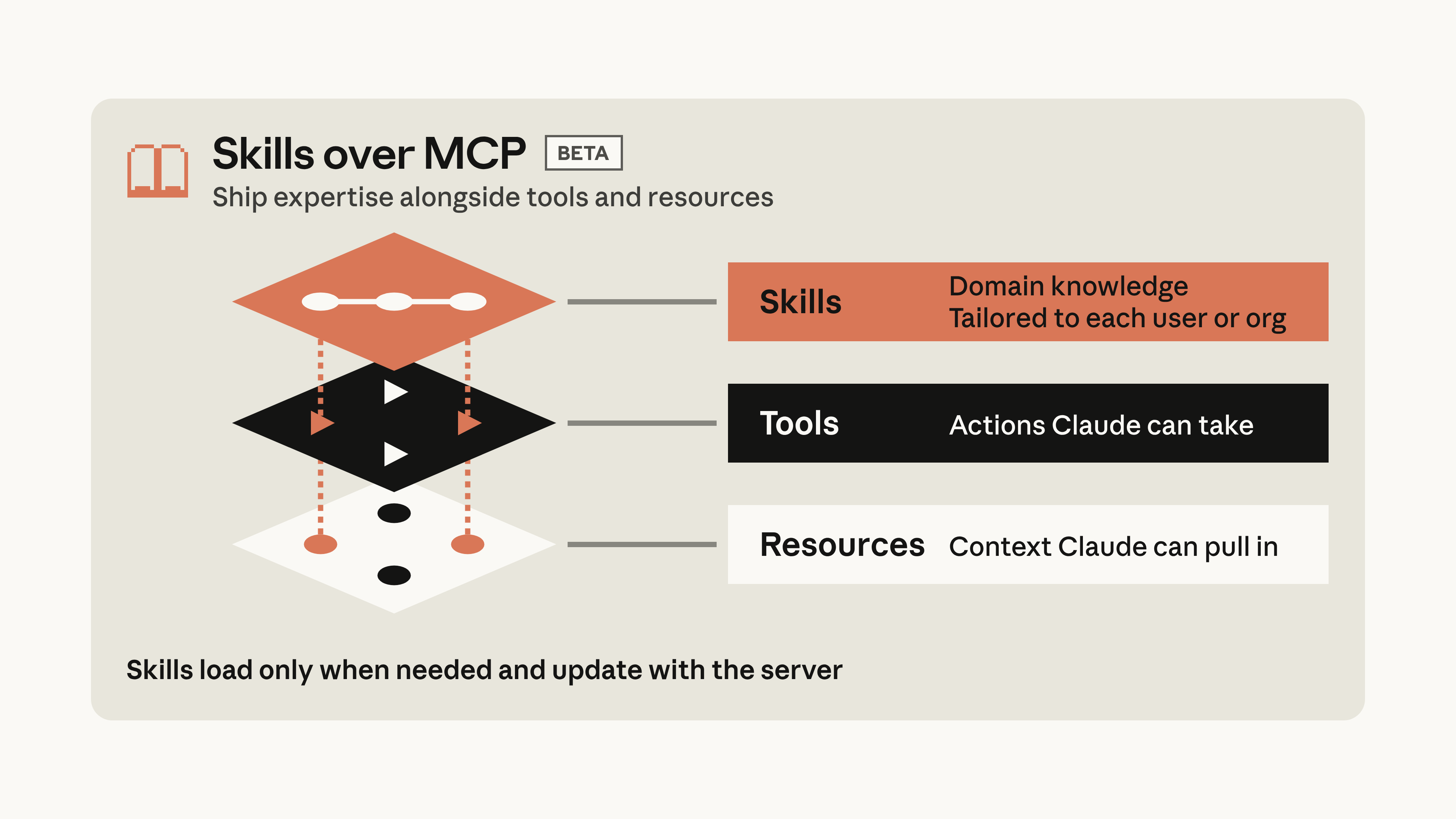
Figma recommends its plugin, which adds the server and Figma's skills (written instructions that help the agent use the tools well).
- Install the plugin:
claude plugin install figma@claude-plugins-official
- Restart Claude Code if it was running.
- Type
/plugin, press the right arrow to open the Installed tab, selectfigmaand press Enter twice to start sign-in. - Click Allow access in the browser.
- Type
/pluginagain and check thatfigmashows as connected.
If your organization blocks plugins, add the server by hand instead. This version doesn't include the skills:
claude mcp add --transport http figma https://mcp.figma.com/mcp
That adds it to the current project only. Add --scope user to make it available in every project:
claude mcp add --scope user --transport http figma https://mcp.figma.com/mcp
Then start a new session, type /mcp, select figma, choose Authenticate and click Allow access. Anthropic's MCP docs explain the scopes: local (the default) and user are stored in ~/.claude.json, while --scope project writes a .mcp.json file you can commit for your team.
Set up the remote server in Cursor
- Open the command palette (Cmd+Shift+P on Mac, Ctrl+Shift+P on Windows), search for Open chat, and send
/add-plugin figma. - Click Add Plugin.
- Open Cursor Settings, then Tools & MCP.
- Under Installed MCP Servers, click Connect next to Figma, then Allow access.
For a manual setup without the plugin, add a custom MCP server in Tools & MCP with this config, save, and click Connect:
{
  "mcpServers": {
    "figma": {
      "url": "https://mcp.figma.com/mcp"
    }
  }
}
Cursor's docs say the same config can live in .cursor/mcp.json in a project or ~/.cursor/mcp.json for all projects. Our guide to adding any MCP server in Cursor covers the general flow.
Set up the remote server in VS Code
The quickest route is Figma's one-click link, vscode:mcp/by-name/com.figma.mcp/mcp, then the sign-in prompts. To do it by hand:
- Open the command palette and choose MCP: Open User Configuration (all projects) or MCP: Open Workspace Folder Configuration (this workspace). VS Code offers to create
mcp.jsonif it doesn't exist. - Paste:
{
  "inputs": [],
  "servers": {
    "figma": {
      "url": "https://mcp.figma.com/mcp",
      "type": "http"
    }
  }
}
- Save, click Start above the server name, and click Allow access.
Figma also offers a Figma plugin for GitHub Copilot that bundles its skills, which it says gives more reliable results. Microsoft's docs note that MCP availability in Copilot can also depend on your organization's policy.
Set up the remote server in Codex
In the Codex app, click Plugins in the upper-left corner, click + next to Figma, then Install Figma and Allow access.
In the Codex CLI, run:
codex mcp add figma --url https://mcp.figma.com/mcp
Sign in to Figma when asked. OpenAI's Codex docs say the server is saved in ~/.codex/config.toml, shared by the app, CLI and IDE extension, and that codex mcp login figma starts the OAuth sign-in again if you need it.
Any other agent in Figma's catalog works the same way: add an HTTP MCP server with the URL https://mcp.figma.com/mcp and sign in.
Set up the desktop server
- Open the Figma desktop app and open a Design file.
- With nothing selected, switch to Dev Mode with the toolbar toggle or Shift+D.
- In the MCP server section of the right sidebar, click Enable desktop MCP server.
- Connect your agent to
http://127.0.0.1:3845/mcp. In Claude Code:
claude mcp add --transport http figma-desktop http://127.0.0.1:3845/mcp
In VS Code, run MCP: Add Server, choose HTTP, enter the URL and name it figma-desktop. In Cursor and most other clients, use:
{
  "mcpServers": {
    "figma-desktop": {
      "url": "http://127.0.0.1:3845/mcp"
    }
  }
}
In the Codex app, go to Settings, MCP servers, Add server, switch the type from STDIO to Streamable HTTP, and enter the same name and URL. Full steps are in Figma's desktop server guide.
How to use it
Copy a link to a frame or layer in Figma and paste it into your prompt: "Implement this Figma frame in React using our existing components." The remote server needs the link. The desktop server can also use whatever you have selected in the app. Ask for one card, header or sidebar at a time rather than a whole page, because large frames are the main cause of slow and failed calls.
Common Figma MCP problems and fixes
These come from Figma's troubleshooting pages for tools not loading, known client issues and related questions.
- No Figma tools appear. For the remote server, check that the URL is exactly
https://mcp.figma.com/mcp, sign in again, and restart the agent. For the desktop server, the app must be open with a Design file and the server enabled in Dev Mode. use_figmaorgenerate_figma_designis missing. The desktop server is usually set up next to the remote one. In Claude Code runclaude mcp remove figma-desktop. Elsewhere, remove any entry withhttp://127.0.0.1:3845/mcpfrom the config and restart.- Claude Code says a response "exceeds maximum allowed tokens (25000)." Select a smaller part of the design, or raise the limit before starting Claude Code with
export MAX_MCP_OUTPUT_TOKENS=50000. - Cursor tool calls fail. The sign-in token has usually expired. Run Clear All MCP Tokens from the command palette, sign in again, and restart Cursor if it still fails.
- The Figma plugin is missing in Codex. Ask your Codex admin to allow third-party plugins and approve the Figma tools.
- A 500 error or "lost connection to MCP server." Figma says these usually come from the agent, not its server. Retry with a smaller selection or a simpler prompt, and restart the agent.
- Images stopped loading. The server hosts images only for a while. Ask the agent to save them into your codebase and reference the local files.
- Your agent can't connect at all. Only clients in Figma's MCP catalog are allowed. Others have to join Figma's waitlist.
To get code closer to your own codebase, Figma's docs point to two things: Code Connect, which maps Figma components to your real code components, and the create_design_system_rules prompt, whose output you save in your project's rules/ or instructions/ folder.
Frequently asked questions
Is the Figma MCP server free?
The remote server is available on all plans, including the free Starter plan, but View and Collab seats are limited to 20 calls a month. Full and Dev seats on paid plans get 200 to 600 calls a day. Writing to the canvas is free during the beta and will become a usage-based paid feature.
What is the Figma MCP free limit?
As of November 20, 2026, Starter plans and View or Collab seats on any plan get up to 20 MCP tool calls a month. Write tools such as create_new_file and generate_figma_design don't count toward the limit.
How do I enable the Figma MCP server in the desktop app?
Open a Design file in the Figma desktop app, switch to Dev Mode with Shift+D, and click Enable desktop MCP server in the MCP server section of the right sidebar. The server then runs at http://127.0.0.1:3845/mcp and needs a Dev or Full seat on a paid plan.
Does Figma MCP work with GitHub Copilot?
Yes. In VS Code, add the remote server to mcp.json with the URL https://mcp.figma.com/mcp and type http, or use Figma's one-click link. Figma also offers a plugin for GitHub Copilot that includes its skills.
Sources
- Set up the remote serverFigma
- Set up the desktop serverFigma
- Guide to the Figma MCP serverFigma
- Figma MCP server overviewFigma
- Rate limits and accessFigma
- Tools and promptsFigma
- Why aren't the MCP server tools loading?Figma
- Known issues with MCP clientsFigma
- Code to canvasFigma
- Connect Claude Code to tools via MCPAnthropic
- Model Context Protocol in CodexOpenAI
- Model Context ProtocolCursor
- Add and manage MCP servers in VS CodeMicrosoft