Key takeaways
- Cursor installs marketplace MCP servers from Customize > MCPs with an Add to Cursor button.
- Custom servers go in .cursor/mcp.json for one project or ~/.cursor/mcp.json for all projects, and the project file wins on name clashes.
- Local servers use a command and args, remote servers use a url, and MCP Logs in the Output panel show why a server failed.
To add an MCP server in Cursor, open Customize in the sidebar, click MCPs and pick a server, or write it into an mcp.json file: .cursor/mcp.json in a project, or ~/.cursor/mcp.json for every project. Local servers get a command, remote servers get a url. These steps follow Cursor's MCP documentation and its help page as of November 15, 2026.
This guide is for anyone who uses Cursor's agent and wants it to reach a database, an issue tracker, a design file or an internal API. At the end you will have a server connected, know which file it lives in, and know where to look when it fails.
What an MCP server is
The Model Context Protocol (MCP) is an open standard for connecting AI applications to outside systems: files, databases, search engines, workflows. The project describes it as a USB-C port for AI apps. A server written once works in any client that speaks the protocol, and Cursor is one of them, along with Claude, ChatGPT and Visual Studio Code.
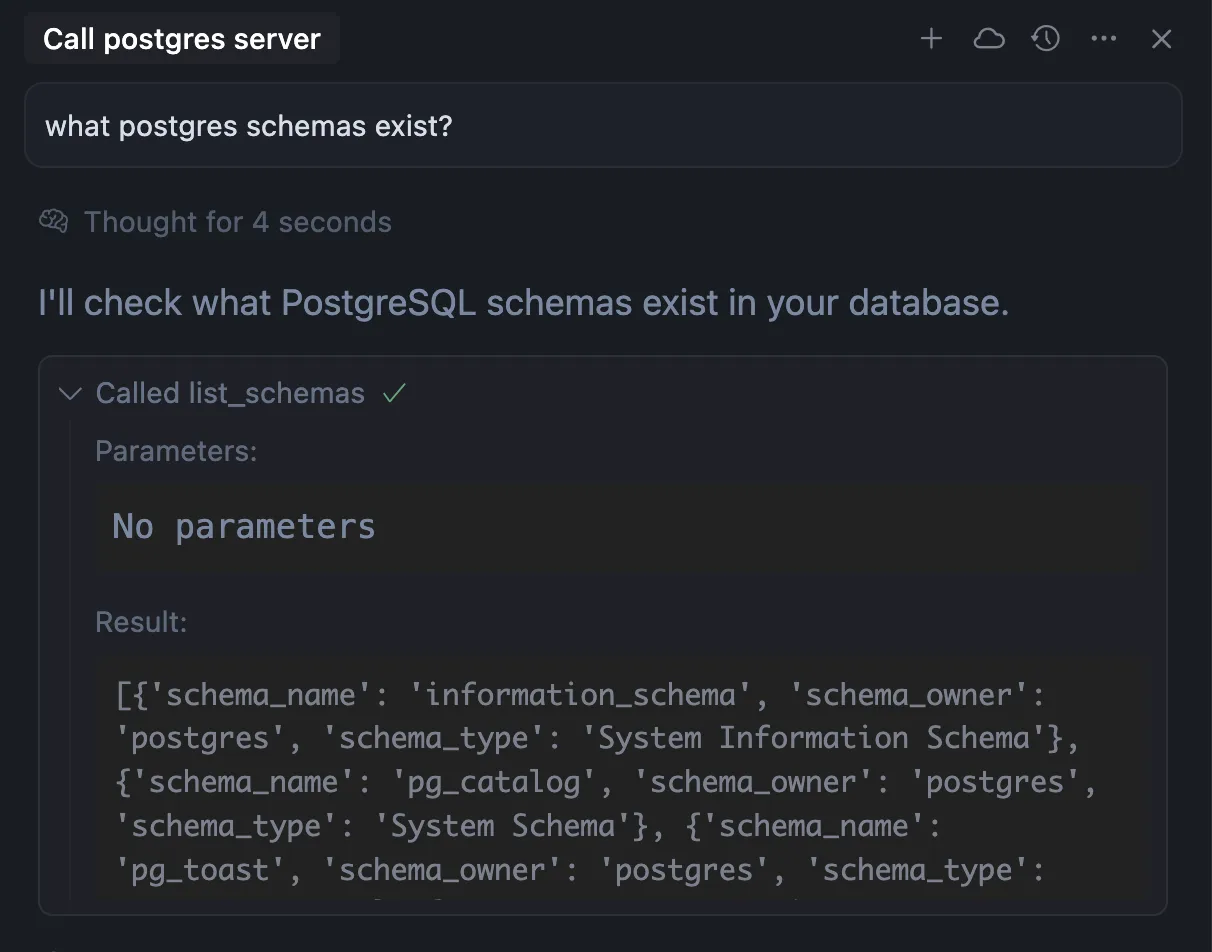
An MCP server exposes tools, which are functions the model can call, plus optional prompts and resources. Cursor's agent sees the tools and calls them when they fit the request. Cursor lists support for tools, prompts, resources, roots, elicitation (a server asking the user for more information) and the MCP Apps extension, which lets a tool return interactive UI in the chat.
What you need first
- Cursor installed, and a recent version if you want the Customize page, which Cursor's changelog dates to June 23, 2026.
- For a local server, the runtime it needs on your system path:
npxand Node.js for most JavaScript servers,pythonfor Python ones, or Docker. - For a remote server, its URL, plus an API key or an account to sign in with if it requires one.
Option 1: add a server from Customize
This is the fastest route for servers listed in the Cursor Marketplace.
- Open Customize in the sidebar.
- Click MCPs.
- Browse or search for the server you want.
- Click Add to Cursor next to it.
- Follow the sign-in prompts if the server asks for them. Marketplace servers use OAuth.
The agent can use the server's tools from then on. Cursor points to cursor.directory for community servers that are not in its own marketplace. Team admins can also push servers to everyone through a team marketplace, and those show up in the same list.
Option 2: add a server with mcp.json
Use the file for servers that are not in the marketplace, for your own servers, or when you want the setup in version control.
Pick global or project config
| File | Where | Use it for |
|---|---|---|
~/.cursor/mcp.json |
Your home folder | Personal servers you want in every project |
.cursor/mcp.json |
The project folder | Servers for one project. Commit it so teammates get the same tools |
Cursor merges both files. When the same server name appears in both, the project file wins. The Cursor CLI reads the same files, so a server you add for the editor also works with the agent command.
Add a local (stdio) server
A stdio server is a program Cursor starts on your machine and talks to through standard input and output. It serves one user, and you handle its credentials yourself. Create or open mcp.json and add an entry under mcpServers:
{
  "mcpServers": {
    "server-name": {
      "command": "npx",
      "args": ["-y", "mcp-server"],
      "env": {
        "API_KEY": "value"
      }
    }
  }
}
For a Python server, set "command": "python" and "args": ["mcp-server.py"]. The fields:
commandstarts the server. It must be on your system path or be a full path.argsis the list of arguments passed to it.envsets environment variables for the server.envFileloads variables from a file such as".env"or"${workspaceFolder}/.env". Only stdio servers support it.typewith the value"stdio". Cursor's field table marks it as required, though its own examples leave it out.
Add a remote (HTTP or SSE) server
A remote server runs somewhere else and Cursor connects to it over the network, either with Streamable HTTP or with SSE (server-sent events). It can serve many users and usually signs them in with OAuth. Give it a url, and headers if it takes a key:
{
  "mcpServers": {
    "my-service": {
      "url": "https://mcp.example.com/sse",
      "headers": {
        "Authorization": "Bearer your-token-here"
      }
    }
  }
}
The MCP specification defines two standard transports, stdio and Streamable HTTP, in its transports page. Cursor still accepts SSE endpoints as well.
Save and restart
Save the file and restart Cursor. The help page gives this step for manual setup. After the restart, the server appears in Customize under MCPs.
Keep keys out of the file
Cursor resolves variables in command, args, env, url and headers, so the file can name a secret without holding it:
{
  "mcpServers": {
    "remote-server": {
      "url": "https://api.example.com/mcp",
      "headers": {
        "Authorization": "Bearer ${env:MY_SERVICE_TOKEN}"
      }
    }
  }
}
The supported variables are ${env:NAME}, ${userHome}, ${workspaceFolder} (the folder that holds .cursor/mcp.json), ${workspaceFolderBasename}, and ${pathSeparator} or ${/}. This matters most for a project file you commit: put ${env:API_KEY} in git, not the key.
Sign in with OAuth
For remote servers that need a login, Cursor uses the OAuth authorization code flow with PKCE. With dynamic client registration it registers itself as a public client, and you only click through the provider's sign-in.
Some providers, Figma and Linear among them according to Cursor's docs, hand out a fixed client ID and want a redirect URL registered. For those, add an auth object:
{
  "mcpServers": {
    "oauth-server": {
      "url": "https://api.example.com/mcp",
      "auth": {
        "CLIENT_ID": "${env:MCP_CLIENT_ID}",
        "CLIENT_SECRET": "${env:MCP_CLIENT_SECRET}",
        "scopes": ["read", "write"]
      }
    }
  }
}
CLIENT_ID is required. CLIENT_SECRET and scopes are optional. Without scopes, Cursor reads them from the server's /.well-known/oauth-authorization-server metadata. Register these redirect URLs with the provider:
- Desktop app:
http://localhost:8787/callback - Web and Cloud Agents:
https://www.cursor.com/agents/mcp/oauth/callback
If you are asked to sign in again every time a token expires, the server is not issuing a refresh token. Some providers issue one only for a scope such as offline_access, which you can add to auth.scopes.
Turn servers and tools on and off
- A whole server: open Customize, then MCPs, and use the toggle next to it. A disabled server does not load and does not appear in chat, which cuts tool clutter.
- One tool: click the tool name in the tools list at the top of the chat panel.
- Approvals: by default Cursor asks before it runs an MCP tool, and the arrow next to the tool name shows its arguments. In Cursor 3.6 and later, the default Auto-review mode under Cursor Settings > Agents > Approvals & Execution runs allowlisted tools at once and sends the rest through a safety classifier. To set this outside the UI, Cursor documents a
permissions.jsonfile.
In the terminal, the Cursor CLI does the same with agent mcp list, agent mcp list-tools <identifier>, agent mcp login <identifier>, agent mcp enable <identifier> and agent mcp disable <identifier>.
When an MCP server won't connect
- Read the logs. Open the Output panel with Cmd+Shift+U on a Mac or Ctrl+Shift+U on Windows and Linux, and choose MCP Logs. They show startup, tool calls, and connection, sign-in and crash errors.
- Check the command. A stdio server fails if
npx,nodeorpythonis not on the path Cursor sees. Use the full path to the executable when in doubt. - Check environment variables. Variables set in your shell profile have to reach Cursor. Restart Cursor after you change the profile.
- Remove and re-add. Delete the server in Customize > MCPs and add it again.
- Update an npm server. Remove it, run
npm cache clean --force, and add it back to get the latest version. For a server you wrote, update its files and restart Cursor. - Windows with network controls. When an admin turns on MCP network controls, Cursor runs stdio servers in a sandbox that Windows does not support, so they won't start and the logs say the server requires sandboxing. The admin has to add a command entry for it with the No sandbox mode.
When one server crashes or times out, Cursor marks that tool call as failed and lets you retry. The other servers keep working.
Before you install a server
MCP servers can run code and call outside services on your behalf. Cursor's advice is to install only from developers you trust, check what data a server can reach, give it API keys with the fewest permissions that work, and read the code of anything that touches sensitive systems. For sensitive data, it recommends running the server locally over stdio.
Tool calls and their results show up in the agent's chat, next to everything else the model works with. If you want to see what your agent sessions use, the guide on how to check token usage in Cursor shows where the numbers are.
Frequently asked questions
Where is the mcp.json file in Cursor?
Cursor reads two files: .cursor/mcp.json inside a project and ~/.cursor/mcp.json in your home folder. It merges them, and the project file takes priority when both define the same server name.
Do I need to restart Cursor after editing mcp.json?
Cursor's help page says to save the file and restart Cursor after adding a server manually. For a custom server whose code you changed, restart Cursor as well.
Why is my MCP server not working in Cursor?
Open the Output panel with Cmd+Shift+U or Ctrl+Shift+U and select MCP Logs to see connection, sign-in or crash errors. Common causes are a command that is not on Cursor's path and environment variables from your shell profile that Cursor has not picked up.
Can I disable an MCP server in Cursor without deleting it?
Yes. Open Customize, then MCPs, and use the toggle next to the server. A disabled server does not load or appear in chat.
Sources
- Model Context Protocol (MCP)Cursor
- MCP integrationsCursor
- MCP (Cursor CLI)Cursor
- Customize CursorCursor
- What is the Model Context Protocol (MCP)?Model Context Protocol
- TransportsModel Context Protocol