Key takeaways
- In Copilot Chat, hover over a prompt, select Schedule this, set when and how often it runs, and select Save.
- Scheduling needs a Microsoft Copilot license and works in Copilot Chat on the web and the Copilot desktop app, not yet in Teams, Outlook or mobile.
- Each user gets up to 10 active and 50 total scheduled tasks, and legacy Power Platform scheduled prompts stop running on December 31, 2026.
To schedule a prompt in Microsoft 365 Copilot, open Copilot Chat with your work account, run the prompt once, hover over it and select Schedule this, then pick when and how often it should run and select Save. That is the method in Microsoft's support article Schedule your most used Copilot prompts, checked on November 15, 2026. It needs a Microsoft Copilot license, and it works in Copilot Chat on the web and in the Copilot desktop app, not in Teams, Outlook or on mobile.
The feature is in the middle of a change. Microsoft now calls scheduled prompts "scheduled tasks" and manages them in a new Task Hub. The old version, which ran on Power Platform, stops working on December 31, 2026. If you set up a schedule before the switch, you may need to make it again. The details are below.
What a scheduled prompt does
A scheduled prompt is a Copilot prompt that runs on its own at the time and frequency you set. Copilot runs it and saves the answer as a chat you can open later, so you don't have to remember to ask.
Microsoft's support page gives three examples of what people use it for:
- A brief every workday at 8:00 a.m. with deadlines, preparation needs and actions waiting on you, plus draft replies that wait for your approval.
- A review every Friday at 4:00 p.m. of your meetings, email and Teams chats, split into what you owe others and what they owe you.
- A look every other Wednesday at the next ten business days of your calendar, with proposed fixes for conflicts, and an instruction not to change the calendar.
The examples show the useful pattern: the prompt says when, what to read, what to produce and what not to touch.
Who can schedule prompts
You need three things, according to Microsoft's support article and its admin page on Microsoft Learn:
| Requirement | Detail |
|---|---|
| License | A Microsoft Copilot license (the paid Microsoft 365 Copilot seat). The free Copilot Chat that comes with a work account does not include it. |
| App | Copilot Chat in the browser, Microsoft Copilot on the web, or the Copilot desktop app |
| Tab | The Work IQ tab. The admin page says you won't see the option to create or manage schedules outside it. |
| Not supported yet | Microsoft Teams, Microsoft Outlook and mobile, which the support page says are not included in the first release |
Admins don't have to switch anything on. The Learn page, updated in November 2026, says the new scheduled tasks are available to everyone with a Microsoft Copilot license and have no separate policy setting.
If you use Copilot Chat without a license, you can't schedule prompts. Microsoft also added fair use limits for unlicensed Copilot Chat users this month; see Copilot daily limit for what Microsoft has and hasn't said about them.
How to schedule a prompt in Copilot Chat
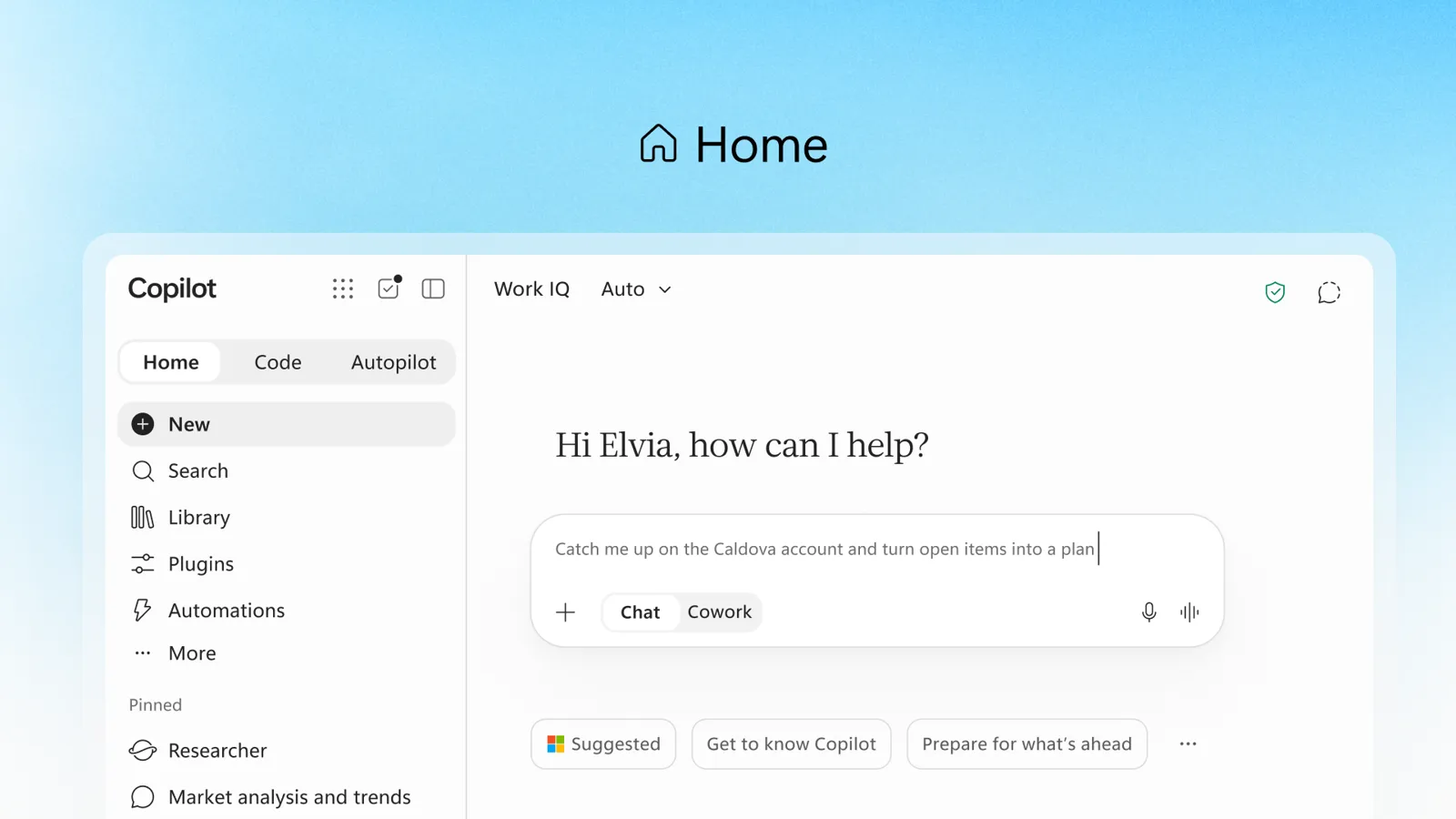
These steps follow Microsoft's support article. Microsoft notes that Home, the new start page in the Copilot app, is still rolling out, so your screen may look a little different.
- Go to Copilot Chat and sign in with your Microsoft 365 work or school account.
- Make sure you're on the Work IQ tab.
- Type the prompt you want to repeat and run it once. Check that the answer is what you want, because every scheduled run will use the same prompt.
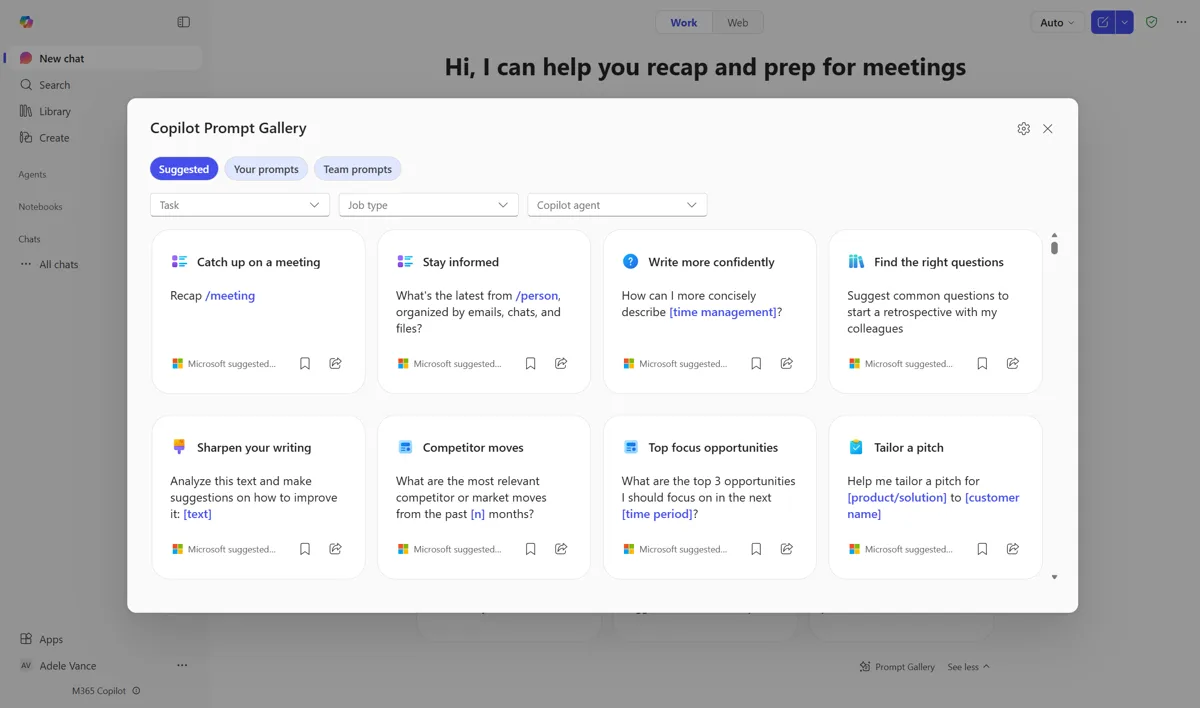
- Hover over your prompt in the conversation and select Schedule this.
- Choose when the prompt will run and how often it will repeat.
- Select Save.
Microsoft lists two other ways to create a scheduled task: write it directly in Copilot Chat, or create it from Task Hub. The support page doesn't give separate steps for either. In practice, writing the timing into the prompt itself, as in Microsoft's examples ("every Friday at 4:00 pm, review my meetings..."), is the direct route.
Where the results appear
After a scheduled task runs, its answer shows up in the Chats list on the left side of the Copilot window. Scheduled tasks are in bold and have an icon in front of them. Select the chat to read Copilot's response. Each run adds to your chat history, and the Learn page says responses from earlier runs stay there even after the old system retires.
How to edit, pause or delete a scheduled prompt
- In the Copilot app, select the Task icon in the header of the left sidebar.
- Select the Scheduled tab.
- Pick the task and choose an action:
| Action | What it does |
|---|---|
| Run now | Runs the task immediately. Only for tasks in the Active section. |
| Edit Schedule | Changes the prompt, its schedule, or both. |
| Pause | Stops the task from running and moves it to Inactive. Only for active tasks. |
| Delete | Removes the task so it never runs again. Deleted tasks don't appear under Inactive. |
Pause is the safer choice if you might want the task back. A deleted task is gone.
Limits: 10 active schedules, 50 in total
Microsoft's Learn page says scheduled tasks support "up to 10 active and 50 total schedules per user", as of its November 2026 update. A paused task moves to the Inactive section.
Microsoft's user and admin pages don't publish a list of every frequency option, a maximum number of runs, or how many credits a run uses. Treat numbers on other sites that Microsoft doesn't state as unconfirmed.
Old scheduled prompts stop on December 31, 2026
The first version of the feature ran on Microsoft's Power Platform, through a Microsoft 365 environment the system created for each organization. Microsoft is retiring it. The Learn page says Power Platform scheduled prompts retire on December 31, 2026 and won't run after that date, and anyone who wants a schedule to keep going must create it again as a new scheduled task before then.
What changes for you:
- The new scheduled tasks don't use Power Platform. Microsoft says their data is processed and stored inside the Microsoft 365 compliance boundary.
- Answers from old runs stay in your Copilot chat history. Microsoft says the switch causes no data loss.
- Prompts scheduled during the public preview keep running in Power Automate until they expire before December 31. They don't appear on the new Scheduled tab. To see or stop them, go to Power Automate.
The environment page on Microsoft Learn covers the old setup for admins. It applies only to legacy scheduled prompts.
Common problems
There is no "Schedule this" option. Check your license first: without a Microsoft Copilot license the option isn't there. Then check that you are on the Work IQ tab, and that you are in Copilot Chat on the web or the desktop app. Teams, Outlook and the mobile apps don't support scheduling yet.
Scheduled prompts don't show up or can't be managed. For legacy prompts, the Learn page says an admin who turns off the "Allow the use of connected experiences in Office" policy hides the scheduled prompts icon and menu for everyone, while prompts already scheduled keep running until their schedule finishes. Users can also turn connected experiences off in their own privacy settings. The new scheduled tasks aren't affected by that setting. If you only see some of your old prompts, the missing ones may be preview-era prompts that live in Power Automate.
An old schedule stopped running. If it was a legacy Power Platform prompt, it may have expired, and all of them stop on December 31, 2026. Create it again from the prompt with Schedule this.
You can't add another schedule. You may have hit 10 active or 50 total tasks. Delete one you no longer need on the Scheduled tab.
Scheduling in the consumer Copilot app and in Cowork
Personal Microsoft accounts have a similar feature under a different name. Microsoft's Copilot Tasks page, for Microsoft 365 Personal, Family, Premium and Pro subscribers, describes scheduled tasks that run at a set time or on a repeating schedule, such as a weekly email summary of a stock. You can pause, turn off, edit or delete them from the Tasks view. The same page says personal accounts using Copilot Tasks will be moved to Copilot Cowork over the next few weeks, without giving a date.
In Copilot Cowork, you schedule by writing the timing into your request, for example "Send me a daily briefing every morning at 9 AM". Cowork confirms the schedule and doesn't start it until you approve. You edit, pause or cancel schedules from the Scheduled tab in My tasks, or the Scheduled section of the side panel. Cowork is a separate product with its own billing; Copilot vs Cowork explains the difference.
Scheduling a prompt in GitHub Copilot CLI
Some people searching this mean GitHub Copilot. Its command-line tool has an experimental version of the feature, documented in Schedule prompts. Turn on experimental features with /experimental on, then:
/every 1h run the test suite and summarize any new failures
/after 30m Give me details of changes to README.md made in the last 30 minutes
/every repeats a prompt at an interval between 10 seconds and 1 day, and /after runs it once. Type /every or /after alone to list schedules, and stop prompt 4 to cancel one by its number. Schedules fire only while that interactive session is running. For runs with no session open, GitHub suggests cron or Task Scheduler with copilot -p "PROMPT".
Frequently asked questions
Why are my Copilot scheduled prompts not showing?
Scheduling only appears on the Work IQ tab of Copilot Chat on the web or desktop app, and only with a Microsoft Copilot license. Prompts scheduled during the public preview run in Power Automate and don't appear on the new Scheduled tab.
Why are my Copilot scheduled prompts not working?
Legacy scheduled prompts that run on Power Platform expire and all stop on December 31, 2026. Microsoft says to create them again as new scheduled tasks to keep them running.
How many scheduled prompts can I have in Microsoft 365 Copilot?
Microsoft's admin documentation says each user can have up to 10 active and 50 total scheduled tasks.
Can I schedule prompts in GitHub Copilot?
Yes, in GitHub Copilot CLI as an experimental feature. Use /every to repeat a prompt and /after to run it once; schedules only fire while the session is running.
Sources
- Schedule your most used Copilot promptsMicrosoft Support
- Manage scheduled prompts for Microsoft CopilotMicrosoft Learn
- Microsoft 365 environment for scheduled promptsMicrosoft Learn
- Using Copilot TasksMicrosoft Support
- Manage tasks and schedule prompts in Microsoft Copilot Cowork (Preview)Microsoft Support
- Schedule prompts (GitHub Copilot CLI)GitHub Docs
- Introducing the new Copilot with Home, Code and AutopilotMicrosoft