Key takeaways
- With a personal Microsoft account, clear Copilot history in the privacy dashboard, once for Copilot apps and once for Copilot in Microsoft 365 apps.
- With a work or school account, go to My Account, Data and Privacy, Data options, Copilot activity history, and select Delete; it clears every Microsoft 365 app at once.
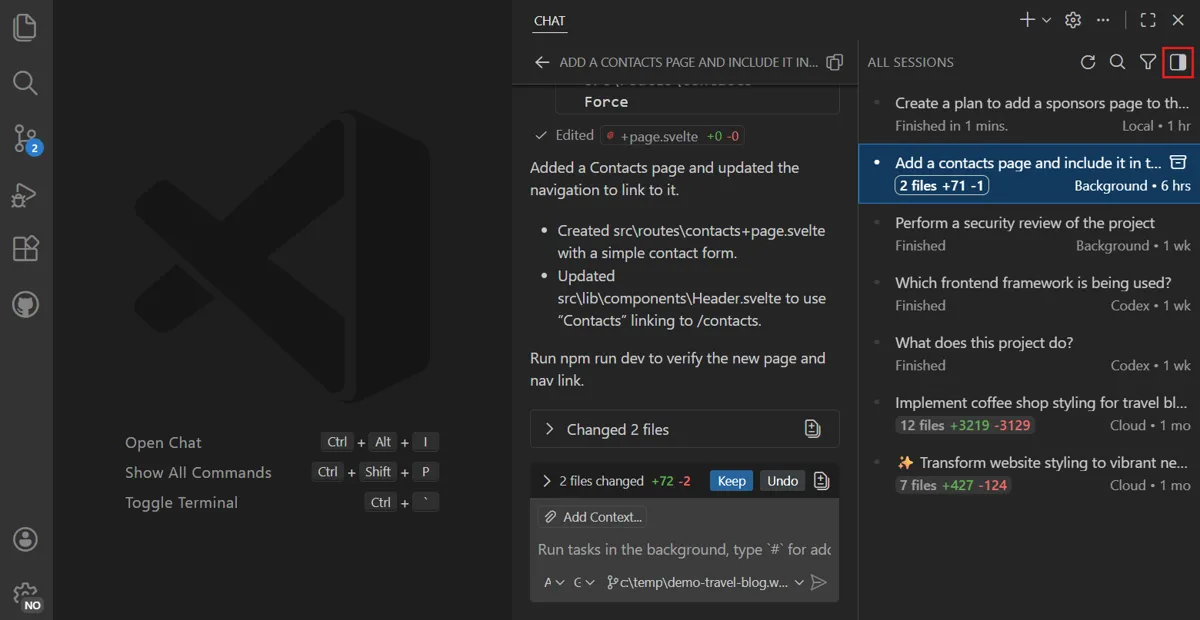
- In VS Code, right-click a Copilot session and select Delete; synced sessions on GitHub.com need the Delete Session Sync Data command.
To clear your chat history in Microsoft Copilot with a personal account, open the Microsoft privacy dashboard and select "Delete all activity history" under Copilot. With a work or school account, use the My Account portal instead. In GitHub Copilot Chat in VS Code, right-click a session and select Delete. The steps below are from Microsoft's and VS Code's own docs as of November 16, 2026.
"Copilot clear chat history" can mean three different things: deleting past conversations, clearing what Copilot remembers about you, and starting a fresh chat with no context. Each Copilot handles them separately, so clearing one doesn't clear the others.
If you only want to delete one conversation or wipe everything in the older consumer Copilot app, the step-by-step guide on how to delete all Copilot chats covers that. This page covers the rest: the new Copilot app, work and school accounts, memory, and VS Code.
Which Copilot you use decides where history lives
| Copilot | Account | Delete one chat | Clear all history | Clear memory |
|---|---|---|---|---|
| Microsoft Copilot app (web, Windows, macOS, mobile) | Personal Microsoft account | Chats list, then ...More, then Delete | Privacy dashboard, Delete all activity history | Settings, Personalization, Manage, Delete all memories |
| Microsoft Copilot Chat and Copilot in Word, Excel, Teams and other Microsoft 365 apps | Work or school account | Chats list, then ...More, then Delete | My Account portal, Data and Privacy, Data options, Copilot activity history | Chat settings, Personalization, turn off Chat history |
| GitHub Copilot Chat in VS Code | GitHub account | Right-click the session, then Delete | No single command; delete sessions one by one | Separate; a new session doesn't clear it |
Microsoft's support pages now call the work product Microsoft Copilot and Microsoft Copilot Chat, though the page addresses still say Microsoft 365 Copilot. What matters is how you sign in: a personal email address, or an account your employer or school gave you.
How to clear chat history in the Microsoft Copilot app
An updated Copilot app for web, desktop and mobile has been available since August 18, 2026. Microsoft's privacy controls page gives these steps for a personal Microsoft account.
To delete one conversation:
- Open Microsoft Copilot and sign in with your Microsoft account.
- In the Chats list on the left, select the conversation.
- Select ...More next to the chat, then select Delete.
To clear all of it, sign in to the privacy dashboard with your Microsoft account. The dashboard splits Copilot history into two parts, and you clear each one separately:
- Copilot apps, such as copilot.microsoft.com. Go to Privacy, then Empower your productivity, then Copilot, then Your Copilot app activity history, then Copilot apps. Select "Delete all activity history," read the "Are you sure you want to clear your Copilot activity history?" dialog, and select Clear.
- Copilot in Microsoft 365 apps, which also includes Chat in the Microsoft Copilot app. Follow the same path but pick Copilot in Microsoft 365 apps at the end, then select "Delete all activity history" and Clear. Microsoft lists Excel, OneNote, Outlook, PowerPoint, Teams and Word for this part.
The two parts are cleared separately. If you use Copilot inside Word, Outlook or Teams with a personal account, clear both.
Both sections also offer an export, which downloads your history as a CSV file. Export first if you want a copy.
How to clear Microsoft 365 Copilot Chat history at work or school
With a work or school account, the privacy dashboard doesn't apply. Microsoft's page on deleting Copilot activity history gives these steps:
- Sign in to the My Account portal (myaccount.microsoft.com) with your work or school account.
- Go to My Account, then Data and Privacy, then Data options, and open the Copilot activity history section.
- Select Delete.
- In the Delete Copilot activity history dialog, select the Microsoft Copilot checkbox.
- Select Delete to send the request.
This clears your Copilot history in Excel, Forms, Loop, OneNote, Outlook, Planner, PowerPoint, Teams, Whiteboard, Word and Microsoft Copilot Chat all at once. You can't pick only some apps, such as Word and PowerPoint.
A few things to expect:
- It takes a while. Microsoft sends a deletion request and says it "might take some time" to finish. It gives no number.
- Open apps keep showing old history. If Word or Teams is open when you delete, you may still see past chats until you close and reopen the app.
- Your files stay as they are. Anything Copilot helped you write and you saved, such as edited PowerPoint slides, isn't removed.
To delete a single conversation instead, Microsoft's chat history page says to open Copilot Chat, find the chat in the Chats list on the left, select ...More next to its title and select Delete.
How to clear what Copilot remembers
Deleting chats and clearing memory are separate actions. Copilot builds memories from your conversations, and those can stay after the chats are gone.
Personal account, new Copilot app:
- Open Settings, then select Personalization.
- Select Manage next to the Saved memories toggle.
- Select the Delete icon next to one memory, or select "Delete all memories."
Turning off the Saved memories toggle stops Copilot from saving new memories. Microsoft says it doesn't delete the ones already saved, so use Delete all memories as well.
Copilot Chat with a Microsoft 365 account:
- At the top right of Copilot Chat, select ...Settings and more, then Chat settings.
- Select Personalization on the left.
- Turn off the Chat history toggle. With a work or school account it may be labeled "Chat history & work insights."
Microsoft says the inferences Copilot made from your past chats are deleted after 30 days. If you turn the toggle back on within those 30 days, Copilot adds the deleted memories back. If there's one conversation you don't want Copilot to draw on, Microsoft's advice is to delete that conversation.
How to clear GitHub Copilot chat history in Visual Studio Code
In VS Code, each Copilot conversation lives in a session, and the sessions list sits at the top of the Chat view. According to the VS Code docs on managing sessions:
- Find the session in the sessions list. If the list is hidden, right-click in an empty chat and select Show Sessions.
- Right-click the session and select Delete.
Deletion is permanent. For Copilot sessions that worked in their own worktree (a separate checkout of your repository), deleting the session also removes that worktree, so commit or merge any changes you want to keep first. To delete one chat inside a session in the Agents window, select Delete Chat from the chat tab's context menu.
The docs describe no command that deletes every session at once. The softer options:
- Close the chat tab to hide a conversation without deleting it.
- Archive a session (hover over it and select Archive) to move it out of the active list while keeping the conversation. Right-click and select Unarchive to bring it back.
- Start a new session when you only want a clean slate for the model. The docs say this doesn't clear saved files, custom instructions or persistent memory.
- Type /compact to have Copilot summarize a long conversation instead of starting over.
Synced sessions on GitHub.com
VS Code can upload session history to your GitHub account through session sync, an experimental feature that is off by default (the chat.sessionSync.enabled setting). If you turned it on, deleting locally isn't the whole job. The session history docs say:
- Run Delete Session Sync Data from the Command Palette.
- Pick the sessions to remove.
- Choose "Delete from local and cloud" to remove them everywhere, or "Delete from cloud only" to keep your local copy.
Turning sync off doesn't delete what was already uploaded. If sync is off or blocked by your organization, delete or hide those sessions from the Agents tab on GitHub.com instead.
What clearing Copilot history doesn't remove
- Memories, in both Microsoft Copilot and Copilot Chat. Clear them separately, as above.
- Saved work. Documents, slides and emails Copilot helped you write stay in your files.
- Cloud copies in VS Code, if session sync was on. Turning sync off leaves them on GitHub.com.
- Your organization's view. These steps clear your own history. Microsoft's pages don't say what your employer's compliance tools keep, so ask your IT team if that matters to you.
For the older consumer app, retention periods and Apple ID steps, see the guide on deleting all Copilot chats.
Frequently asked questions
How do I clear Copilot chat history in Teams?
With a work or school account, delete your Copilot activity history from the My Account portal under Data and Privacy, then Data options. Microsoft says this clears Copilot history in Teams along with Word, Outlook, Copilot Chat and the other Microsoft 365 apps.
Can I delete Copilot chat history in bulk?
Yes in Microsoft Copilot: the privacy dashboard (personal accounts) and the My Account portal (work or school accounts) each delete all activity history at once. VS Code's docs describe no command to delete every session at once.
Does clearing Copilot chat history also clear its memory?
No. Memory is cleared separately, under Settings, Personalization, Manage, Delete all memories in the new Copilot app, or with the Chat history toggle in Copilot Chat's personalization settings.
How do I clear context in GitHub Copilot Chat?
Start a new session for a fresh conversation, or type /compact to summarize the current one. The VS Code docs say a new session doesn't clear saved files, custom instructions or persistent memory.
Sources
- Manage your Copilot activity history in the privacy dashboardMicrosoft Support
- Delete your Microsoft Copilot activity historyMicrosoft Support
- Microsoft Copilot for individuals: your privacy controls and choicesMicrosoft Support
- How Microsoft Copilot Chat history worksMicrosoft Support
- Microsoft Copilot for individuals: your activity historyMicrosoft Support
- Manage agent sessions in VS CodeVisual Studio Code
- Save, sync, and query session historyVisual Studio Code