Key takeaways
- Granola runs on macOS 14.2 or later and Windows 10 or later, and connects to Google Calendar or Microsoft 365 when you sign in.
- It transcribes only when you open a meeting's note, using your computer's audio rather than a bot in the call, and writes a summary when the call ends.
- Templates, sharing and Granola Chat all work on the free plan, but chat searches only the last 30 days there.
To use Granola, install the desktop app on a Mac or Windows PC, sign in with Google or Microsoft so it can read your calendar, then open a meeting's note when the call starts. Granola transcribes from your computer's audio, with no bot in the call, and writes summarized notes when the meeting ends. This guide follows Granola's own help center, checked on November 28, 2026.
By the end you will have the app running, your calendar connected, a first meeting summarized, and know how templates, sharing and chat work. All of this works on the free Basic plan; see whether Granola is free for what the paid plans add.
What you need first
- A Mac with macOS 14.2 or later, or a PC with Windows 10 or later.
- A Google account (Workspace or personal Gmail) or a Microsoft account. Granola reads Google Calendar and cloud Microsoft 365 calendars. Apple Calendar and on-premises Exchange servers aren't supported.
- Your work account if you have one. The help center recommends it, because Granola works best with the calendar you use for meetings.
On the desktop, Granola can transcribe calls in any conferencing app (Google Meet, Microsoft Teams, Zoom and others), in-person conversations, voice memos and any audio playing on your computer.
Step 1: Install Granola
On a Mac:
- Download Granola from granola.ai.
- Open
Granola.dmgfrom your Downloads folder. - Double-click Install Granola. The installer fetches the latest version, puts Granola in Applications and opens it.
If macOS asks whether you're sure you want to open an app from the internet, click Open.
On Windows:
- Download Granola from granola.ai.
- Open
Granola.exefrom your Downloads folder. - Follow the installer prompts, then open Granola from the Start menu.
On a phone, get Granola from the App Store or Google Play. The mobile apps handle in-person meetings and outbound phone calls made through Granola's dialer. They can't transcribe video calls, because phones don't let one app capture another app's audio.
Step 2: Sign in and connect your calendar
- Click Sign in with Google, Sign in with Microsoft or Sign in with SSO. A browser tab opens to finish signing in.
- When asked for calendar access, grant it. On Google, click Select all. Granola reads the title, date, time and attendees of your events.
- Back in the app on a Mac, click Enable Microphone and Enable System Audio, then Allow on each macOS prompt. Windows grants these automatically.
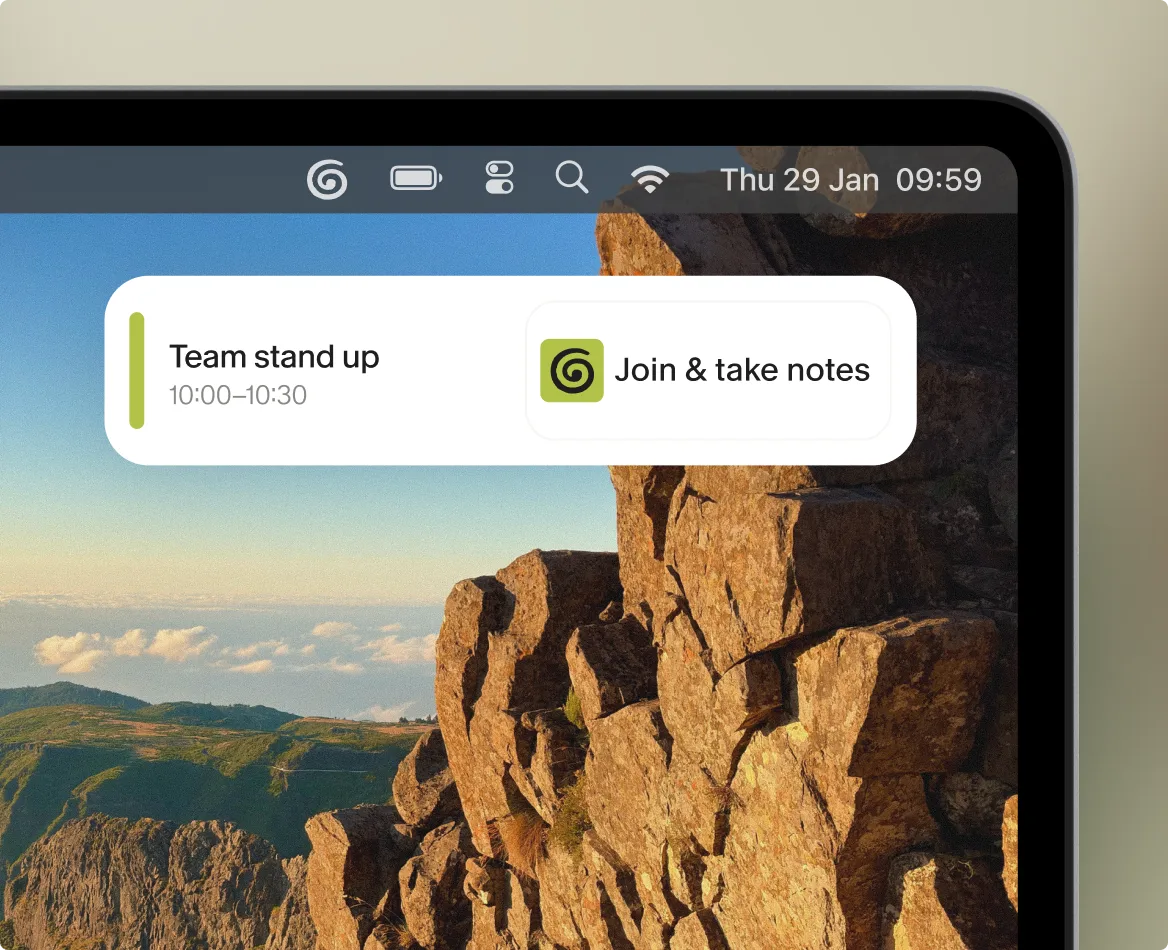
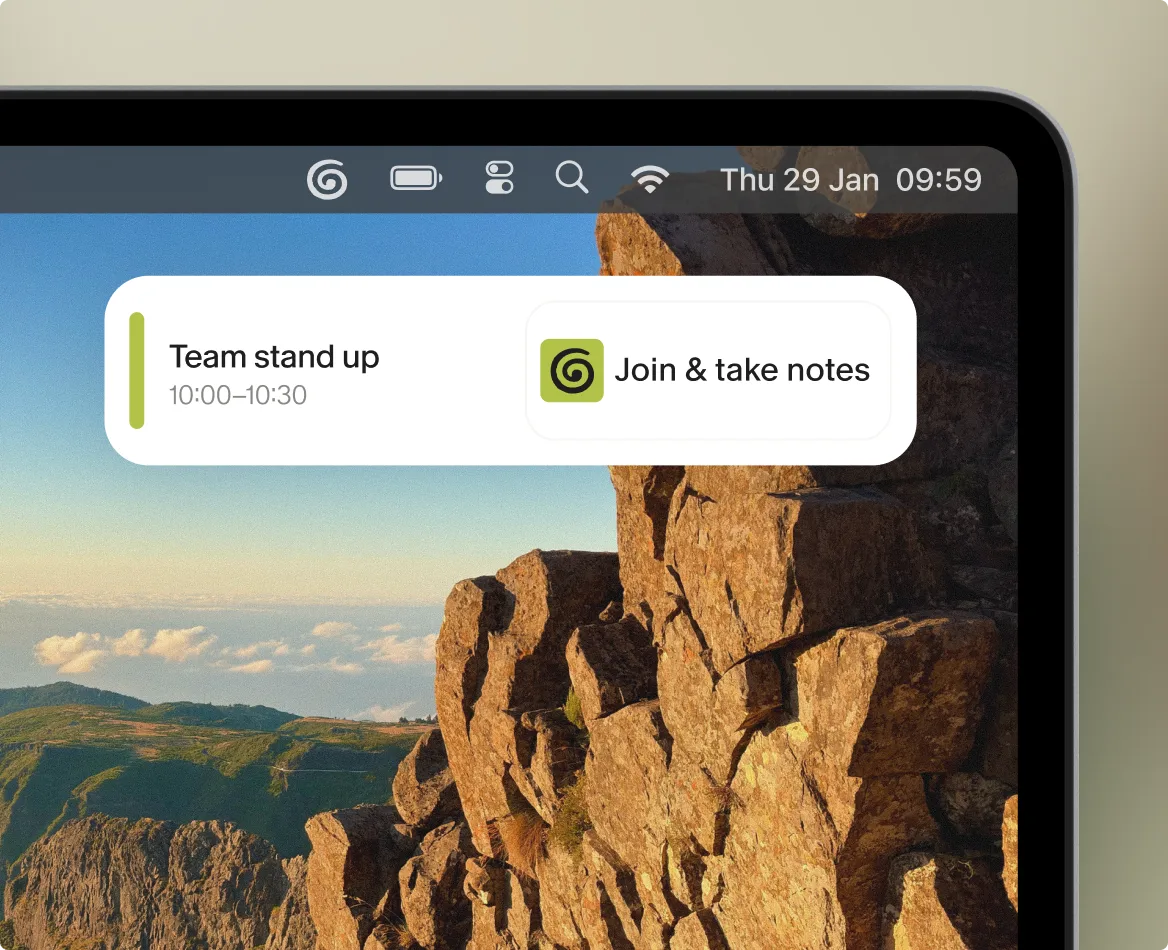
Your upcoming meetings now appear under Coming up on the home screen. Calendar changes usually reach Granola within a few minutes, and declined events and blocks such as Focus Time are hidden.
Your primary calendar syncs by default. To add more, click your workspace name in the bottom-left corner, choose Settings, then Calendar, and switch on the calendars you want. To see a calendar from another account, share it with your Granola email with "See all event details" permission. Free/busy sharing isn't enough.
Step 3: Take notes in a meeting
Granola doesn't join calls or record in the background. It starts transcribing only when you open a note.
- When the meeting starts, open it from Coming up. For an unscheduled call, click + New note.
- Type whatever matters to you in the note editor. Granola treats what you write as the important points to include, and fixes typos and abbreviations.
- Add structure if you want it, with basic Markdown:
# Agendafor a heading,-for bullets,[]for a checkbox, Cmd or Ctrl+B for bold. You can also paste a JPEG or PNG image. - Or write nothing. Granola still works from the transcript and the calendar event.
When Granola detects the call has ended, or you stop transcription yourself, it generates summarized notes from the transcript, your notes, the calendar event and your profile in Settings > Profile. Points that came from your own notes are shown in black.
To check where a line came from, hover over it and click the magnifying glass. You see the matching quotes from the transcript, and clicking one jumps to that spot. You can edit the summary directly, or go back to your notes in the My notes tab, change them and regenerate.
Granola's help center recommends asking people before you transcribe them, and says consent may be legally required depending on where you are. Granola can post an automated chat message at the start of a meeting to tell participants.
Step 4: Use templates for recurring meetings
The default summary adapts to most meetings. For recurring formats like 1:1s, interviews or sales calls, a template gives the notes a fixed shape. Templates run on the desktop apps; you can apply them to mobile notes once they sync.
- During a call: type
/in your notes and pick a template. - After the notes are generated: click the dropdown arrow on the Enhanced tab and pick another template. Granola regenerates the notes in that format.
- Regenerate with the same template: click the 🔁 button next to it.
To make your own template, choose New template from a note's template menu, or open the workspace menu and select Manage templates. Granola suggests covering four things: the purpose of the meeting, how long and detailed the notes should be, the sections you want (such as Decisions made or Action items), and then refining it after a real meeting.
New templates are private. To share one, open it in Manage templates and switch Private to me to Shared with your domain. This only works with a company email domain, not Gmail or Yahoo.
Step 5: Share your notes
Notes are private by default. Granola doesn't send them to attendees.
- Once the summary is ready, click Share in the top-right corner of the note.
- Invite people by email, add the note to a folder, or click Copy link. The dropdown next to Copy link sets who can open it.
- Pick a role. Viewers can read the notes and ask Granola Chat about the meeting. Collaborators can also edit and apply templates.
The three-dot menu at the top right has more options: Copy enhanced notes copies the summary as Markdown, Send notes via email opens a Gmail or Outlook draft, and connected integrations send the note to Slack, Notion, HubSpot and others. On the free plan, Slack is the only integration.
People who open a shared link in a browser see the summary but not the full transcript. Sharing a note doesn't add the person to your workspace or cost a seat (sharing notes).
Step 6: Chat with your notes
Granola Chat sits at the bottom of the screen on desktop, iPhone and Android. Press Cmd+J on a Mac or Ctrl+J on Windows to open it. It searches whatever you're looking at:
- Home screen: all your notes.
- A single meeting: that meeting, before, during or after it.
- A folder: the notes in that folder.
- Selected meetings: tick the checkboxes next to meeting titles.
Use it to catch up on something you missed mid-call, pull out decisions and action items, draft a follow-up, find an exact quote, or prep for the next meeting. It can also edit notes for you: make a summary shorter, fix a name, translate it, or switch its template.
On the free plan, chat searches the last 30 days and uses the Auto model. Business and Enterprise search full history and let you pick a model. Chat history is private; sharing a note never shares your chats about it.
If you ask the same thing after every meeting, save it as a recipe, a reusable prompt you run from chat.
Common problems and fixes
Nothing is being transcribed. Granola's transcription troubleshooting page suggests, in order:
- Click Stop next to the green audio bars, wait, then Resume.
- Restart Granola (on a Mac, right-click the Dock icon and choose Restart Granola).
- Restart your computer, which clears stuck audio processes.
- Run Settings > Get help > Troubleshooting > Run check under Network connectivity. VPNs, proxies and firewalls can block transcription even when websites load.
Only one side of the call is in the transcript. Green bubbles are your microphone, gray bubbles are the other people. If green is missing, pick the same microphone your meeting app uses from the list at the bottom of the transcript. If gray is missing on a Mac, check that Screen & System Audio Recording is on for Granola in System Settings > Privacy & Security. On Windows with Webex and a few other apps, make the device you hear the call through your default output device.
Notes didn't generate. Click the retry button if one appears. Otherwise open the Enhanced tab dropdown and click Regenerate. If the transcript panel is empty, fix transcription first. Long meetings can take a couple of minutes (notes not generating).
Meetings are missing from Coming up. Check the events show in Google Calendar or Outlook for the account you signed in with, and that the right calendars are on in Settings > Calendar. If they are, sign out from Settings and sign back in to get the calendar permission prompt again (calendar sync).
If several features fail at once, check status.granola.ai.
Where to go next
Fill in Settings > Profile with your role, which Granola uses to write better summaries, and add company jargon so names transcribe correctly. If you use Claude or ChatGPT, Granola's MCP server lets them read your meeting notes.
Frequently asked questions
Does Granola join my meetings as a bot?
No. Granola transcribes from your computer's microphone and system audio, and only after you open a note for the meeting.
Does Granola work with Zoom, Teams and Google Meet?
Yes. On macOS and Windows it transcribes calls in any conferencing app, including Google Meet, Microsoft Teams and Zoom, plus in-person conversations.
Can I use Granola with Apple Calendar?
No. Granola's help center says it supports Google Calendar and cloud Microsoft 365 calendars only.
Why is Granola not transcribing?
Stop and resume transcription, restart Granola, then restart your computer. If that fails, run the network check in Settings > Get help > Troubleshooting, since VPNs and firewalls can block it.
Sources
- Setup guideGranola
- Syncing your calendarsGranola
- Writing your own notesGranola
- AI-enhanced notesGranola
- Customize notes with templatesGranola
- Sharing notesGranola
- Chatting with your meetingsGranola
- Transcription issuesGranola
- Notes not generatingGranola
- Calendar syncGranola
- Getting started with Granola for mobileGranola
- Pricing plansGranola