Key takeaways
- Claude in Chrome is a free download but works only on paid plans: Pro, Max, Ultra, Team and Enterprise, as of November 27, 2026.
- You install it from the Chrome Web Store, sign in, pin it and grant 15 Chrome permissions, and it opens as a side panel in desktop Chrome only.
- Claude Code connects to it with claude --chrome and needs extension version 1.0.36 or later and a claude.ai login, not an API key.
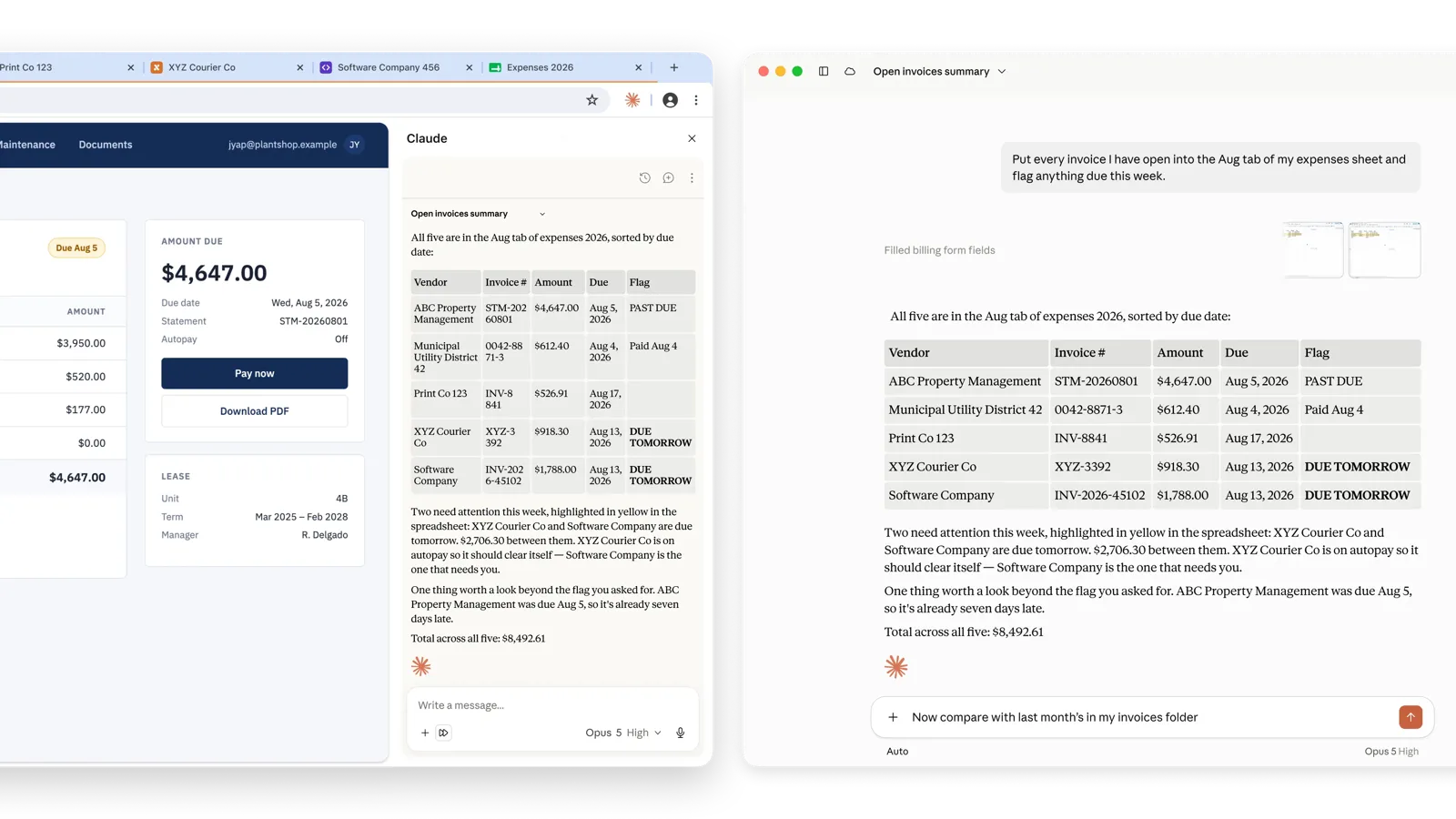
The Claude Chrome extension, which Anthropic calls Claude in Chrome, is a free download from the Chrome Web Store, but it only works with a paid Claude plan: Pro, Max, Ultra, Team or Enterprise, as of November 27, 2026. Install it, sign in, pin it to the toolbar and grant its permissions, and Claude opens in a side panel where it can read the page you're on, click, type and fill in forms.
Anthropic made the extension generally available on August 26, 2026, a year after it first appeared as an experimental extension on August 26, 2025. The Web Store listing showed version 1.0.109, updated November 23, 2026, when this article was written.
Is the Claude Chrome extension free?
The download is free. Using it isn't. Anthropic's pricing page marks Claude in Chrome "No" for the Free plan and "Yes" for every paid one, and the product page says "Available on all paid plans."
| Plan | Price (as of November 27, 2026) | Claude in Chrome |
|---|---|---|
| Free | $0 | No |
| Pro | $20 a month, or $17 a month billed yearly ($200 up front) | Yes |
| Max | $100 a month | Yes |
| Ultra | $200 a month | Yes |
| Team, standard seat | $25 per seat a month, or $20 billed yearly | Yes |
| Team, premium seat | $125 per seat a month, or $100 billed yearly | Yes |
| Enterprise | $20 per seat a month billed yearly, 20-seat minimum, plus usage at API rates | Yes, once an admin turns it on |
There is no separate charge. Browser tasks draw from the same usage limits as chat and Claude Code, and the troubleshooting guide warns that they use more compute than ordinary chats, so long workflows eat into a plan faster. For what each plan's limits look like in Claude Code, see our Claude Code pricing guide.
What you need before you install
- Google Chrome on a computer. The help center says the side-panel extension isn't supported on other Chromium-based browsers or on mobile devices. It lists no operating system requirement, so it runs wherever desktop Chrome does.
- A paid Claude account. You sign in with the same account you use on claude.ai.
- On Team or Enterprise, an admin's go-ahead. Admins decide whether the extension is enabled for the organization and which sites it may visit. In Enterprise organizations with HIPAA enabled, it is off by default.
How to install the Claude Chrome extension
These steps come from Anthropic's Get started with Claude in Chrome article.
- Open Google Chrome.
- Go to the Claude listing in the Chrome Web Store. The publisher is Anthropic, with claude.com as its verified site.
- Click "Add to Chrome."
- Sign in with your Claude account when asked.
- Pin it: click the puzzle-piece icon in the toolbar, then the thumbtack next to "Claude."
- Grant the permissions it asks for.
Click the Claude icon in the toolbar to open the side panel. It stays open while you browse.
On Max, Ultra and Team, on Pro as the rollout reaches each account, and on Enterprise where the admin has enabled it, the side panel runs as a Claude Cowork session. Sessions then go into your history and can be picked up on the web, in Claude Desktop or on mobile. To get the older panel back, which you need for recorded workflows, click the three dots at the top right and choose "Switch back to classic."
Connect it to Claude Desktop
To let Claude drive Chrome from the desktop app (chat, Cowork or Claude Code):
- Click your initials at the bottom left and open Settings.
- Go to Customize, then Connectors.
- Find Claude in Chrome and click Configure.
- Turn the connector on, and install the extension if you haven't.
The connector is off by default, so turn it on from the Connectors menu of each chat that needs it. Cowork also has a built-in browser that needs no extension; pick one in Settings > Cowork > Preferred browser.
Which Chrome permissions it asks for, and why
The extension requests 15 Chrome permissions. Anthropic's help center explains each one. The ones that matter most:
| Permission | What Anthropic says it's for |
|---|---|
| debugger | Lets Claude control the browser: click buttons, type text and take screenshots |
| scripting | Reads the text on web pages |
| tabs, tabGroups | Opens, closes and switches tabs, and keeps Claude's tabs in a separate colored group |
| downloads | Downloads files when a workflow needs them |
| webNavigation | Lets Claude step in when you're on a high-risk site |
| nativeMessaging | Connects to Claude Desktop and Claude Code on your computer |
The debugger permission is the powerful one. It lets Claude act on any site where you are logged in, which is the point of the extension and also its main risk.
Approval modes and safety settings
A drop-down by the chat box sets how much Claude can do without asking. The permissions guide lists three modes:
- Manually approve. Claude asks before every action. In the classic panel it first proposes a plan that lists the sites it will use.
- Automatically approve. Claude checks each action for safety, blocks unsafe ones and pauses when it needs you. This is the default in the Cowork side panel, and the panel remembers whichever mode you pick.
- Skip all approvals. Nothing pauses and nothing checks Claude's actions automatically, except connectors set to "Always ask."
Some sites need approval per action. When you open one, a "New permissions required" prompt lets you allow once, always allow that site, or decline. Anthropic advises "always allow" only for sites you completely trust. Even then, Claude still asks before downloading files, entering sensitive information or granting authorizations. To see and revoke approved sites, open the extension settings from the three-dot menu in the side panel.
Some limits hold in every mode. According to the permissions guide, Claude won't make purchases, create accounts, handle credit card or ID numbers, execute trades, or follow instructions it finds in emails or on web pages. Adult and known piracy sites are blocked, and financial sites need your permission before Claude opens them.
The main risk is prompt injection: instructions hidden in a page or an email that try to make Claude do something you didn't ask. Anthropic's safety guide says its current setup cuts attack success to under 0.08% in internal testing, and also that "the risk is not zero." It recommends starting with trusted sites and simple tasks, using a separate Chrome profile with no banking, health or government accounts signed in, and stopping a task if Claude starts visiting sites you don't recognize. For a wider look at the agent this panel now runs, see is Claude Cowork safe.
Claude Chrome extension not working: common fixes
From Anthropic's troubleshooting guide:
- It won't install or sign in. Check that your paid plan is active. On Team or Enterprise, ask your admin whether the extension is enabled. Clear the cache and cookies for claude.ai, then sign out of Claude and back in.
- Claude can't see the page. Refresh it, check that the extension is enabled, and grant permission for that site.
- Clicks and typing go wrong. Update Chrome, turn off extensions that might interfere, and restart the task.
- Claude can't open a site. You may not have granted permission, the site may be in a blocked category such as banking or crypto exchanges, or your admin may have restricted it.
- The Cowork side panel is missing on Enterprise. Your admin has to enable both Cowork in the cloud and Claude in Chrome.
- It won't connect to Claude Desktop or Claude Code. Restart or update the extension, then Claude Desktop or Claude Code.
How to use the Claude Chrome extension with Claude Code
Claude Code can drive the same extension from the terminal or from VS Code, which lets it build a web app, open it in the browser, read console errors and fix the code. The Claude Code Chrome docs list what you need:
- Extension version 1.0.36 or later
- Claude Code, signed in with
/loginon a Pro, Max, Ultra, Team or Enterprise plan. An API key or a token fromclaude setup-tokenkeeps Chrome integration off, and it isn't available through Amazon Bedrock, Google Cloud or Microsoft Foundry. - Chrome or Microsoft Edge. Claude Code also sets up the connection in Brave, Arc, Vivaldi and Opera, a wider list than the side panel supports. It doesn't work in Windows Subsystem for Linux.
To start:
claude --chrome
On the first launch, press Enter past a one-time dialog about site permissions. Then ask Claude to do something in the browser, approve the "Claude in Chrome wants to" prompt, and it opens a new tab. Run /chrome at any time to check the connection, manage permissions, reconnect, pick a browser, or turn Chrome on by default so you can skip the flag. The docs warn that this uses more context, because the browser tools stay loaded.
Fixes for the errors Claude Code users hit most:
- "Extension not detected." Check that the extension is enabled in
chrome://extensions, that Chrome is running and Claude Code is current (claude --version), then run/chromeand choose "Reconnect extension." On the first setup, restart Chrome so it reads the native messaging file Claude Code installs. - "Browser extension is not connected." The extension must be signed in to the same claude.ai account and organization as Claude Code. Run
/statusto see Claude Code's organization. Logging out of the extension deletes its saved shortcuts and scheduled tasks, so try restarting Chrome and Claude Code first. - On Windows. An EADDRINUSE error means another Claude Code session holds the named pipe, so close it and restart. If the native messaging host crashes at startup, reinstall Claude Code.
If you aren't sure whether to drive the browser from Claude Code or from the Cowork side panel, our Claude Code vs Cowork comparison covers which tool fits which job.
Frequently asked questions
Is the Claude Chrome extension free to use?
The download is free, but it only works on a paid Claude plan. As of November 27, 2026, Pro costs $20 a month ($17 a month billed yearly), and Max, Ultra, Team and Enterprise also include it.
Does the Claude Chrome extension work on Windows?
Anthropic's help center lists no operating system requirement, only that it needs desktop Google Chrome and doesn't run on mobile or other Chromium browsers. Claude Code's docs include Windows setup paths and fixes, but its Chrome integration doesn't run inside WSL.
Why is the Claude Chrome extension not working?
Check that your paid plan is active, refresh the page, grant permission for the site and update Chrome. With Claude Code, make sure the extension is signed in to the same account and organization, then run /chrome and choose Reconnect extension.
How do I use the Claude Chrome extension with Claude Code?
Install the extension (version 1.0.36 or later), sign in to Claude Code with /login on a paid plan, and start it with claude --chrome. Run /chrome to check the connection or turn it on by default.
Sources
- Get started with Claude in ChromeAnthropic
- Claude in Chrome permissions guideAnthropic
- Use Claude in Chrome safelyAnthropic
- Claude in Chrome troubleshootingAnthropic
- Use Claude Code with ChromeAnthropic
- Claude pricingAnthropic
- Claude in ChromeAnthropic
- Claude in Chrome is generally availableAnthropic
- Claude release notesAnthropic
- Claude on the Chrome Web StoreChrome Web Store