Key takeaways
- On the web, NotebookLM's language is set under Settings > Output Language, which covers chat, study guides, Audio Overviews and Video Overviews.
- The Android and iPhone apps have no Output Language menu and follow the browser or device language, so use the browser version or change the device or app language.
- Without a setting, NotebookLM writes in your Google Account's preferred language, and the Longer podcast length and interactive mode work only in English.
To change NotebookLM's language, open it in a web browser, click Settings at the top right, choose Output Language and pick a language. That one setting controls the language of chat answers, study guides, Audio Overviews and Video Overviews. The mobile apps have no such menu: they follow your phone's language, so on Android or iPhone you either change the device language or use the browser version.
One thing first. NotebookLM now goes by a different name. Google renamed it Gemini Notebook on July 16, 2026, and its help center, including the output language page, only uses the new name. The settings are the same. The steps below were checked against Google's help pages on November 23, 2026.
How to change NotebookLM language on the web
This works on a computer and in any phone or tablet browser.
- Go to notebook.google.com and sign in.
- At the top right, select Settings, then Output Language.
- Choose the language you want for generated text. For English, pick English.
Google's help page says the setting covers "study guides, documentation, Audio Overviews, Video Overviews, and chat responses." It also warns that different features may support different languages, so a language in the list may not work everywhere.
If you never touch the setting, NotebookLM writes in the preferred language of your Google Account. That is the usual reason people see answers in a language they did not pick: their account language is set to something else, or Google added a second language to it.
When Google added the Output Language option in April 2025, its announcement said: "You can change the language at any time and your audio and chat responses will reflect this."
How to change the language of a NotebookLM podcast
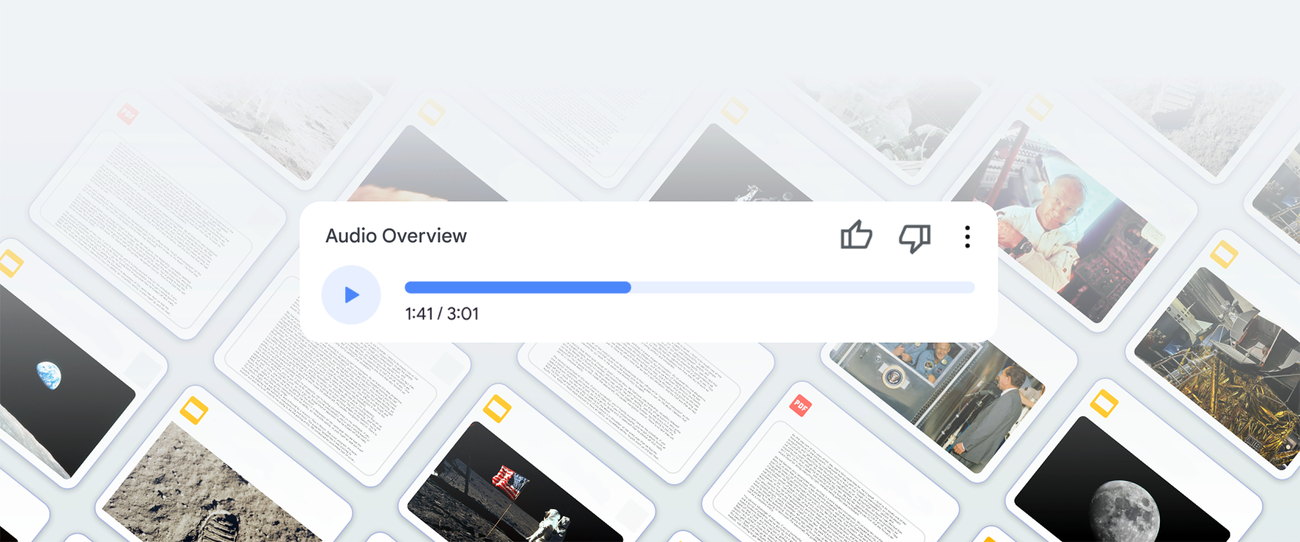
The "podcast" is what Google calls an Audio Overview: two AI hosts discussing your sources. There are two ways to set its language.
- For all new Audio Overviews: set Settings > Output Language as above. Google's announcement says Audio Overviews are always generated in the language you select there.
- For one Audio Overview: in the Studio panel, open the Audio Overview generation panel. Google's Audio Overview help page lists "Choose a language" as one of the options there, next to format, length and a custom prompt.
An Audio Overview is a finished file. Changing the setting does not translate one you already made. Generate a new one in the language you want.
Two features are English only, according to the same help page:
- The Longer length option.
- Interactive mode, where you join the conversation and ask the hosts questions by voice.
So if you want a long podcast or want to talk to the hosts, English is the language to choose.
How to change NotebookLM language on Android
The Gemini Notebook app for Android has no Output Language menu. Google's help page says the app "uses the preferred language from your browser or device settings." You have three options.
Use the browser instead. Open notebook.google.com in Chrome or another browser on the phone and follow the web steps above. This is the quickest fix and does not touch anything else on the phone.
Set a language just for the app. Android lets you pick a language per app. On a Pixel, Google's Pixel help page gives the path:
- Open the Settings app.
- Tap System > Language & region.
- Under "More language settings," tap App languages.
- Select the app and choose a language.
Google notes that the app has to support language selection to appear there. Menu names can differ on phones from other makers.
Change the phone's language. On a Pixel, that is Settings > System > Language & region > Preferred Language, then drag the language you want to the top of the list. This changes every app, not only NotebookLM.
How to change NotebookLM language on iPhone and iPad
The iPhone and iPad app also has no Output Language menu. Google's help page says that on Apple devices the app uses the language from your browser or device settings.
Use the browser. Open notebook.google.com in Safari or Chrome and follow the web steps. Output Language is right there under Settings.
Change the device language. Apple's support page gives these steps:
- In the Settings app, tap General.
- Select Language & Region.
- Tap Add Language and select your language.
- When asked, choose it as your primary language.
The whole device switches to that language.
Languages you can pick
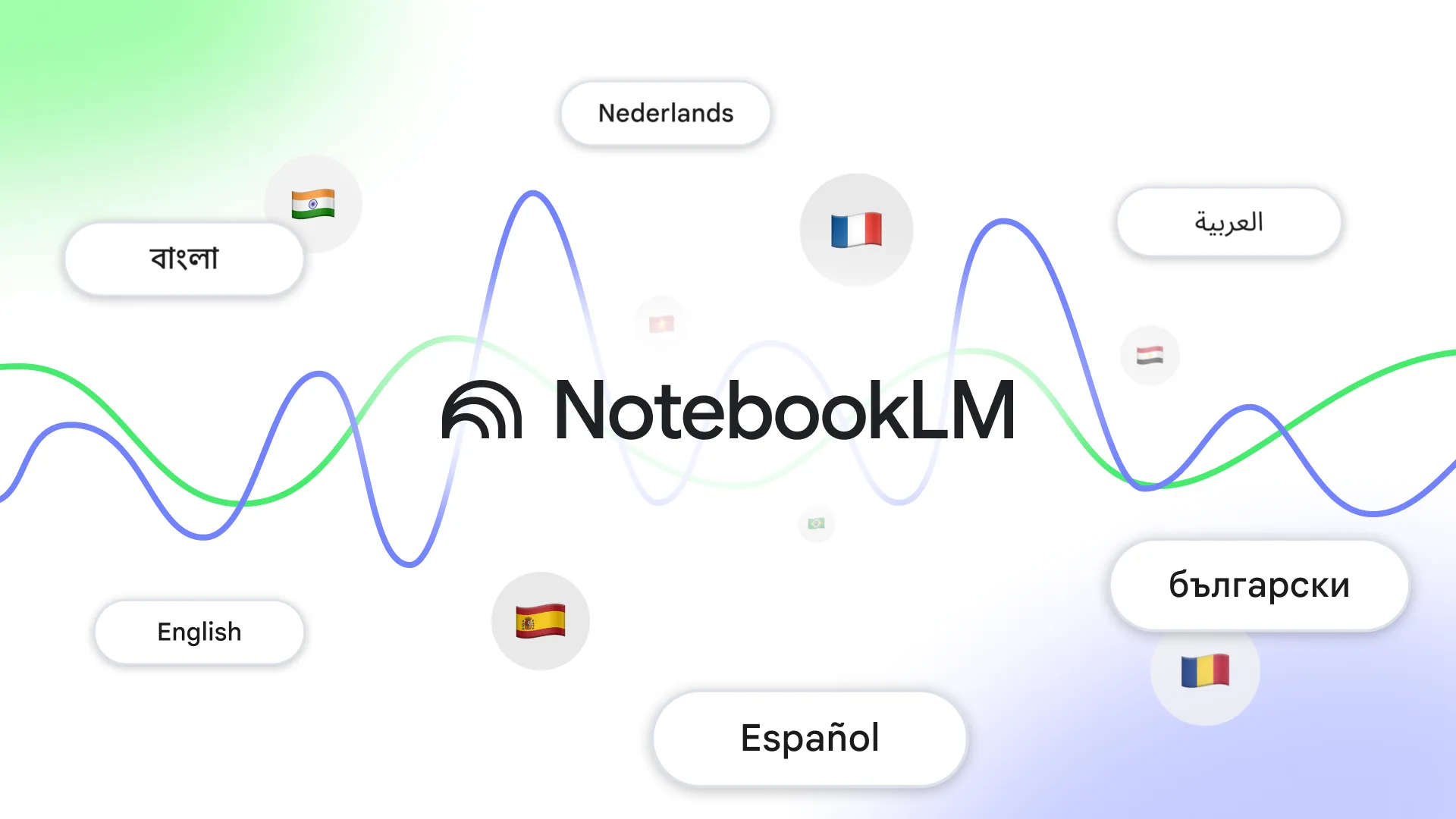
As of November 23, 2026, Google's help page says the web version is available in more than 80 languages for output, and the Audio Overview page lists the same set. Some of them come in regional versions:
| Language | Versions in the list |
|---|---|
| English | One option, "English" |
| Spanish | European, Latin America, Mexico |
| French | Canada, European |
| Portuguese | Brazil, Portugal |
| Arabic | Modern Standard, Colloquial Egyptian |
| Chinese | Simplified, Traditional |
| Norwegian | Bokmål, Nynorsk |
The mobile app has a shorter list. Google's mobile app help page says the app is "rolling out gradually," so your language might not be available in it yet. Some languages on the web list, such as Cebuano, Javanese, Latin and Haitian Creole, do not appear on the app list. If yours is one of them, use the browser.
Output language is not the interface language
Output Language changes what the AI writes. It does not promise to change the menus and buttons around it.
Google's web services take their display language from your Google Account. To change it, Google's account help page says:
- Go to myaccount.google.com/language.
- Click Language and then Edit.
- Search for and select your language, then click Select.
- Close and reopen your browser.
This also changes the default output language for anyone who has not set Output Language by hand, since NotebookLM falls back to the account language. The same page notes that it changes the web only. Mobile apps follow the device's language settings.
If the language does not change
- Answers still come in the old language. Check that you saved a language under Settings > Output Language, not only in your Google Account. The setting wins over the account default.
- The Google Account language did not stick. Google's account help page says to clear your browser's cache and cookies, then set the language again. Clearing cookies also signs you out of other sites.
- Google added a language for you. Google adds languages you use often and marks them "Added for you." On myaccount.google.com/language you can delete one, or turn off Automatically add languages.
- An old Audio Overview is in the wrong language. It was made before the change. Generate a new one.
- The phone app ignores the setting. It follows the device or browser language, not the web setting. Use the browser version or change the app or device language.
If none of this helps, Google's help center has a report a problem page. For other problems, see how to fix NotebookLM when it is not working, and for the basics, the guide on how to use NotebookLM.
Frequently asked questions
How do I change NotebookLM language to English?
Open notebook.google.com, select Settings at the top right, then Output Language, and choose English. New chat answers, study guides and Audio Overviews then come out in English.
How do I change the language of a NotebookLM podcast?
Set Settings > Output Language, or pick a language in the Audio Overview generation panel in the Studio panel. An Audio Overview you already made stays in its language, so generate a new one.
Can I change NotebookLM language in the Android or iPhone app?
Not inside the app. Google says the app uses the language from your browser or device settings, so change the phone or per-app language, or open notebook.google.com in the phone's browser.
Why is NotebookLM answering in the wrong language?
Without an Output Language set, it uses your Google Account's preferred language. Set Output Language by hand, or fix the account language at myaccount.google.com/language.
Sources
- Change output language in Gemini NotebookGoogle
- Generate Audio Overview in Gemini NotebookGoogle
- Get started with the Gemini Notebook mobile appGoogle
- NotebookLM Audio Overviews are now available in over 50 languagesGoogle
- Change your language on the webGoogle
- Change language or region settings on a Pixel phone or tabletGoogle
- Change the language on your iPhone or iPadApple