Key takeaways
- Google's help center lists a Download option for Audio Overviews, Video Overviews, slide decks, infographics, mind maps, flashcards and sites.
- Notes export to Google Docs one at a time, and Data Tables export to Google Sheets; reports and quizzes have no listed download.
- There is no way listed to download an original source file from a notebook, so keep your originals in Drive or on your computer.
NotebookLM download options cover most of what the app makes, but not the sources you put in. Google's help center, checked on November 23, 2026, lists a Download button for Audio Overviews, Video Overviews, slide decks, infographics, mind maps, flashcards and sites, and an "Export to Docs" option for notes. It gives no way to download an original source file back out of a notebook.
NotebookLM is now called Gemini Notebook. Google announced the rename on July 16, 2026, and the help center now lives at support.google.com/gemininotebook. The buttons below are the same whichever name you know it by. For what the free plan includes, see Is Gemini Notebook free?.
What you can download from NotebookLM
Everything in this table comes from Google's help pages. "Not listed" means the help center describes no download or export for that item.
| Item | How to get it out | Format |
|---|---|---|
| Original source files | Not listed | |
| Audio Overview | Download in the player | File (format not stated) |
| Video Overview | Download in the player | Video file (format not stated) |
| Slide Deck | Three-dot menu, Download | PDF or PowerPoint (.pptx) |
| Infographic | Three-dot menu or Download | PNG |
| Mind Map | Download inside the Mind Map window | File (format not stated) |
| Flashcards | Download | CSV |
| Quizzes | Not listed | |
| Report | Share link only | |
| Site | More menu, Download | File (format not stated) |
| Data Table | Export to Google Sheets | Google Sheets |
| Note | More, Export to Docs | Google Docs |
| Chat answer | Save to note, then export the note | Google Docs |
There is one more limit that applies to all of them. Google says that, depending on the publisher's restrictions, you may not be able to download anything generated from a notebook that has a Play Books ebook as a source.
Can you download NotebookLM sources?
No, not from inside the app. The help page on adding sources describes a source as "a copy or auto-synced version of the source document." It does not describe any way to download that copy.
In practice, your original file is still wherever it came from. Files imported from Google Drive stay in Drive, and Google says Gemini Notebook "can't delete or edit your original files in Drive." Drive sources sync every few minutes. If you lose access to the Drive file or delete it, the source stops working in chat and Studio but still counts toward your source limit. So keep your originals in Drive or on your computer, and treat the notebook as a working copy.
What you can take out is what the notebook wrote about your sources: notes, chat answers and Studio outputs.
For Google Workspace accounts at work or school, there is one route that does include uploaded files. Google's admin documentation says the Workspace Data Export tool includes chat history (except deleted chats), generated Audio Overviews, uploaded content and generated notes. It is in the administrator section, so ask your admin. The page does not give a file format.
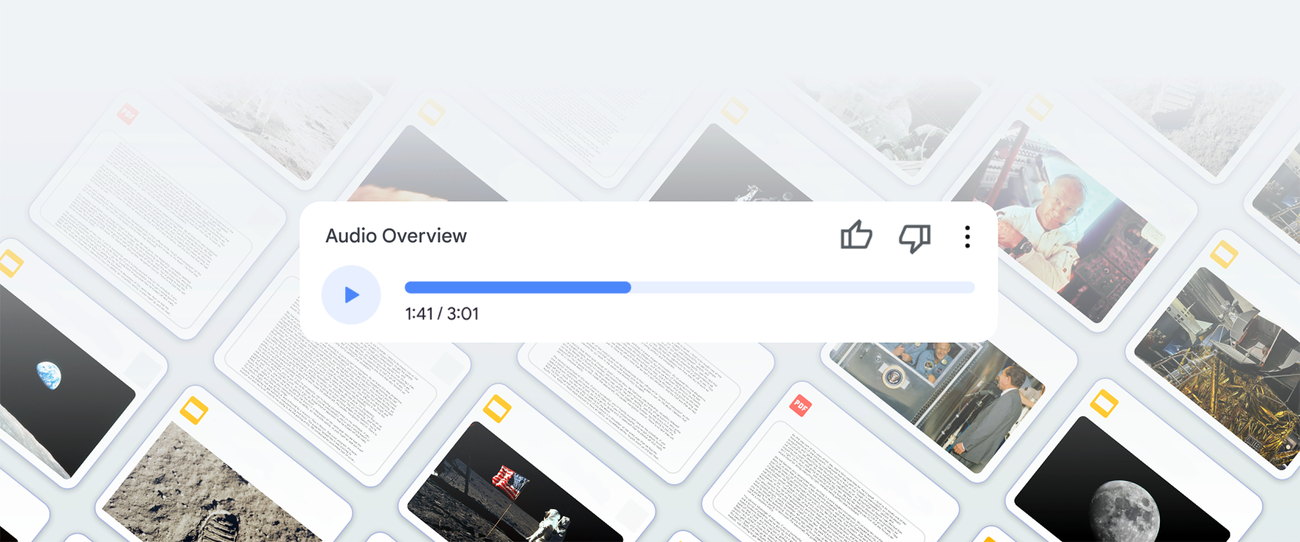
How to download a NotebookLM Audio Overview
The steps are on the Audio Overview help page:
- Open the notebook and find the Audio Overview in the Studio panel.
- Open the player and select Download.
- Share the downloaded file however you like.
If you used Interactive mode, where you can talk to the hosts, select Share or Download to get the original overview. People you send it to can't join the conversation through a shared link.
You can also share a link instead of a file. The notebook has to be shared with the person or set to "Anyone with a link." Public links work only on consumer accounts. Google says they are "currently disabled for Workspace Enterprise or Education accounts." Deleting an Audio Overview breaks any link you shared to it.
On the phone app
The mobile app works differently. The mobile app help page says you can download Audio Overviews from the Studio panel for offline listening, and they show up in a Downloaded section on the app's main page. But they "cannot be downloaded as a file to your device." To get an actual audio file, use the web version on a computer.
How to download Video Overviews, slides and other Studio outputs
Each Studio output has its own help page, and the steps are short.
- Video Overview. In the video player, select Download, then share the file (help).
- Slide Deck. Open the three-dot menu and choose Download PDF Document (.pdf) or Download PowerPoint (.pptx) (help). There is no direct Google Slides export. The full walkthrough is in How to make a PPT in NotebookLM.
- Infographic. Use the three-dot menu or Download to save it as a PNG image (help).
- Mind Map. Open the map and select Download in the top right corner (help).
- Flashcards. Download them as a CSV file (help). The same page lists no download for quizzes.
- Site. In the Studio panel, open the site's More menu and select Download (help).
- Report. The reports help page lists only Share, then Copy link to Report. No download or Docs export is described there.
- Data Table. Google's Workspace Updates post of December 23, 2025 says Data Tables are "ready for export to Google Sheets." The help center has no step-by-step page for it.
How to export NotebookLM notes to Google Docs
Notes don't have a download button, but you can send one to Google Docs. From the notes help page:
- Open Gemini Notebook.
- In the Sources panel, hover over your note.
- Select More, then Export to Docs.
The note opens as a new Google Doc in a new browser tab. Two things to know: edits in the Doc don't sync back to the note, and sharing settings don't carry over, so share the Doc again if others need it.
The help center describes this one note at a time. It lists no option to export all notes at once.
How to save a chat answer
Chat has no export either. The chat help page says to select Save to note under an answer. The note keeps the formatting, including tables and the clickable citations. Then export that note to Docs as above. Chat history stays in the notebook and is private to you.
Can you download the NotebookLM app?
Yes, on phones and tablets. The mobile app help page says to search for "Gemini Notebook" in the Play Store on Android 10 or later, and lists the countries where the iPhone and iPad app is available. The help center describes no desktop app for Windows or Mac. On a computer you use the web version at notebook.google, which Google recommends "for the full experience." Some features, including Audio Overviews, may have limits in the mobile app.
Frequently asked questions
Can you download sources from NotebookLM?
No. Google's help center describes a source as a copy or auto-synced version of your document and lists no way to download it. Your original stays where it came from, such as Google Drive.
How do I download a NotebookLM Audio Overview?
On the web, open the Audio Overview in the Studio panel and select Download. In the mobile app you can save it for offline listening, but Google says it cannot be downloaded as a file to your device.
Can I export NotebookLM notes?
Yes, to Google Docs. Hover over the note, select More, then Export to Docs. Edits in the Doc don't sync back, and sharing settings don't carry over.
Is there a NotebookLM app for Windows?
Google's help center describes apps for Android and for iPhone and iPad, now listed as Gemini Notebook, and no desktop app. On a computer you use the web version.
Sources
- Generate Audio Overview in Gemini NotebookGoogle
- Add or discover new sources for your notebookGoogle
- Create & add notes in Gemini NotebookGoogle
- Generate Video Overviews in Gemini NotebookGoogle
- Generate Slide Decks in Gemini NotebookGoogle
- Generate an Infographic in Gemini NotebookGoogle
- Use Mind Maps in Gemini NotebookGoogle
- Generate Flashcards or Quizzes in Gemini NotebookGoogle
- Generate reports in Gemini NotebookGoogle
- Generate sites in Gemini NotebookGoogle
- Use chat in Gemini NotebookGoogle
- Get started with the Gemini Notebook mobile appGoogle
- Export Gemini Notebook dataGoogle Workspace
- Transform sources into structured Data Tables in NotebookLMGoogle Workspace Updates
- NotebookLM is now Gemini NotebookGoogle