Key takeaways
- Select Slide Deck in the Studio panel of a notebook with sources, set format, language and length, then generate.
- Google's help page lists Download PowerPoint (.pptx) and Download PDF in the deck's three-dot menu.
- Revise lets you edit, delete and reorder slides, but each regeneration creates a new deck and Google doesn't document a Google Slides export.
Here is how to make a PPT in NotebookLM: open a notebook with your sources, choose Slide Deck in the Studio panel, generate it, then use the three-dot menu to download it as a PowerPoint (.pptx) file. Google's help center lists both PDF and PowerPoint downloads for a finished deck. NotebookLM is now also called Gemini Notebook, and Google's Slide Decks help page uses the new name. The steps are the same.
If you are looking for the rename, we covered it in NotebookLM is now Gemini Notebook.
What you need first
- A notebook with sources in it. Slide decks are built from what you add to the notebook. If you have none yet, see how to use NotebookLM.
- Edit access to the notebook. Google says you need it to generate or delete a deck.
- To be over 18. Google says Slide Decks are available only to users over 18.
How to make a PPT in NotebookLM, step by step
These steps come from Google's help page, checked on November 7, 2026.
- Open an existing notebook, or create one and add sources.
- In the Studio panel, select Slide Deck.
- Choose a format, an output language, a length and which sources to use. Then describe the deck you want in the prompt box.
- Select Generate now or Generate later. Generation can take several minutes, and you can keep working in the notebook while it runs.
- When the deck appears in the Studio panel, open it. You can scroll through the slides, zoom, and expand or collapse the viewer.
Google also lets you start from chat instead. Enter a prompt asking for slides, and chat returns cards you can use to steer the content before it generates.
How to review the outline before it renders
If you want to see the plan before NotebookLM builds the slides, use the outline review.
- From the Studio panel, turn on Review outline notes, then select Generate now. Choosing Generate later skips the outline.
- From chat, enter a prompt, customize it through the cards, turn on Review outline before final rendering, then select Generate.
- When the outline is ready, select Review, write all your feedback at once, and select Proceed. Google says you cannot refine the outline after you proceed.
In an October 19, 2026 post, Google said this co-creation flow was rolling out to all Gemini Notebook users worldwide over the following week. It gave the example of asking for an executive summary or a different order. For a quick result, skip the Review toggle.
How to download the deck as PowerPoint or PDF
- Open the Studio panel and find your deck.
- Select the three-dot menu next to it.
- Choose Download, then Download PowerPoint (.pptx) or Download PDF Document (.pdf).
Google's help page does not say how editable the .pptx file is once it is open in PowerPoint, and it does not describe a Google Slides export. Third-party sites make claims about this, but we did not use them. Open the file and check it before you rely on it.
Downloads may be restricted if one of your sources is a Play Books ebook and the publisher limits downloads.
How to change slides after generating
Edit inside NotebookLM before you download.
- Open the deck and select Revise.
- Type instructions on each slide you want changed. The changes are grouped under Pending Changes.
- Select Generate revised deck.
You can edit text, change layouts or update visuals. Google says sources are not used during revisions. Each regeneration creates an entirely new deck, so batch your changes into one pass. Google says editing existing slides is faster than generating from scratch.
To delete a slide, use More > Delete slide in Revise, and More > Restore slide to undo it before you apply the changes. To reorder, drag a slide thumbnail to a new place in the preview. Google also notes a quota on how many decks you can revise.
How to present or share the deck
- Present: Select Start slideshow for full-screen mode. Use the arrow keys or click to move, and press Esc to exit.
- Share a link: The recipient needs access to the notebook, or the notebook must be set to "Anyone with a link". Viewers then see the full notebook. The link stops working if you delete the deck. Public link sharing works only for consumer accounts, not Workspace Enterprise or Education accounts.
- Share the notebook: Others can see the deck in Studio.
- Share the file: Download the PDF or PPTX and send it.
Tips from Google for better slides
In a December 16, 2025 post, Google listed eight ways to use Slide Decks. Three apply to most people:
- Add rough notes or a Google Slides draft as a source and ask NotebookLM to build the deck from it.
- Upload existing slides and a brand book, and ask for your brand colors.
- Name a visual style in the prompt, such as a chalkboard look.
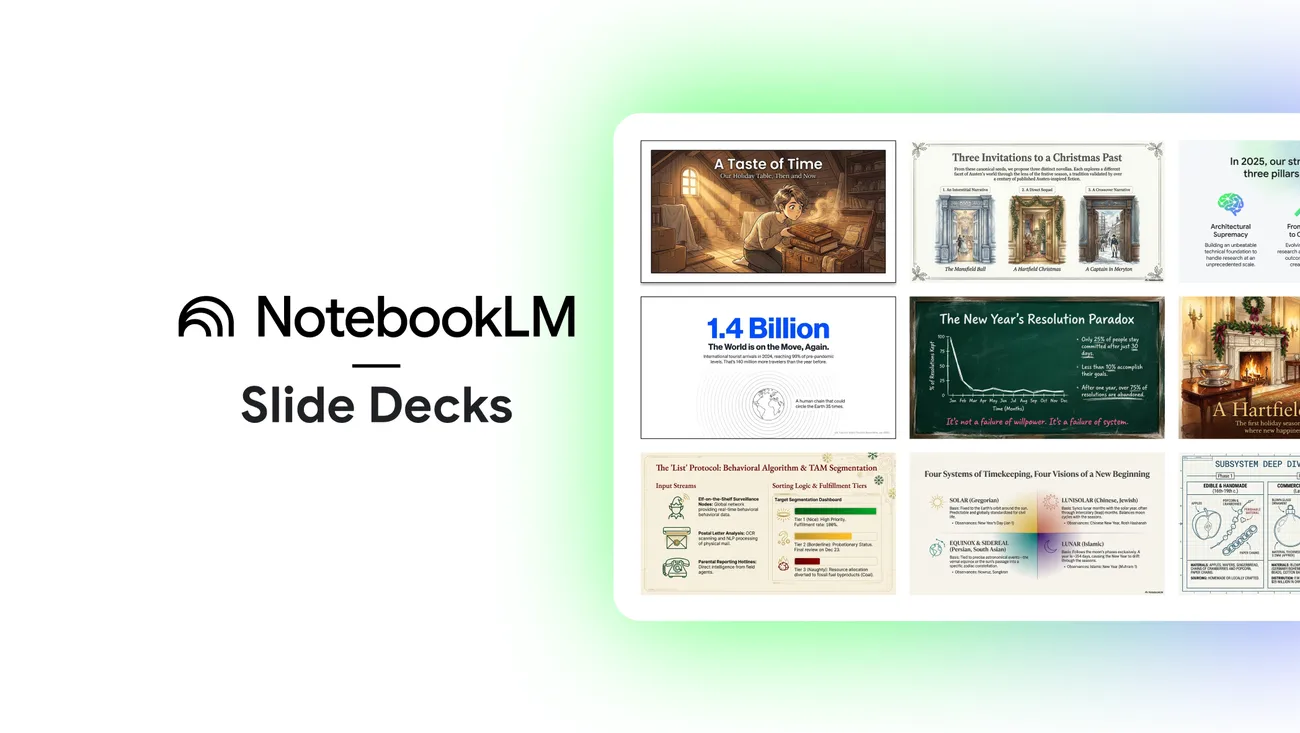
Google says Slide Decks use its Nano Banana Pro model, and that AI Ultra subscribers can generate longer decks with twice the limits. Usage limits depend on your plan. Our NotebookLM pricing and limits guide has the details.
Common problems
- No Slide Deck option or no Generate button. Check that you have edit access to the notebook and that the notebook has sources.
- Slides contain mistakes. Google warns that decks are AI-generated and may contain visual or factual inaccuracies. Check every slide against your sources.
- The deck took too long. Google says generation can take several minutes. Use Generate later and keep working.
- Revisions changed more than you wanted. Each revision generates a new deck. Batch changes, and use Revise on specific slides.
- The tool is not loading. See NotebookLM not working: fixes.
Frequently asked questions
Can NotebookLM make a PowerPoint?
Yes. NotebookLM generates Slide Decks, and Google's help page says you can download one as a PowerPoint (.pptx) or PDF file from the three-dot menu.
How do I download a PPT from NotebookLM?
Open the Studio panel, select the three-dot menu next to the deck, and choose Download PowerPoint (.pptx). A PDF option is in the same menu.
Can I edit NotebookLM slides?
Inside the notebook, select Revise, type instructions per slide and select Generate revised deck. Each regeneration creates a new deck, and sources are not used during revisions.
Is NotebookLM the same as Gemini Notebook?
Yes. Google renamed NotebookLM to Gemini Notebook on July 16, 2026. Existing notebooks and shared links keep working.
Sources
- Generate a Slide Deck in Gemini NotebookGoogle Gemini Notebook Help
- 8 ways to make the most out of Slide Decks in NotebookLMGoogle
- Gain more creative control over Slide Decks and Video Overviews in Gemini NotebookGoogle Workspace Updates
- Create a notebook in Gemini NotebookGoogle Gemini Notebook Help