Key takeaways
- Open the Gemini app, tap Live at the bottom, then tap Camera to let Gemini see what your phone sees.
- Google made Gemini Live with camera and screen sharing free on Android and iOS on May 20, 2025.
- Live doesn't work in the Gemini web app, and screen sharing needs notifications for Gemini Live turned on.
To use the Gemini Live camera, open the Gemini app on your phone, tap Live at the bottom (or swipe left), then tap Camera and point your phone at what you want help with. It works the same way on Android and iPhone, and it is free: Google made Gemini Live with camera and screen sharing free for everyone on Android and iOS on May 20, 2025.
The steps below come from Google's own Gemini Live help page, its iPhone version, and Google's blog posts. On November 21, 2026, 9to5Google reported that Google had rolled out a redesigned in-app camera in the Gemini Android app. That redesign is a separate camera from the one in Live, and it is covered at the end.
What the Gemini Live camera does
Gemini Live is the voice mode of the Gemini app. You talk, Gemini talks back, and you can interrupt it mid-sentence. When you turn the camera on during a Live chat, Gemini sees a live video feed from your phone and can talk about what's in front of you.
Google's how-to post from July 22, 2026 suggests uses like step-by-step repair help, tips for organizing a messy drawer, decor ideas and shopping advice. Screen sharing does the same for whatever is on your phone's display, such as a confusing app.
Since August 2025, Gemini can also highlight objects on your screen while you share your camera, so it can point at the thing it means. Google launched that on the Pixel 10 series on August 28, 2025, rolled it out to other Android phones that same week, and said iOS would follow in the coming weeks.
Is the Gemini Live camera free
Yes. At Google I/O on May 20, 2025, Google said it was making them available "to everyone on Android and iOS for free." The footnote on that post said availability may vary and that the feature was for users 18 and older.
The current Live help page doesn't list a separate age limit or a paid plan for the camera. It does list what you need, covered in the next section.
What you need
From Google's Live help page and its mobile app requirements, as of November 22, 2026:
| Requirement | Android | iPhone and iPad |
|---|---|---|
| Device | Android phone or tablet, Android 9 or later, 2 GB of RAM or more | iPhone or iPad with iOS 16 or later |
| App | Gemini mobile app, or Gemini as your mobile assistant, plus the latest Google app | Gemini mobile app |
| Account | Personal Google account, or a work or school account with access to Gemini Apps | Same |
| Not supported | Android Go, the Android Work Profile, the Gemini web app, Gemini in Google Messages | The Gemini web app |
You also have to be signed in to Gemini Apps. Google's sign-in requirements say you must be 13 or over (or the applicable age in your country) with a personal or school account, and 18 or over with a work account.
How to use Gemini Live camera on Android
- Open the Gemini app. You can also say "Hey Google, let's talk Live."
- At the bottom, tap Live, or swipe left.
- The first time, follow the on-screen instructions, including the camera permission prompt.
- Tap Camera to turn the camera on.
- Point the camera at what you want help with and ask your question out loud.
- Tap Camera again to stop sharing.
On Android, the help page also calls the camera button Turn on video streaming in one place. It is the same control.
How to use Gemini Live camera on iPhone
- Open the Gemini app on your iPhone or iPad.
- At the bottom, tap Live, or swipe left.
- The first time, follow the on-screen instructions.
- Tap Camera to turn the camera on, and talk to Gemini about what it sees.
- Tap Camera again to stop.
How to switch cameras
During a Live chat with the camera on, tap Switch to rear or front camera.
When the camera turns off by itself
Google's help page lists three cases where Live turns the camera off on its own:
- You put Live on hold. The camera turns back on when you continue the chat.
- You leave the Gemini app. It does not turn back on when you return. Tap Camera again.
- Your screen locks. It stays off when you open the phone again. Tap Camera again.
If you mute a Live chat on Android, only your microphone is muted. Your video or screen keeps being shared.
How to share your screen with Gemini Live
Screen sharing needs notifications for Gemini Live turned on. When you share, Gemini sees your whole screen, not one app, so close anything private first.
There are two ways to start:
- From the app. On the Live screen, tap Turn on screen sharing and follow the instructions.
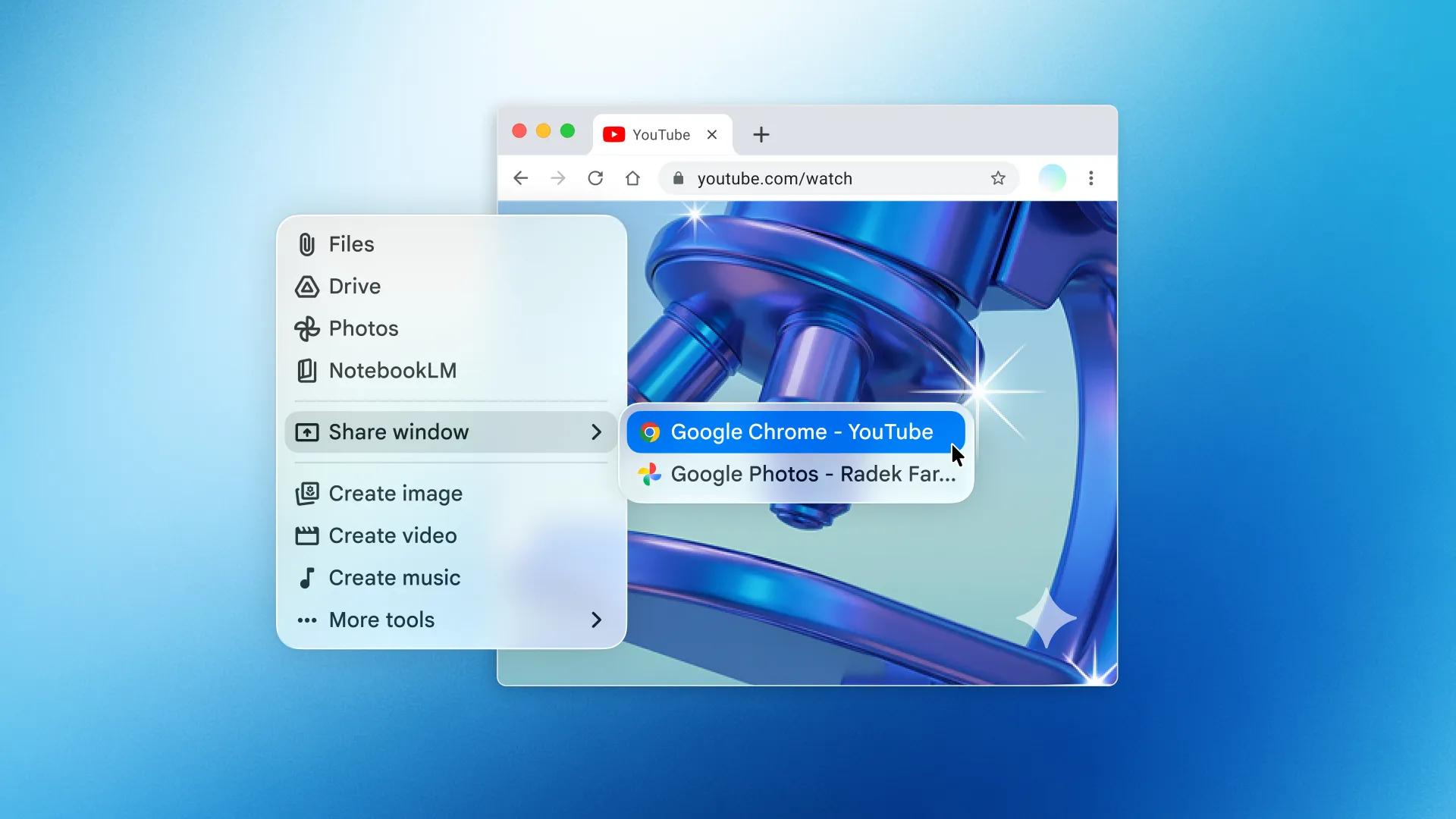
- From anywhere. Open Gemini by saying "Hey Google" or by touch, then tap Share screen with Live. Google notes this button may not appear when another feature is shown instead.
To stop, go back to the Gemini app and tap Turn off screen sharing, or swipe down from the top of the screen and tap Stop sharing on the "Screen Sharing" card. Screen sharing also stops when you put Live on hold or lock your phone, and it doesn't resume on its own.
Gemini Live camera not working: the fixes
Most "not working" or "not available" problems come down to one of the requirements above. Check them in this order:
- You're in the wrong place. Live, and so the Live camera, isn't available in the Gemini web app or in Gemini in Google Messages. Use the Gemini mobile app.
- Your apps are out of date. On Android, Google requires the latest version of the Google app. Update both the Google app and the Gemini app.
- The feature hasn't reached you yet. Google says it releases Gemini Live updates gradually, so the newest changes may not show up on every phone at once.
- Camera permission was denied. The first run asks for camera access. If you said no, turn camera access back on for the Gemini app (Android) or for Gemini under the iPhone's Settings. This is standard phone behavior, not a step from Google's Live page.
- Screen sharing is missing. Turn on notifications for Gemini Live. Without them, screen sharing and talking to Gemini in the background don't work.
- Your device isn't supported. The Gemini app needs Android 9 or later with 2 GB of RAM, or iOS 16 or later. Android Go phones and the Android Work Profile can't run the Gemini app.
- Your account can't use it. A work or school account needs access to Gemini Apps through its plan, and work accounts are for people 18 or over. Accounts under 13 need a parent's approval, and Google says Family Link accounts still can't use the Gemini web app.
- Your language or country isn't covered. The Gemini mobile app doesn't support Farsi, and the iPhone app is still rolling out to some countries and languages, according to Google's availability page.
- The camera went off when you switched apps. That's by design. Go back to Live and tap Camera again.
Gems, the custom Gemini assistants, can't be used with Gemini Live at all for now.
Guided Vision for blind and low-vision users
On October 1, 2026, Google added Guided Vision to Gemini Live on Android. It describes what the camera sees and gives spoken cues to help you aim. To turn it on, open your profile settings in the Gemini app and switch on Use Guided Vision in Live, then open Live and share your camera. It works on Android 9 and later where Gemini Live is supported. Google says it can make mistakes and isn't meant for navigation or obstacle detection.
The new Gemini camera on Android is a different camera
The redesign 9to5Google reported on November 21 is the in-app photo camera you open from the plus menu in the prompt box, not the live video camera in Gemini Live. According to 9to5Google, it now opens as a sheet inside the conversation, with flash and front-camera controls behind a three-dot menu next to the capture button, and it reached Android after first appearing on iOS. As of November 22, Google's release notes don't mention it.
Use that camera to snap a photo and ask about it. Use the Live camera when you want to keep talking while Gemini watches. Gemini Live can also act on what you say through connected apps like Calendar, Keep and YouTube.
Frequently asked questions
Is Gemini Live camera free?
Yes. Google made Gemini Live with camera and screen sharing free for everyone on Android and iOS on May 20, 2025. Its announcement said availability may vary and that the feature was for users 18 and older.
Does Gemini Live camera work on iPhone?
Yes. Open the Gemini app on an iPhone or iPad with iOS 16 or later, tap Live at the bottom, then tap Camera. You can switch between the front and rear camera with the Switch to rear or front camera button.
Why is Gemini Live camera not available?
Live isn't available in the Gemini web app or in Gemini in Google Messages, and Google rolls out Live updates gradually. Update the Gemini and Google apps, check that your device and account meet Google's requirements, and allow camera access.
Can Gemini Live see my screen?
Yes. Turn on notifications for Gemini Live, then tap Turn on screen sharing on the Live screen, or open Gemini anywhere and tap Share screen with Live. Gemini sees your whole screen until you stop sharing.
Sources
- Talk naturally with Gemini Live (Android)Google
- Talk naturally with Gemini Live (iPhone and iPad)Google
- Gemini mobile app availabilityGoogle
- What you need to sign in to Gemini AppsGoogle
- Gemini App: 7 updates from Google I/O 2025Google
- How to use your Gemini Live camera for real-time helpGoogle
- Gemini Live updates: More Google app connections and visual helpGoogle
- Guided Vision in Gemini Live: built for accessibilityGoogle
- Gemini Apps release notesGoogle
- Gemini app camera redesign9to5Google