Key takeaways
- To create a Gem, go to gemini.google.com, open the sidebar, click Gems, then New Gem, add a name and instructions, and click Save.
- On personal accounts aged 18 and over, Gems become read-only on November 17, 2026, so no new Gems can be created after that, and they are removed on December 17.
- Work and school accounts can keep creating Gems until skills replace them, no sooner than March 1, 2027 for business and June 1, 2027 for education.
To create a Gem in Gemini, go to gemini.google.com, open the sidebar, click Gems, then New Gem, give it a name and instructions, and click Save. On a personal Google account you have until November 17, 2026 to do it: that day Gems become read-only and you can no longer create new ones, according to Google's help page on the transition. Work and school accounts keep creating Gems into 2027.
A Gem is a saved set of instructions that Gemini follows every time you open it, with optional files it can draw on. Think of a "coding partner" that always asks clarifying questions first, or a recipe helper that knows you eat vegan. Google is replacing Gems with skills, which do the same job in a new format. This guide covers both: the Gem steps from Google's Gems help page, and what to build instead after the cutoff. Dates and steps are as of November 15, 2026.
Who can still create a Gem, and until when
| Account | Can create new Gems until | Gems removed |
|---|---|---|
| Personal, 18 and over | November 17, 2026 (then read-only) | December 17, 2026 |
| Personal, under 18 | No date announced yet | No date announced yet |
| Workspace business, enterprise, non-profit | No sooner than March 1, 2027 | Same date |
| Workspace education | No sooner than June 1, 2027 | Same date |
Read-only means you can still open your Gems, but in Google's words you "can't use or edit them, or create new ones." Google says it will convert existing Gems into skills automatically.
For work and school accounts, Google's Workspace admin page says Gems move into Settings in the Gemini app on November 17, 2026, and users can still create, edit and use them there until skills fully replace them.
To create and use Gems on a personal account you must be 13 or over (or the minimum age in your country), and you must be signed in to Gemini.
How to create a Gem in Gemini on a computer
- Go to gemini.google.com and sign in.
- Click Open Sidebar.
- Click Gems. If you've never made a Gem, click Settings and help, then Gems.
- Click New Gem.
- Enter a name and instructions.
- Optional: under Knowledge, click Add files to give the Gem documents to work from. You may need to scroll down to find it.
- Click Save.
Before you save, type a prompt in the preview box on the right to test how the Gem responds, and adjust the instructions until the answers look right. Google's tips page warns that previewing does not save the Gem, so click Save when you're done.
A Gem you create on the web also shows up in the Gemini mobile app and in the Gemini side panel in Google Workspace apps.
How to create a Gem on a phone
Google's steps for Android and iPhone start in the phone's browser, not the Gemini app:
- On your phone or tablet, go to gemini.google.com.
- At the top left, tap Menu.
- Tap Settings and help, then Gems.
- Under Gems, tap New Gem.
- Enter a name and instructions, add files under Knowledge if you want, and save.
Once a Gem exists, you can use it from the Gemini app: tap Menu, then Gems, then the Gem.
How to write good Gem instructions
Google's tips for custom Gems suggest covering four things. You don't need all four, but a few help:
- Persona: the role the Gem plays and how it responds.
- Task: what you want it to do or create.
- Context: as much background as you can give.
- Format: the structure you want back, such as a numbered list or a table.
A short example: "You are a running coach. Build weekly training plans for a beginner with a bad knee who has 30 minutes a day. Ask about the goal race first. Answer with a table, one row per day."
If you'd rather not write it all yourself, type a sentence or two about your goal, then click Use Gemini to re-write instructions. Gemini expands it into fuller instructions after a few seconds, which you can then edit.
Adding files to a Gem
Under Knowledge, Add files offers three sources:
- Upload files from your device.
- Add from Drive. This needs Keep Activity turned on and Google Workspace connected to Gemini. A Drive file stays live: Gemini uses its most recent version, so edits to the file show up in the Gem.
- More uploads, then Notebooks, to attach a NotebookLM notebook.
If you don't want answers to cite your files, select Disable knowledge citations. Google's file upload page says most file types work, and that files other than video can be up to 100 MB each.
How to share a Gem
On a computer, open the sidebar, click Gems, and click Share next to the Gem. Enter an email address and choose Viewer or Editor, or use Copy link. Anyone with access can see the Gem's instructions and files, and an editor can change or delete it. Google's sharing page notes that a Gem using a NotebookLM notebook as a source can't be shared that way.
Two limits to know: Gems don't work with Gemini Live, and Gems that others share with you only appear under "My Gems" after you open one and use it.
Should you still create a Gem
On a personal account, there is little point in starting a new Gem now. It stops working on November 17, two days from today, and Google will convert it to a skill anyway. Building the skill directly saves a step. The exception is a teen account: skills are only for people 18 and over for now, while Gems stay available to younger users until Google sets their date.
On a work or school account, Gems still work for months, so creating one is fine. Just expect to move it to a skill in 2027.
How to create a skill instead
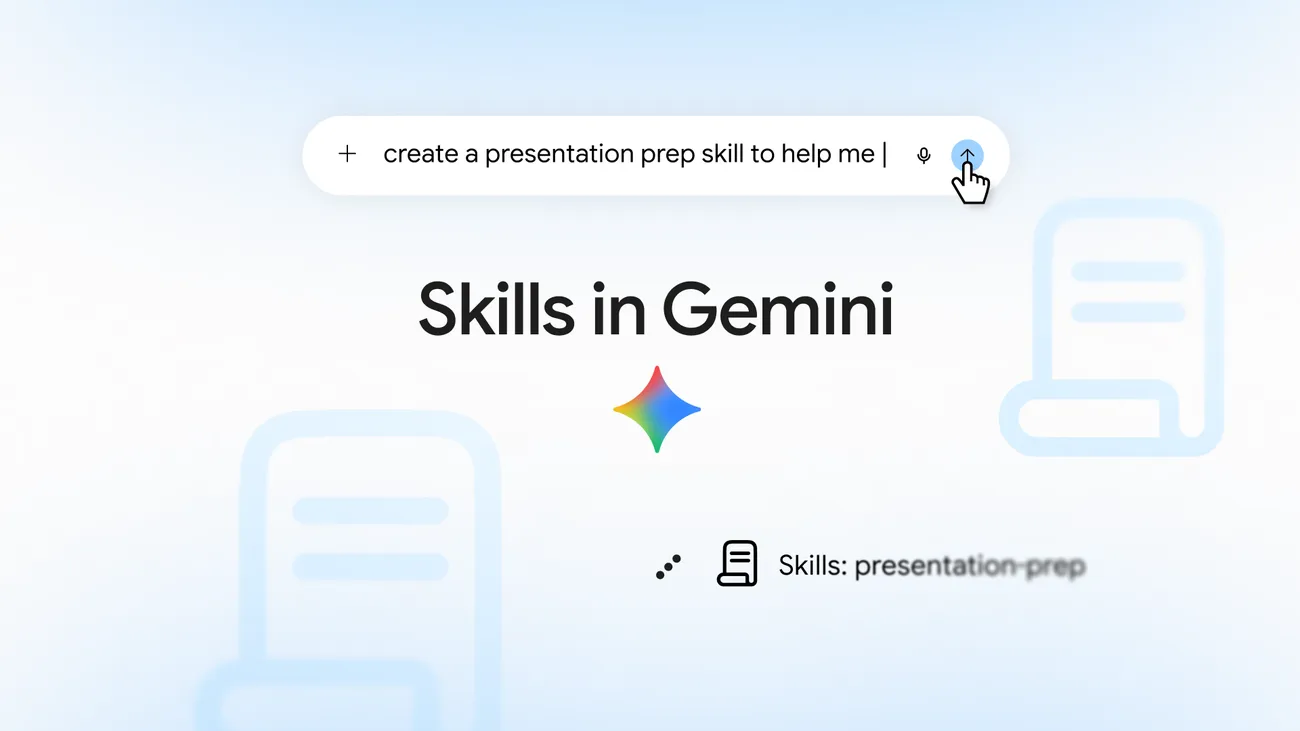
Skills arrived in the Gemini app in a September 30 announcement, where Google said they "will soon replace Gems." They are available to people 18 and over on personal accounts. The manual steps, from the transition help page:
- Go to gemini.google.com.
- In the sidebar, click Customize, then Skills. If you don't see Customize, click More first.
- Click Create, then Create manually.
- Enter a name, description and instructions. Gemini reformats the name automatically.
- At the top, click Create.
To use a skill, type "/" and its name in a chat, or let Gemini apply it when your prompt fits. You can combine several skills in one chat. A skill holds up to 100 MB of files, and up to 100 skills can be active at once. Uploading files to a skill works only in the Gemini web app and the Mac app for now, and skills don't yet work with Canvas or Deep Research.
If you already have Gems, see what happens to your Gems and how to move them by hand. Google says audio, video, GitHub files, archives and old Office formats (.doc, .xls, .ppt) won't transfer, so download those before December 17. For how Gemini's skills stack up against Anthropic's version, read Gemini Gems vs Claude skills.
Common problems
- No Gems entry in the sidebar. Open Settings and help and look for Gems there. For work and school accounts, that's where Gems live from November 17.
- Add from Drive is missing or fails. Turn on Keep Activity and connect Google Workspace to Gemini. On a work or school account, your administrator has to allow access to apps in Gemini.
- Your changes disappeared. Previewing doesn't save. Click Save after editing.
- New Gem is gone on a personal account. From November 17, personal accounts can't create Gems. Create a skill instead, as above.
Frequently asked questions
Can I still create Gems in Gemini?
On a personal account aged 18 and over, only until November 17, 2026, when Gems become read-only. Work and school accounts can keep creating Gems until skills replace them in 2027, and Google hasn't set a date for users under 18.
Are Gemini Gems going away?
Yes. Google is replacing Gems with skills and says it will convert existing Gems automatically. Personal accounts lose Gems on December 17, 2026, business accounts no sooner than March 1, 2027, and education accounts no sooner than June 1, 2027.
How do I create a Gem in the Gemini app on my phone?
Google's Android and iPhone steps use gemini.google.com in the phone's browser: tap Menu, then Settings and help, then Gems, then New Gem. A Gem you create appears in the Gemini mobile app afterward.
How do I share a Gem?
On a computer, open the sidebar, click Gems, click Share next to the Gem, then add an email address with Viewer or Editor access, or copy a link. Anyone with access can see the Gem's instructions and files.
Sources
- Use Gems in Gemini AppsGoogle
- About the transition from Gems to skillsGoogle
- Tips for creating custom GemsGoogle
- Share a Gem from Gemini AppsGoogle
- Upload & analyze files in Gemini AppsGoogle
- About the transition from Gems to skills (Google Workspace)Google
- Let skills in Gemini tackle your most repetitive tasksGoogle
- GemsGoogle