Key takeaways
- In the Gemini mobile app, tap Menu, your profile picture, Settings, then Gemini's Voice, pick a voice and tap Confirm.
- Google says the voice setting is only in the mobile app for now, not on the web, but it applies across all Gemini Apps, including Gemini Live.
- Nest speakers and displays use a separate setting in the Google Home app, under Home settings, Gemini for Home voice assistant, Voice selection.
To change Gemini voice, open the Gemini mobile app on Android or iPhone, tap Menu, then your profile picture, then Settings, then Gemini's Voice, tap a voice to hear it and tap Confirm. Google's help page on changing Gemini's voice says the setting lives only in the mobile app for now, but the voice you pick applies across all Gemini Apps, including Gemini Live.
Nest speakers and displays are the exception. Their voice is set separately, in the Google Home app, and it changes the voice for everyone in the home. Both sets of steps are below, along with what to check when the option doesn't show up.
Before you start
Google's help center lists a few conditions for the voice setting, as of November 26, 2026:
- You need the Gemini mobile app. The setting isn't in the Gemini web app or the desktop apps.
- You must be signed in to Gemini Apps.
- The option isn't available in some languages, and the number of voices varies by language.
The voice is used in Gemini Live, the back-and-forth spoken conversation mode, and anywhere else Gemini answers out loud, such as when you tap Listen next to a written response. One choice covers all of it.
How to change Gemini voice on Android
These steps come from the Gemini Live help page for Android, which repeats the voice instructions under "Manage settings".
- Open the Gemini app on your Android phone or tablet.
- At the left, tap Menu, then your profile picture or initial.
- Tap Settings, then Gemini's Voice.
- Tap a voice name to hear a sample. Try as many as you like.
- Tap Confirm.
The next time you start Gemini Live, by tapping Live at the bottom of the app or saying "Hey Google, let's talk Live", Gemini speaks in the new voice. Google's Live page also says you need the latest version of the Google app, so update it from the Play Store if the menu looks different from the steps above.
How to change Gemini voice on iPhone and iPad
The iPhone and iPad version of the same page gives identical steps:
- Open the Gemini app.
- At the left, tap Menu, then your profile picture or initial.
- Tap Settings, then Gemini's Voice.
- Tap a voice name to hear it.
- Tap Confirm.
The help center describes the setting as applying "across all Gemini Apps".
Can you change Gemini's voice on the web, Mac or Windows?
No. Google's help page says: "For now, you can only access Gemini's voice setting in the Gemini mobile app." Gemini Live itself isn't available in the Gemini web app either, according to the Live help pages.
Google has shipped Gemini desktop apps for Mac (April 15, 2026) and Windows (September 10, 2026), and the Mac app gained voice dictation on July 29, 2026. None of those release notes mention a voice picker. If you use Gemini on a computer and want a different voice, change it in the phone app with the same Google account.
How to change the voice on Google Nest speakers and displays
Smart speakers and displays use their own voice setting, managed in the Google Home app. The steps depend on whether your home has moved to Gemini for Home, the Gemini-based assistant that replaces Google Assistant on Google speakers. Google's page on changing the voice of your assistant covers both.
If your home uses Gemini for Home
- Make sure your phone is on the same Wi-Fi network as the speaker or display, or linked to the same account.
- Open the Google Home app.
- At the top right, tap your profile picture or initial, and check that the account shown is the one linked to your speaker. Switch accounts there if it isn't.
- Tap Home settings, then Gemini for Home voice assistant.
- Tap Voice selection and choose a voice.
Google's Gemini for Home page says the voices are "more natural-sounding" than before and that your choice applies to all the home's speakers and displays, for everyone in the home. So if you share a house, agree on a voice first.
If your home still uses Google Assistant
- Connect your phone to the same Wi-Fi network as the speaker, or link it to the same account.
- Open the Google Home app and tap your profile picture or initial at the top right. Check the account.
- Tap Home settings, then Google Assistant.
- Tap Assistant voice & sounds and choose a voice.
Google notes that Assistant voice options may not be available on some devices, depending on the Assistant language setting.
One thing to know before you upgrade: once a home switches to Gemini for Home, Google says it can't switch back to Google Assistant. Gemini Live on speakers also needs a Google Home Premium subscription, while the basic Gemini for Home assistant is free.
Wear OS watches, Android Auto and headphones
Google's help pages for Gemini on smartwatches, Gemini in your car and Gemini on headphones explain how to start a chat, but none of them describes a separate voice setting. On a watch, Gemini works when it is the digital assistant on the paired Android phone, and the phone app is the only place the help center documents a voice picker. Our guides to setting up Gemini on a Galaxy Watch and using Gemini in Android Auto cover those devices in more detail.
Which Gemini voices are there
Google's help center doesn't publish a list of voice names, and it says the number of voices varies by language. The only way to compare them is the preview in the app: tap each name in Gemini's Voice and listen before you confirm.
If you can't find "Gemini's Voice" in settings
- Check your language. The setting isn't offered in every language. On Android, the app language is under Menu, profile picture, Settings, Languages. On iPhone, the Gemini app follows the phone's primary language in Settings, General, Language & Region. Google's language help page says Gemini's voice setting is one of the features not available in all languages.
- Sign in. The setting requires a signed-in Google account.
- Update the Google app. On Android, Google's Live help page lists the latest version of the Google app as a requirement.
- Use the phone, not the browser. The setting doesn't appear on gemini.google.com or in the desktop apps.
- Speaker sounds unchanged? Speakers ignore the phone app setting. Change it in the Google Home app as described above, and check that the Home app is signed in with the account linked to the speaker.
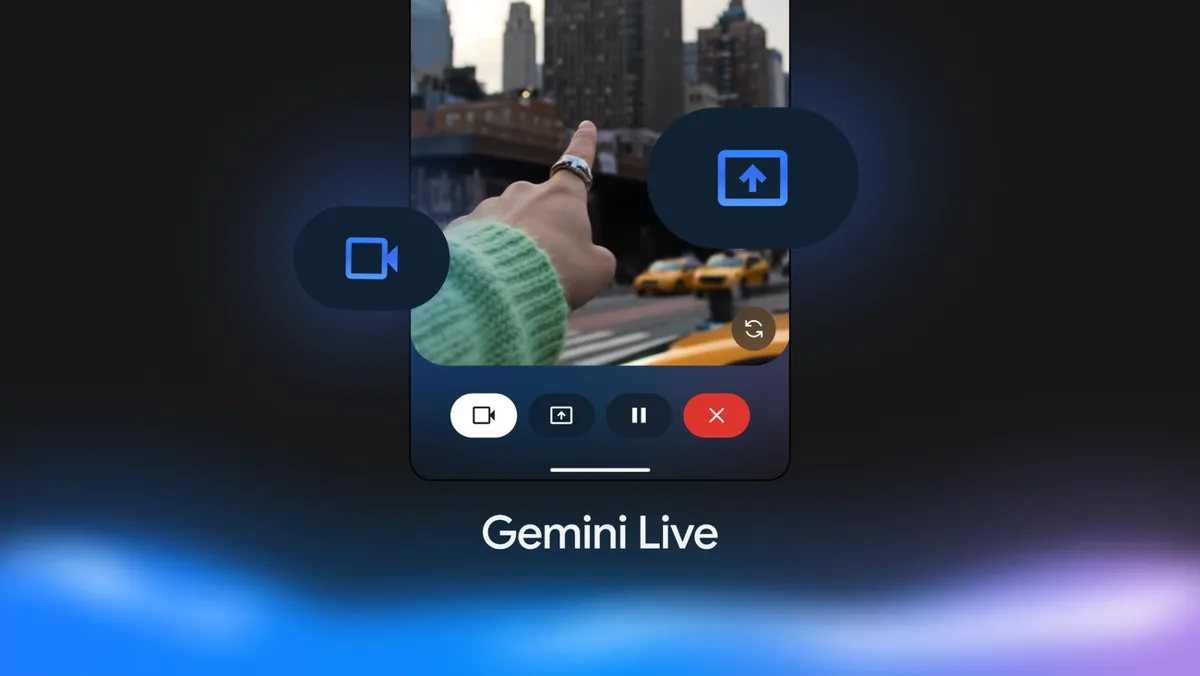
Gemini Live also works with the camera and screen sharing. Our guide to Gemini Live camera mode walks through those features, and what Gemini is covers the plans and apps.
Frequently asked questions
Can I change Gemini's voice on a computer?
No. Google's help center says the voice setting is only in the Gemini mobile app for now. Change it on your phone and it applies across Gemini Apps for that account.
What is the best Gemini voice?
Google doesn't publish a list of voice names, and the number of voices varies by language. Tap each name under Gemini's Voice in the app to hear a sample, then tap Confirm on the one you like.
Why is there no Gemini's Voice option in my settings?
The option isn't available in some languages, and you must be signed in to Gemini Apps. On Android, also update the Google app.
Is Gemini Live voice chat free?
Google's Gemini Live help pages list a personal or work Google account and the mobile app as requirements, with no paid plan. On Nest speakers, Gemini Live needs a Google Home Premium subscription.
Sources
- Change Gemini's voiceGoogle
- Talk naturally with Gemini Live (Android)Google
- Talk naturally with Gemini Live (iPhone & iPad)Google
- Change Gemini's languageGoogle
- Change the voice of your assistantGoogle
- Learn about Gemini for Home voice assistantGoogle
- Use Gemini on your smartwatchGoogle
- Chat with Gemini in your carGoogle
- Use Gemini on your headphonesGoogle
- Gemini Apps release updates and improvementsGoogle