Key takeaways
- Perplexity's updated Chrome extension, announced on November 24, 2026, lets Computer open sites, read pages and fill in forms in your own browser with your existing logins.
- It works in Chrome, Edge, Brave, Arc and other browsers that install from the Chrome Web Store, but not in Safari or Firefox, and Comet users don't need it.
- Asking about a page works without Computer, but letting Computer control the browser needs Computer access, which Perplexity includes in paid plans.
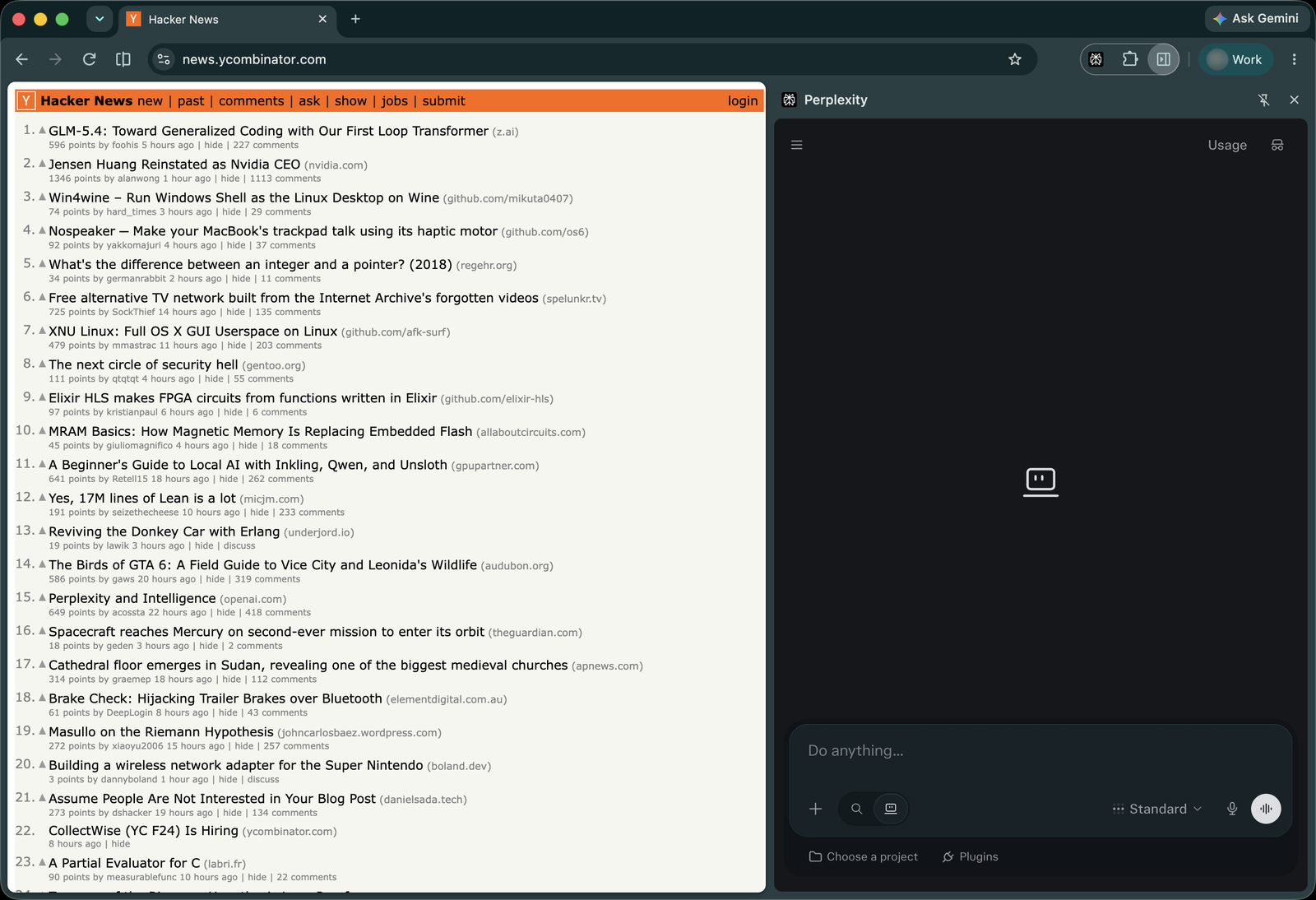
The Perplexity Chrome extension lets Perplexity Computer, the company's task-running agent, work inside your own browser, on sites where you are already signed in. You add it from the Chrome Web Store, sign in to Perplexity in the same browser profile, and start a task at perplexity.ai or from the extension's side panel. Perplexity announced the updated extension in its November 24, 2026 changelog.
Computer normally runs in a cloud sandbox, and its cloud browser doesn't have your logins. The extension changes that. Computer can now open your email, dashboards and internal tools in your tabs, read the page in front of you and fill in forms there. That makes it more useful and also means you should set its permissions with care.
This guide covers who can use it, how to install it, how to run a task, how to limit which sites it touches, and what to check when it doesn't work. Every step comes from Perplexity's help center guide to the browser extension and the Chrome Web Store listing, both read on November 24, 2026.
What the Perplexity Chrome extension does
The extension connects your browser to Perplexity Computer. Once it is in, Computer can open sites, read pages, move between tabs and fill in forms. Perplexity's changelog and the store listing give three kinds of use:
- Ask about the page you're on. The changelog's example: "What's the catch in this pricing page?"
- Act on the page. Read a draft in Google Docs and leave suggestion comments where the argument needs evidence.
- Work across signed-in tools. Pull last week's numbers from an analytics dashboard, check them against a spreadsheet and draft an update.
The store listing adds filling out applications, sign-ups, bookings and order forms, comparing listings across several tabs, and shopping on sites that need a login. Its example asks Computer to build a bikepacking kit on Amazon "and leave it in my cart to review."
The extension works only in the browser. Perplexity's help center says it does not give Computer access to files or installed apps on your computer.
Who can use it and which browsers work
| Question | Answer from Perplexity's docs |
|---|---|
| Browsers | Chrome, and other browsers that install from the Chrome Web Store, such as Microsoft Edge, Brave and Arc |
| Safari or Firefox | Not supported |
| Ask about a page in the side panel | Works without Computer access |
| Let Computer control the browser | Needs access to Computer |
| Which plans include Computer | Paid plans; some free accounts get a limited number of free Computer turns |
| Desktop app | Optional. With the Mac or Windows app, update it to the latest version |
| Comet | No extension needed; the same capabilities are built in |
The plan line comes from Perplexity's What is Computer? page, which says Computer "is available on paid plans." Neither the changelog nor the extension guide lists a separate price or usage limit for the extension itself. Our explainer on Perplexity Computer covers what Computer costs.
As of November 24, the store listing shows version 0.0.8, updated November 20, 2026, offered by Perplexity AI, with 20,000 users and a rating of 4.6 from 21 reviews.
How to install the Perplexity Chrome extension
You need Chrome or another Chromium browser on a computer, and a Perplexity account.
- Open the browser and the browser profile you want Computer to use. Computer uses the sign-ins of that profile, so pick the one with the accounts you want it to reach.
- Sign in to Perplexity in that browser and profile.
- Open the Perplexity extension on the Chrome Web Store.
- Add the extension to your browser.
Several extensions in the store carry Perplexity's name. The official one is offered by Perplexity AI and has the ID pninphncmkphpjgfffammoenglghcjii, which appears at the end of its store address.
If you use the Perplexity app on Mac or Windows
- Update the app to the latest version.
- Open Settings → Browser use. On Windows, Settings is under the menu icon in the sidebar.
- Turn on Browser use.
- Select your browser, such as Chrome, from the list.
- Select Install extension if it appears.
- If your browser opens the Chrome Web Store, finish adding the extension there.
How to run a task in your browser
There are two ways to start, and you can also start from the desktop app once it is connected.
From Perplexity on the web:
- Open perplexity.ai in the browser where you added the extension.
- Give Computer a task that needs a website.
- Keep that tab open while Computer works. Computer connects to your browser through that page.
From the side panel:
- Go to the page you want to work with.
- Select the Perplexity icon in the browser toolbar. If you don't see it, open the browser's extensions menu. The changelog also gives a shortcut: Option+A on Mac or Alt+A on Windows.
- Ask a question about the page, or give Computer a task.
The side panel is optional for tasks you start on perplexity.ai. While a task runs, Computer opens and uses tabs in your browser, sometimes in a tab group of their own. The changelog says you can click a preview in the thread to bring the active tab to the front.
If a site asks you to sign in, Perplexity's guide says to sign in yourself in that browser and then tell Computer to continue.
How to control which sites Computer can use
Perplexity says Computer uses your browser only during a task you started, and the store listing says the extension "doesn't collect browsing data in the background." The store's privacy section lists two kinds of data the extension handles: authentication information and website content. The listing does not show Chrome's list of technical permissions.
By default, the setting is Ask for permission. The first time Computer needs a site, it shows a request in the task that names the site. You get four choices:
| Option | What it does |
|---|---|
| Allow for this task | Allows the site for this task only (the default choice) |
| Always allow this site | Allows it and saves it under Site permissions |
| Always allow all sites | Allows it and switches your general setting to Always allow |
| Deny | Blocks the site for this task; Computer carries on without it |
To set a rule for one site ahead of time:
- Go to Settings → Browser use.
- Enter the site's domain under Site permissions.
- Select Add.
- Choose Always allow, Ask for permission or Never allow.
You can add up to 200 sites, and a site's rule wins over the general setting. If the general setting, Let Computer use your local browsers, is Never allow, Computer can't use any site in your browser.
To stop a running task, press the stop button in the task. Perplexity's guide warns not to rely on a settings change to stop a task already in progress. To remove the extension, use your browser's extensions page.
A sensible start is to leave the default on Ask for permission and allow sites one task at a time. Always allow all sites hands an agent every account you are signed in to.
How to check it worked, and common fixes
On the web, open Settings → Browser use in the browser with the extension. Control this browser should show Connected. In the Mac or Windows app, the browser you picked under Browser use should show Connected.
- It shows "Get extension" but you already added it. Turn the extension on in this browser profile, then reload the page.
- The app shows "Offline". Open that browser and check that the extension is on.
- Computer isn't using your browser. Not every task needs one. Computer uses it when you ask or when a browser is the best way to do the job. Check that the extension is on, that the page shows Connected, and that neither the general setting nor the site's rule is Never allow. Keep the browser and the task open, then send the request again.
- You can't add the extension. A browser managed by your employer may block new extensions. Ask IT to allow the extension ID
pninphncmkphpjgfffammoenglghcjii.
Chrome extension vs Comet vs the Cloud Desktop
Comet is Perplexity's own browser. Perplexity's help center says Comet has the same browser capabilities built in, so Comet users don't need the extension. The extension is for people who want to keep Chrome, Edge, Brave or Arc.
The Cloud Desktop is different. It is a separate desktop with its own browser in a cloud sandbox, so it does not use the sign-ins in your own browser. Perplexity's November 24 changelog says you can watch Computer work there, take over to type a sign-in or two-factor code, and save logins to an encrypted vault. The extension skips that step by using the sessions you already have.
The same changelog added Multiagent, an effort level where a lead agent splits work across up to 16 agents. Our Multiagent article covers it.
Frequently asked questions
Is the Perplexity Chrome extension free?
The extension is free to add, and you can open the side panel and ask about a page without Computer. Letting Computer control your browser needs access to Computer, which Perplexity says is available on paid plans, with a limited number of free Computer turns on some free accounts.
Do I need the Perplexity extension in Comet?
No. Perplexity says Comet, its own browser, has the same browser capabilities built in. The extension is for Chrome, Edge, Brave, Arc and other browsers that install from the Chrome Web Store.
Which is the official Perplexity Chrome extension?
The one offered by Perplexity AI with the ID pninphncmkphpjgfffammoenglghcjii, listed simply as Perplexity in the Chrome Web Store. As of November 24, 2026 it was at version 0.0.8.
Can the Perplexity extension access files on my computer?
No. Perplexity's help center says the extension lets Computer work only in your browser, not with local files or installed apps. Local files and Mac apps are handled by the Perplexity desktop app instead.
Sources
- Multiagent in Computer, teammates on mobile, and the Perplexity Chrome extensionPerplexity
- How to use the Perplexity browser extensionPerplexity
- Perplexity (Chrome Web Store listing)Chrome Web Store
- What is Computer?Perplexity
- Work with Browsers and AppsPerplexity