Key takeaways
- The NVIDIA overlay opens with Alt+Z or the button at the top right of the NVIDIA app window.
- To turn it off, open the NVIDIA app, go to Settings > Features and switch off the NVIDIA overlay in the Overlay section.
- To hide only the FPS counter press Alt+R, and change hotkeys or notifications from the Settings cog at the top of the overlay.
The NVIDIA overlay is the panel that opens when you press Alt+Z with the NVIDIA app installed. To turn it off, open the NVIDIA app, click Settings in the left menu, open the Features tab and switch off the NVIDIA overlay in the Overlay section. Every step below comes from NVIDIA's own pages, checked on November 24, 2026, when NVIDIA's download page offered NVIDIA app version 11.0.9.585.
You don't have to turn off the whole thing. You can hide only the FPS counter, change the Alt+Z hotkey, cut down the pop-up notifications or stop Instant Replay, and keep the rest.
What the NVIDIA overlay is
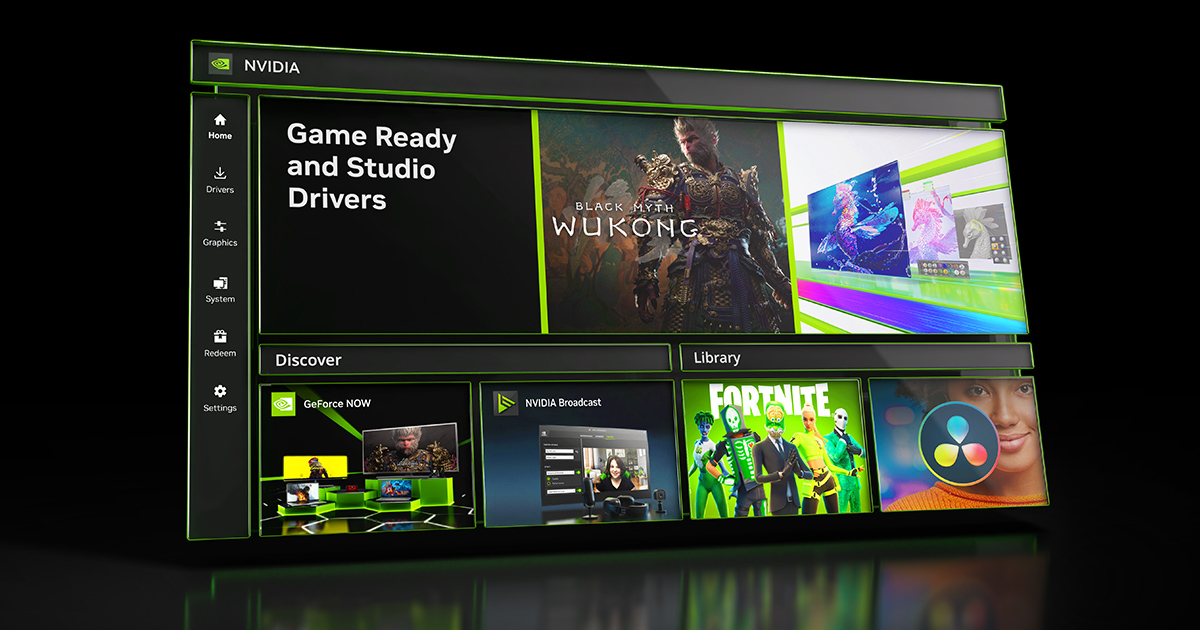
The overlay is a panel that sits on top of your game or desktop. NVIDIA's NVIDIA app page describes it as the place for recording tools, real-time FPS and performance statistics. From it you reach:
- Record: a manual recording you start and stop yourself.
- Instant Replay: a rolling recording that lets you save the last stretch of gameplay as a clip.
- Screenshots and Photo Mode.
- Game filters: real-time color and image filters.
- Statistics: the performance overlay, with FPS, GPU and CPU use, temperatures and latency.
- Gallery: your captured clips and screenshots.
It replaced the "Share" overlay from GeForce Experience, which also opened with Alt+Z. NVIDIA says the NVIDIA app "incorporates many of the top features from GeForce Experience and RTX Experience," and when the app left beta in November 2024 NVIDIA wrote that the migration of GeForce Experience features was complete. If you still have GeForce Experience, its Share overlay kept its hotkeys under Preferences, on a Keyboard Shortcuts screen, according to NVIDIA's Share guide.
The NVIDIA app runs on Windows 10 and Windows 11 and needs GeForce driver 551.52 or later, according to its system requirements. Logging in to an NVIDIA account is optional; the FAQ ties it only to redeeming bundles and rewards.
How to open the NVIDIA overlay
There are two ways, both from NVIDIA's launch article:
- Press Alt+Z.
- Or click the overlay button at the top right of the NVIDIA app window.
The panel lists a hotkey next to each feature. Those hotkeys start a feature directly without opening the panel. The defaults NVIDIA lists are:
| Action | Default hotkey |
|---|---|
| Open the NVIDIA overlay | Alt+Z |
| Start or stop a recording | Alt+F9 |
| Instant Replay | Alt+Shift+F10 (see the Instant Replay section) |
| Take a screenshot | Alt+F1 |
| Open Photo Mode in supported games | Alt+F2 |
| Show or hide the statistics overlay | Alt+R |
The Alt+R entry comes from NVIDIA's beta announcement and its August 2025 app update post. The others come from the launch article.
How to turn off the NVIDIA overlay completely
This switches off the whole panel.
- Open the NVIDIA app.
- Click Settings in the left menu.
- Open the Features tab.
- In the Overlay section, turn off the NVIDIA overlay switch.
NVIDIA's June 2024 update post puts the overlay switch in Settings, in the left menu, and the app's release notes give the path as Settings > Features > Overlay. To bring it back, turn the same switch on.
Recording, Instant Replay, game filters and the statistics overlay all live in the overlay. If you only want one of them gone, use the sections below instead.
How to turn off only parts of the overlay
Hide the performance overlay (FPS counter)
Press Alt+R in game. NVIDIA says the statistics, once set up, appear in game and can be turned on or off with Alt+R. To change what it shows instead of hiding it, press Alt+Z and open Statistics at the bottom of the side bar. NVIDIA says that screen controls which stats are shown and their position, color and size. Our guide on turning on the NVIDIA FPS counter covers the setup in detail.
Turn off overlay notifications
Press Alt+Z and click the Settings cog at the top of the panel. NVIDIA's launch article says the cog is where you "adjust the notifications shown." Turn off the ones you don't want there. Notifications about driver updates and Rewards are separate: those live in the main NVIDIA app Settings screen.
Turn off Instant Replay
Instant Replay keeps a rolling recording in the background so you can save a clip after something happens. NVIDIA's own pages give two different descriptions of its hotkey. The June 2024 post says Alt+Shift+F10 turns Instant Replay on and Alt+F10 saves the last few minutes. The November 2024 launch article says Alt+Shift+F10 saves a clip. The safest route is to press Alt+Z, find Instant Replay in the panel, switch it off there and check which hotkey the panel lists next to it on your PC. The length of the replay buffer is set under the Settings cog.
Turn off game filters and Photo Mode
Since version 11.0.1, game filters are off by default. If you turned them on, the release notes give the switch: Settings > Features > Overlay > Game Filters and Photo Mode in the NVIDIA app.
How to change the Alt+Z hotkey
If Alt+Z gets in the way of another program, you can move it instead of turning the overlay off.
- Press Alt+Z, or click the overlay button at the top right of the NVIDIA app window.
- Click the Settings cog at the top of the panel.
- Open the hotkey settings. NVIDIA's launch article lists "change hotkeys" as one of the cog's options.
- Find the shortcut that opens the overlay and set a new key combination.
Version 11.0.7 of the NVIDIA app fixed a bug that stopped Numpad keys from working in overlay shortcuts, so update first if you want to use them.
NVIDIA overlay not opening or not working
Work through these in order.
- Check the overlay is switched on. NVIDIA app > Settings > Features > Overlay. If it is off, Alt+Z does nothing.
- Open it from the app. Click the overlay button at the top right of the NVIDIA app window. If that works and Alt+Z doesn't, the hotkey was changed or another program takes it. Check the hotkey under the Settings cog.
- Update the NVIDIA app. The release notes list several overlay fixes:
- 11.0.4.159 and 11.0.4: the in-game overlay was not accessible on the GeForce RTX 5070.
- 11.0.6: the overlay disappeared after you changed the display resolution.
- 11.0.7: Numpad keys did not work in overlay shortcuts.
- Update the graphics driver. The app needs GeForce driver 551.52 or later. NVIDIA also says the latest Game Ready driver is needed for the best image quality and performance with ShadowPlay recording.
FPS shows N/A in the overlay
Two releases fixed this. Version 11.0.5.266 fixed stats showing "N/A" in games that run from a separate executable, and 11.0.7 fixed stats showing N/A after an app update. Update the NVIDIA app, then restart the game.
The overlay won't go away
- The panel stays open: click anywhere outside it. NVIDIA added that in version 10.0.1.
- Numbers stay in the corner of the screen: that is the statistics overlay, not the panel. Press Alt+R.
- It keeps coming back: turn the NVIDIA overlay switch off in Settings > Features > Overlay.
Where to go next
If you turned the overlay off only to get rid of the Alt+Z clash, moving the hotkey keeps recording and the FPS counter working. If you use the overlay to check DLSS, the DLSS view under Alt+Z > Statistics > Statistics View > DLSS shows which DLSS model is running. Our guide on how to turn on DLSS 5 covers that setting.
Frequently asked questions
What is the NVIDIA overlay?
It is the in-game panel of the NVIDIA app that opens with Alt+Z. It holds recording, Instant Replay, screenshots, game filters and the statistics overlay with FPS and performance numbers, and it replaced the Share overlay of GeForce Experience.
What is the NVIDIA overlay shortcut?
Alt+Z opens the NVIDIA overlay by default, and Alt+R shows or hides the statistics overlay. You can change the hotkeys from the Settings cog at the top of the overlay panel.
Why is the NVIDIA overlay not working?
First check that the NVIDIA overlay switch is on in NVIDIA app Settings > Features > Overlay, then try the overlay button at the top right of the app window. If it still fails, update the NVIDIA app and your GeForce driver, since recent versions fixed overlay bugs.
Why does the NVIDIA overlay show FPS as N/A?
NVIDIA fixed two causes in app versions 11.0.5.266 and 11.0.7: games that run from a separate executable, and stats breaking after an app update. Update the NVIDIA app and restart the game.
Sources
- NVIDIA appNVIDIA
- NVIDIA app updates and release highlightsNVIDIA
- NVIDIA App Officially Released: Download The Essential Companion For PC Gamers & CreatorsNVIDIA
- NVIDIA App Beta Update Adds AV1 Recording & One-Click Performance TuningNVIDIA
- NVIDIA App Update Adds Global DLSS Overrides, Smooth Motion For GeForce RTX 40 Series GPUsNVIDIA
- Test Drive The New NVIDIA App BetaNVIDIA
- NVIDIA app FAQNVIDIA
- NVIDIA app system requirementsNVIDIA
- Shadowplay Is Now The New Share OverlayNVIDIA