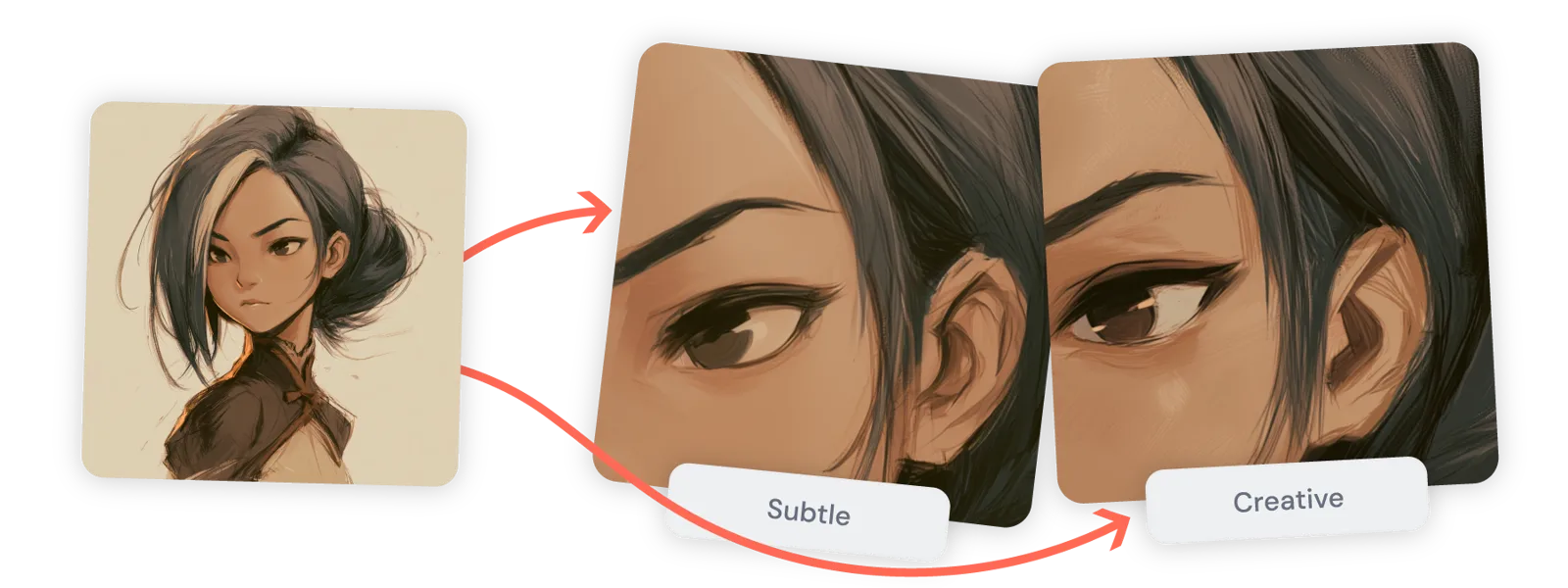
Key takeaways
- In Midjourney V8.2, the Subtle and Creative upscalers double an SD image, from 1024 x 1024 to 2048 x 2048 pixels at 1:1.
- Each Creative or Subtle upscale costs about 2 minutes of GPU time, against about 0.8 minutes for an SD prompt and 1.3 minutes for an HD prompt.
- HD images already generate at 2048 pixels and can't be upscaled further; outside images can only go through the website's Editor.
To upscale an image in Midjourney, open it on midjourney.com and click Upscale, then Subtle or Creative; in Discord, press U1 to U4 under the grid and then Upscale (Subtle) or Upscale (Creative). In the default V8.2 model, both upscalers double a standard image from 1024 x 1024 to 2048 x 2048 pixels, and each upscale costs about 2 minutes of Fast GPU time, according to Midjourney's Upscalers and GPU Speed docs.
There is one catch in V8.2: images made in HD mode are already 2048 pixels wide and can't be upscaled further. Everything below comes from Midjourney's docs as they read on November 16, 2026.
Midjourney upscale options in V8.2
V8.2 has been the default model since July 24, 2026, according to the Version page. It makes two kinds of image: SD (standard definition) and HD, which generates at 2K resolution without any upscaling.
| Option | What it does | Final size (1:1) | GPU cost |
|---|---|---|---|
| Upscale (Subtle) | Doubles the image and keeps changes to a minimum | 2048 x 2048 px | About 2 minutes |
| Upscale (Creative) | Doubles the image and adds new detail, so it changes a bit | 2048 x 2048 px | About 2 minutes |
| HD prompt | Generates the images at 2K from the start | 2048 x 2048 px | About 1.3 minutes |
| U1 to U4 in Discord | Separates one image from the grid without enlarging it | Unchanged | 0 |
For comparison, an SD prompt costs about 0.8 minutes. That makes an upscale about two and a half times the cost of the prompt that made the image. The Upscalers page puts it more loosely: upscaling "can cost twice as many GPU minutes" as the original images.
Other aspect ratios change the sizes. The docs list these for V8.2:
| Aspect ratio | SD image | Upscaled or HD image |
|---|---|---|
| 1:1 | 1024 x 1024 | 2048 x 2048 |
| 4:3 | 1232 x 928 | 2464 x 1856 |
| 2:3 | 896 x 1344 | 1792 x 2688 |
| 16:9 | 1456 x 816 | 2912 x 1632 |
Exact HD sizes can vary slightly in some aspect ratios, the docs say.
Subtle or Creative
Pick Subtle when you like the image as it is and want it bigger. Pick Creative when you want Midjourney to add detail. Midjourney says the Creative upscaler can sometimes fix small problems such as awkward hands or odd facial expressions. You can run either upscaler more than once on the same image, and each Creative run gives a slightly different result. Each run also costs GPU time again.
How to upscale an image on the Midjourney website
- Go to your Create or Organize page on midjourney.com.
- Click the image you want to enlarge. It opens with more options.
- Find the Creation Actions section and click Subtle or Creative under Upscale. The job starts right away.
- The upscaled image appears on your Create page.
If you don't see the Upscale options, click "More options" and tick the box next to Upscale to show them.
On the website, images are already separated from their grid, so there is no U1 to U4 step. Your Organize page can also filter to show only the images you spent GPU time to upscale.
How to upscale an image in Discord
- Run your prompt with
/imagineas usual. - When the grid finishes, press U1, U2, U3 or U4 to pull your favorite image out of the grid. In versions 5 and later this does not change the size and costs no GPU time.
- Under the separated image, press Upscale (Subtle) or Upscale (Creative).
- The bot posts the upscaled image in the channel.
To see how much Fast time you have left, type /info. The "Fast Time Remaining" line shows the time you have now and your plan's monthly amount. Settings are synced between Discord and the website, so a speed you set in one place applies in the other.
How much upscaling costs on each plan
Upscales come out of your plan's Fast GPU time, or run in Relax mode on plans that have it. The plan figures below are from Midjourney's plan comparison page, updated November 3, 2026. The last column is simple arithmetic: monthly Fast time divided by the 2-minute estimate, assuming you spend all of it on upscales.
| Plan | Price per month | Fast GPU time | Relax mode for images | Concurrent image jobs | Upscales if all Fast time went to them |
|---|---|---|---|---|---|
| Basic | $10 | 200 minutes | No | 3 Fast | About 100 |
| Standard | $30 | 15 hours | Unlimited | 3 Fast or Relax | About 450 |
| Pro | $60 | 30 hours | Unlimited | 12 Fast or 3 Relax | About 900 |
| Mega | $120 | 60 hours | Unlimited | 12 Fast or 3 Relax | About 1,800 |
Yearly billing takes 20% off. Extra Fast time costs $4 an hour on every plan, which works out to roughly 13 cents per upscale. Fast time resets at each renewal and does not roll over. For the full plan breakdown, see our Midjourney pricing guide.
Relax mode is unlimited for images on Standard, Pro and Mega, so on those plans you can keep upscaling after your Fast time runs out. Relax jobs wait in a queue, with waits of 0 to 30 minutes according to the docs. Basic has no Relax mode. Turbo mode runs up to four times faster but uses double the Fast time, and the docs say Turbo is not supported in V8.1.
When HD is the cheaper route
If you already know you want large images, the docs' own numbers favor HD. An SD prompt plus one upscale is about 2.8 minutes. An HD prompt is about 1.3 minutes, and it gives you a full set of images at 2048 pixels. You can turn on HD in the Version section of the settings panel on the web, or add --hd to a prompt. HD is limited to aspect ratios up to 4:1, against 14:1 for SD. The Creative upscaler is still useful when you want its extra detail or its fixes.
How to upscale an uploaded image with the Editor
Midjourney's upscalers are built for images it generated. The docs don't describe a standalone upscaler for your own pictures. The route for an outside image is the Editor, which is only on the website:
- Click the Edit tab in the website's navigation menu.
- Upload an image from your device, or paste an image URL.
- Make your edit, for example extend the canvas, erase an area, or type a prompt to retexture the whole image, then press Submit Edit. Midjourney generates four results.
- Under Export, choose Upscale to Gallery, or Download Image to save a result to your device.
Two things to know first. In V8.2, edits made with the Edit model, including on uploaded images, appear on your Create and Organize pages and are visible to other members on midjourney.com unless you have Stealth mode, which only the Pro and Mega plans include. And you must have the rights to any image you upload; the docs warn that moderation may block prompts that look harmless, though blocked jobs cost no GPU time.
If you only want to enlarge a photo without changing it, Midjourney's docs point you to third-party upscaling tools instead. For using a picture as a reference rather than editing it, see our guide to using a reference image in Midjourney.
Upscalers in older Midjourney versions
The options depend on the version the image was made in, not on your current default:
- V7: Subtle and Creative, using the V6.1 upscalers. HD is not available.
- V6: Subtle and Creative. HD is not available.
- V5: Upscale (2x) and Upscale (4x), to 2048 or 4096 pixels square. They don't work with Pan or the tile parameter.
- V4 and earlier: Light, Beta, Detail and Max upscalers, documented on the Legacy Features page. In those versions the U buttons enlarge the image and use GPU time. Max Upscale works only in Fast mode, and the
--upbetaparameter is deprecated.
V5's 4x tool is the only one in the docs that reaches 4096 pixels. The current model stops at 2x.
Common problems with Midjourney upscaling
The Upscale buttons are missing on the website. Click "More options" and tick Upscale. If the image is HD, there is no upscale option: it is already at full size.
An HD image got smaller after editing. Pan, Zoom Out and Vary Region on an HD image return SD results, according to the Version page. Run Upscale on the result to bring it back to HD size.
An old Discord job has no new upscale buttons. Use the /show command on it. Midjourney says this refreshes the job's upscale options.
U1 to U4 didn't make the image bigger. In version 5 and later they only separate the image from the grid. Press Upscale (Subtle) or Upscale (Creative) afterwards.
You need a 4K image or a big print. Midjourney's Image Size & Resolution page says a 2048-pixel image prints well at about 6.8 inches at 300 DPI. Posters viewed from further away can go lower, to about 150 DPI. For more pixels than that, Midjourney points to third-party upscaling tools.
Upscales stopped because Fast time ran out. On Standard and above, switch to Relax with /relax in Discord, the settings panel on the web, or --relax at the end of a prompt. On Basic, buy extra time on the Manage Subscription page or wait for renewal.
Upscales are running slowly. Check whether you switched to Relax in Discord: the speed setting carries over to the website.
Frequently asked questions
What is the difference between Subtle and Creative upscale in Midjourney?
Both double the size of the image. Subtle keeps changes to a minimum, while Creative adds new detail and changes the image a bit, which can sometimes fix small problems like awkward hands.
Can Midjourney upscale 4x?
Only for images made in version 5, whose Upscale (4x) tool reaches 4096 x 4096 pixels. The current V8.2 upscalers stop at 2x, or 2048 x 2048 pixels for a square image.
Can I upscale an existing image I uploaded to Midjourney?
Midjourney's docs describe no standalone upscaler for outside images. You can upload one in the Edit tab on midjourney.com, edit it, and use Upscale to Gallery on the results; to enlarge a photo unchanged, the docs point to third-party tools.
Is Midjourney upscaling free?
No. Each Subtle or Creative upscale uses about 2 minutes of GPU time from your plan. Only the U1 to U4 buttons in Discord are free, because in version 5 and later they just separate an image from the grid.
Sources
- UpscalersMidjourney
- GPU Speed (Fast, Relax, Turbo)Midjourney
- VersionMidjourney
- Comparing Midjourney PlansMidjourney
- EditorMidjourney
- Legacy FeaturesMidjourney
- Image Size & ResolutionMidjourney
- Info CommandMidjourney
- Transitioning to WebMidjourney