Key takeaways
- Gemini's memory summary is under Menu > Settings > Personal Intelligence > Memory summary, and you edit it by typing requests such as "Remove my old phone number from your memory."
- Turning off the Memory switch stops Gemini from learning new things but does not erase existing memories; deleting the source chats under Settings > History does.
- AI training is a separate checkbox in Settings > History, so changing Memory does not change whether your chats train Google's models.
Gemini memory now has a page you can read and change. In the Gemini app or at gemini.google.com, open Menu > Settings > Personal Intelligence > Memory summary to see what Gemini thinks it knows about you, then type a request such as "Remove my old phone number from your memory" to change it. To stop Gemini from learning anything new, turn off the Memory switch on the same Personal Intelligence screen. Those steps come from Google's help page on the memory summary.
The summary is new. Engadget reported on November 17, 2026 that Google is rolling it out to users in the US with a paid Google AI plan who have memory turned on. Before it, the only way to find out what Gemini remembered was to ask it, or to dig through old chats.
Gemini's memory is not one switch, though. It is four controls that live in different places: Memory, the memory summary, your chat History, and a separate setting for AI training. This guide covers each one, based on Google's Gemini Apps Help pages as of November 18, 2026.
What you need to use Gemini memory
Google's help pages list the same basic requirements for every memory feature:
- You are 18 or older.
- You are signed in with a personal Google Account. Work, school and supervised accounts can't use memory.
- History is on. Some help pages still call this setting Keep Activity.
- Memory is turned on.
The memory summary has two more limits. It works only in the Gemini mobile app and the Gemini web app, and it is not available in the European Economic Area, Nigeria, Switzerland or the United Kingdom. Google's help page doesn't name a plan, but Engadget reports that the summary is limited to US users on a paid Google AI plan, so free accounts may not see it yet.
| Feature | Where it lives | Who gets it |
|---|---|---|
| Memory of past chats | Settings > Personal Intelligence > Memory | 18+, personal account, History on |
| Memory summary | Settings > Personal Intelligence > Memory summary | Also needs Memory on; not in the EEA, Nigeria, Switzerland or the UK |
| Remembering specific facts ("Remember that I'm vegetarian") | Ask in any chat | Google AI plan required, US only |
| Instructions for Gemini | Settings > Personal Intelligence > Instructions for Gemini | All users |
| Import memory from another AI | Settings > Import memory to Gemini | 18+, personal account; not in the EEA, Switzerland or the UK |
How to see your Gemini memory summary
The steps are the same on the mobile app and the web app:
- Open the Gemini app on your phone or tablet, or go to gemini.google.com.
- Tap Menu at the left.
- In the bottom left, tap Settings.
- Tap Personal Intelligence, then Memory summary.
There is a shortcut too. Google's Gemini Apps Privacy Hub says you can also see your summary by asking Gemini, "What do you know about me?"
How to edit your Gemini memory
You change the summary by telling Gemini what to change, in plain words:
- Open Settings > Personal Intelligence > Memory summary.
- Type what you want changed. Google's examples are "Add to my memory that I speak Japanese" and "Remove my old phone number from your memory."
- Gemini updates the summary. If your request is ambiguous, it may ask a follow-up question first.
Engadget describes an Edit button with a pen icon at the top right on the web, which lets you rewrite or delete a line directly before clicking Save. Google's help page describes only the prompt method, so if you don't see the button, use a prompt.
To see what changed and when, open Memory summary and tap Memory history at the top right. It lists when each piece of information was added or modified. Tap Done to close it.
You can also correct Gemini in an ordinary chat. Google's page on memory of past chats says to make sure Memory is on and then correct Gemini directly. Its page on saved facts gives the example "Actually, my daughter is 8, not 7."
How to delete Gemini memory
There are three ways, and they do different things.
Remove one fact from the summary. Ask for it in Memory summary, as above: "Remove my old phone number from your memory."
Delete the chats a memory came from. Gemini learns from your saved chats. Google says that to delete something Gemini remembered, you delete every chat that contains it. This is the most thorough option:
- Go to gemini.google.com and click Settings > History, or open myactivity.google.com/product/gemini.
- Pick what to delete: one item, one day, the last hour, the last day, a custom range, or All time.
Google warns there may be a short delay before Gemini stops using a deleted chat. If the information came from a connected app such as Gmail or Google Photos, you also need to disconnect that app, or Gemini may find it again. Changes made inside a connected app can take days to reach Gemini.
Asking Gemini to "forget" something is not reliable. Google's help page on what Gemini remembers says plainly that asking it to forget a topic doesn't always work, and points you to deleting the related chats instead.
How to clear all Gemini memory
To wipe everything Gemini has learned from your chats, delete your whole history: Settings > History > Delete > All time. That removes your saved chats, including chats you imported from another AI app, according to the history help page.
Two things survive. Chats that human reviewers looked at are kept for up to three years even after you delete your history, Google's Privacy Hub says. And Instructions for Gemini are stored separately, so delete those too if you want a clean slate: Settings > Personal Intelligence > Instructions for Gemini, then More > Delete next to each one.
How to turn off Gemini memory
- Open the Gemini app or go to gemini.google.com.
- Tap Menu, then Settings in the bottom left.
- Tap Personal Intelligence.
- Turn Memory off.
On Android, Google's past-chats page also gives the path Menu > your profile picture > Personal Intelligence.
Turning Memory off stops Gemini from learning about you from now on. It does not erase what is already there. Engadget notes that existing memories stay until you edit or delete them, so clear the summary or your history first if that is what you want.
Turning off History goes further. Gemini then stops saving chats to your history, and memory of past chats stops working, because it needs History on. Google says chats are still kept with your account for around two months even with History off, to run the service and protect users. To turn it off, go to Settings > History and click Turn off or Turn off and delete history.
For one private conversation, use a temporary chat instead: click Temporary chat next to New chat. Google's help page on using Gemini says a temporary chat won't appear in your history, won't personalize answers and can't save anything for later.
Gemini memory and AI training are separate
Memory decides what Gemini uses to personalize its answers. A different setting decides whether Google uses your chats to train its models.
That setting is in Settings > History, next to "Chat content including text & uploads." The Privacy Hub says that when it is off, your future chats won't be used to train generative AI models unless you send feedback. Turning Memory off does not change it, and turning it off does not turn off Memory. Because the training choice sits inside History as its own checkbox, you can keep History on and leave training off. The step-by-step is in our guide to turning off Gemini training.
One catch for people switching from another assistant: Google's import help page says imported memory and chats are saved in your history and used to improve its services, including training generative AI models.
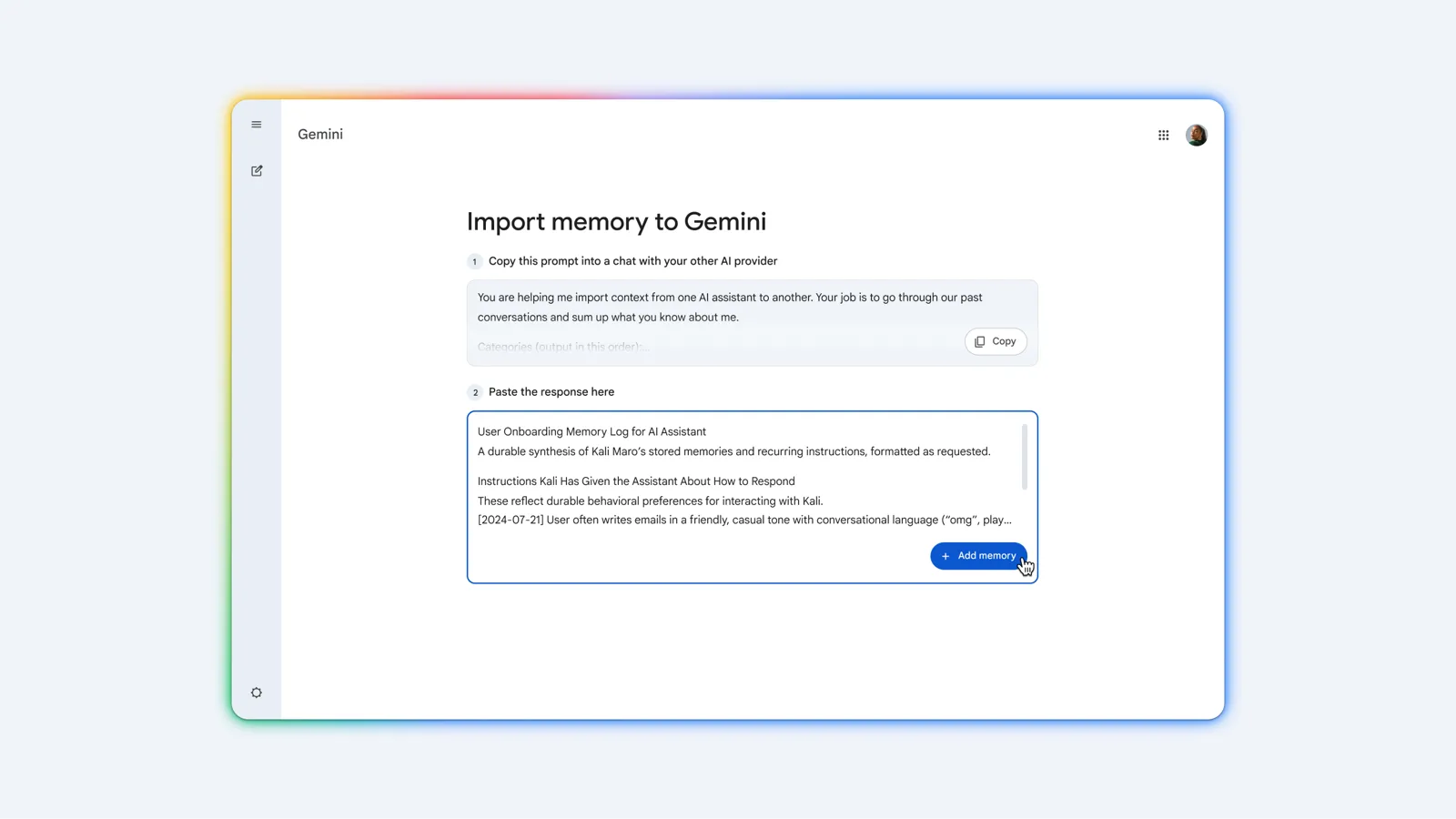
How to import memory into Gemini
Google lets you bring memory over from ChatGPT, Claude or another AI app:
- Go to gemini.google.com and click Settings > Import memory to Gemini.
- Copy the prompt Gemini gives you.
- Paste it into a chat in your other AI app.
- Copy that app's reply, which sums up what it knows about you.
- Back in Gemini, paste it into the text field and click Add memory.
Gemini then starts a new chat with the imported details. You can also upload your full chat history as a .zip file under Import chats, up to 5 GB per file and five files a day. Google says a chat import can take up to a day. Imported chats show an import icon in your chat list, and you can delete them one at a time or all at once from the import entry in Settings.
If you can't find the memory settings
- No Memory summary option. Check that you are 18 or older, on a personal account, outside the EEA, Nigeria, Switzerland and the UK, and that History and Memory are both on. Google is still rolling the summary out.
- No Memory switch at all. Work and school accounts don't get it. Your Workspace administrator controls history settings on those accounts.
- Gemini still brings up something you deleted. Delete every chat that mentions it, and disconnect any app it came from. Then ask Gemini, "Did you use any info from past chats?" to check where an answer came from.
- Memory doesn't work in a Gem or Gemini Live. Google says memory of past chats isn't available in Gems or Live chats. In a text chat you can ask Gemini to refer to a past Live conversation.
Frequently asked questions
Does Gemini free have memory?
Memory of past chats is listed for anyone 18 or older on a personal account with History on, with no plan named. Saving specific facts on request needs a Google AI plan and is US-only, and Engadget reports the new memory summary is limited to US users on a paid Google AI plan.
How do I delete Gemini memory?
Ask Gemini to remove a fact in Settings > Personal Intelligence > Memory summary, or delete the chats that contain it in Settings > History. Google says asking Gemini to forget a topic doesn't always work, so deleting the chats is the reliable way.
How do I disable memory in Gemini?
Go to Menu > Settings > Personal Intelligence and turn Memory off. Gemini stops learning about you, but what it already knows stays until you edit the summary or delete your history.
Can I import memory from ChatGPT or Claude into Gemini?
Yes. In Settings > Import memory to Gemini, copy Google's prompt into the other app, paste its reply back and click Add memory. Full chat histories can be uploaded as .zip files of up to 5 GB.
Sources
- View & manage your memory summary in Gemini AppsGoogle
- Get personalization with memory of your past Gemini chatsGoogle
- Manage what Gemini remembers about you and customize responsesGoogle
- Manage & delete your history in Gemini AppsGoogle
- Gemini Apps Privacy HubGoogle
- Import from other AI platforms to Gemini AppsGoogle
- Use Gemini AppsGoogle
- Import your AI chat history and memories to GeminiGoogle
- You can now see and edit what Google Gemini remembers about youEngadget