Key takeaways
- Press Shift+Tab in Cursor's Agent input, or pick Plan from the mode dropdown, to switch to plan mode.
- Agent asks clarifying questions, researches the codebase and writes an editable plan, and only edits files after you click Build.
- Plans save to your home directory by default; Save to workspace moves them into the project, and the CLI uses /plan or --plan.
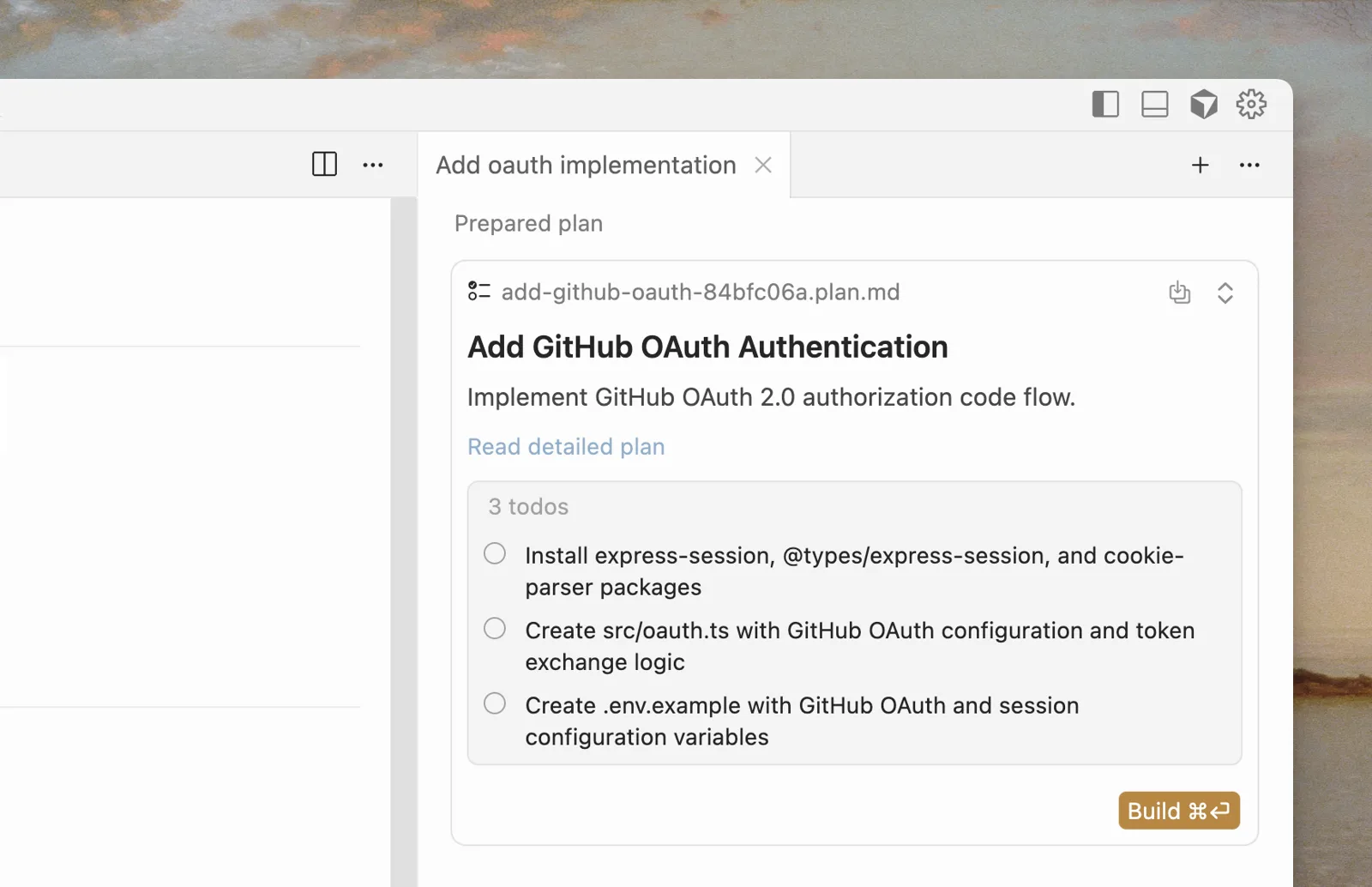
Cursor plan mode makes the agent write a plan before it touches any code. To use it, open the Agent panel with Cmd+I (Ctrl+I on Windows and Linux), press Shift+Tab until the mode reads Plan, describe the task and press Return. Agent researches the codebase, asks clarifying questions, and hands you an editable plan. Nothing gets built until you click Build.
That is the whole flow, according to Cursor's Plan mode help page and Plan Mode docs, both read on November 26, 2026. The rest of this guide covers each step, where plans are saved, how to start over when a build goes wrong, and how to use plan mode in the Cursor CLI.
Who this is for
Anyone using Agent in the Cursor editor or the Cursor CLI who wants to review the approach before the agent edits files. You need Cursor installed and a project open. No setting has to be turned on: Plan is one of the built-in agent modes.
What plan mode does
Cursor's docs describe five stages:
- Agent asks clarifying questions about what you want.
- It researches your codebase for the files and context that matter.
- It writes an implementation plan.
- You review and edit the plan, either by chatting or by editing the Markdown directly.
- You click to build the plan when you are ready.
When Cursor introduced Plan Mode on October 7, 2025, it said the plan is a Markdown file with file paths and code references, and that you can edit it directly, including adding or removing to-dos. Cursor also said that "most new features at Cursor now begin with Agent writing a plan."
The difference from Agent mode is when edits happen. Cursor's Agent mode help page lists four modes:
| Mode | Best for, per Cursor | Can edit files? |
|---|---|---|
| Agent | Building features, refactoring, fixing bugs | Yes |
| Ask | Understanding code, exploring architecture | No, read-only |
| Plan | Complex features where you want to review the approach first | Yes, after you approve the plan |
| Debug | Tricky bugs that need runtime evidence | Yes |
How to use Cursor plan mode, step by step
These steps come from Cursor's help center.
- Open the Agent panel. Press Cmd+I on a Mac, or Ctrl+I on Windows and Linux.
- Switch to Plan. With the cursor in the chat input, press Shift+Tab to cycle through the modes until you reach Plan. You can also pick Plan from the mode dropdown in the Agent panel.
- Describe the task. Be specific about the goal, the parts of the code it touches, and any constraints you already know.
- Press Return. Agent explores the codebase and may come back with clarifying questions. Since Cursor 2.1, released on November 21, 2025, the changelog says those questions appear in an interactive panel you can answer directly.
- Review the plan. It opens as a virtual file you can read and edit. Cut steps you don't want, add ones the agent missed, or ask for changes in chat. Cursor 2.1 also added Cmd+F search inside generated plans, which helps with long ones.
- Click Build. Agent then starts writing code from the plan. Cursor's January 30, 2026 post on dynamic planning says the agent works through the plan step by step and checks off tasks as it goes.
You don't always have to switch modes yourself. The docs say Cursor suggests plan mode on its own when your message contains keywords that point to a complex task.
One thing to know before switching: the help center says each mode uses its own context, so switching modes starts a fresh context window. Switch to Plan at the start of a task, not halfway through a long Agent conversation you want to keep. Project, user and team rules still apply in every mode, Plan included.
Where Cursor saves plans
By default, plans are saved in your home directory, not in the project. To keep one with the code, click Save to workspace. Cursor's docs say this is for future reference, team sharing and documentation.
Cursor's January 30, 2026 post says workspace plans go in .cursor/plans/ as version-controlled files, tracked in git like the rest of the project. That makes a saved plan something a teammate can review in a pull request, or a record of why a change was made.
The same post says teams can use Agent Skills to set the structure of their plans, from a formal spec to a light checklist, and the agent follows that structure in plan mode.
How to start over when the build goes wrong
Cursor's advice is to go back to the plan instead of patching a bad build with follow-up prompts. The docs say this is often faster than fixing an agent mid-run, and gives cleaner results.
The help center gives the steps:
- Find the Revert button in the bottom right of an earlier chat message.
- Click Revert, then Confirm. Your files roll back to that point.
- Make the plan more specific about what you need, and build it again.
For large changes, Cursor recommends spending more time on the plan itself. Its docs put it plainly: the hard part is usually deciding what change to make, and once that is clear, the agent can do the implementation.
When to use plan mode, and when to skip it
Cursor's docs say plan mode works best for:
- Complex features with several valid approaches
- Tasks that touch many files or systems
- Unclear requirements, where you need to explore before you know the scope
- Architectural decisions you want to review first
For quick changes, or tasks you have done many times, Cursor says going straight to Agent mode is fine. Planning a one-line fix costs a round of questions and research for no gain.
A good rule of thumb from the list above: if you couldn't write the steps down yourself in a minute, let the agent plan first. If you could, just ask for the change.
How to use plan mode in the Cursor CLI
The Cursor CLI docs say the command-line agent supports the same modes as the editor. There are three ways into plan mode:
- Press Shift+Tab to rotate between Agent, Plan and Ask.
- Type
/planto switch to plan mode. The slash command reference says/planalso shows the current plan, and/plan <prompt>sends a prompt in plan mode in one step. - Start the session in plan mode with either flag:
agent --plan
agent --mode=plan
The CLI command is agent. The CLI parameters reference lists --plan as shorthand for --mode=plan. Without a mode flag, the CLI starts in Agent mode.
Common problems
Shift+Tab does nothing. The shortcut works from the chat input, so click into the Agent input box first. If it still doesn't switch, use the mode dropdown in the Agent panel.
The plan isn't in my project. Plans go to your home directory by default. Click Save to workspace on the plan to move it into the project.
The agent lost what we discussed after I switched modes. Each mode starts a fresh context window, per Cursor's help center. Start in Plan for tasks you want planned, then build from that plan in the same flow.
The result doesn't match what I wanted. Revert to the message before the build, tighten the plan and build again, as described above.
Is Cursor plan mode free
Plan mode is a mode of Agent, not a separate product, and Cursor's docs don't list it as a paid extra. Cursor's pricing page lists Agent on every individual plan as of November 26, 2026, including the Free plan at $0 a month, which comes with "limited agent requests". The pricing page doesn't say how much usage a planning run takes.
Is anything new in Cursor plan mode
The latest entries on Cursor's changelog as of November 26, 2026 are voice chat with agents (November 6) and live apps built by cloud agents (November 5). Neither changes plan mode. The biggest plan mode changes on record are the launch on October 7, 2025 and the interactive clarifying questions in Cursor 2.1 on November 21, 2025.
Where to go next
Cursor's plan mode docs don't name a separate model for planning. To change the model Agent uses, see how to set a default model in Cursor. For more on switching between Cursor's modes, read how to switch Cursor agent modes.
Other coding agents have their own version of this. Claude Code has a plan mode of its own, and OpenAI's Codex has one too, covered in how to enter and exit Codex plan mode.
Frequently asked questions
What is the difference between Cursor plan mode and agent mode?
Agent mode starts editing files right away. Plan mode first asks questions, researches the codebase and writes a plan, and only edits files after you approve the plan by clicking Build.
Is Cursor plan mode free?
Plan mode is part of Agent, and Cursor's pricing page lists Agent on every individual plan as of November 26, 2026, including the $0 Free plan with limited agent requests.
Where does Cursor save plans?
In your home directory by default. Click Save to workspace to move a plan into the project, where Cursor says it lives in .cursor/plans/ and can be tracked in git.
How do I use plan mode in the Cursor CLI?
Press Shift+Tab to rotate to Plan, type /plan, or start the CLI with the --plan or --mode=plan flag.
Sources
- Plan mode (help center)Cursor
- Plan Mode (docs)Cursor
- Agent mode (help center)Cursor
- Introducing Plan ModeCursor
- Dynamic planning with agentsCursor
- Cursor 2.1 changelog: Improved Plan ModeCursor
- Cursor changelogCursor
- Using the Cursor CLICursor
- CLI slash commandsCursor
- CLI parametersCursor
- Cursor pricingCursor