Key takeaways
- In the Codex CLI, /clear clears the terminal and starts a fresh chat, /new starts a fresh chat without clearing the screen, and Ctrl+L only clears the screen.
- The ChatGPT desktop app uses /new or the New chat button, and the IDE extension starts a new chat with Cmd+N or Ctrl+N; neither lists /clear.
- /compact summarizes earlier turns to free context on the same task, and starting a new chat does not reset usage limits.
To clear context in Codex, type /clear in the Codex CLI. It clears the terminal and starts a fresh chat in the same session, so the model no longer sees anything from the old conversation. /new does the same without wiping the screen. In the ChatGPT desktop app, where Codex now lives, use /new or the New chat button, and in the IDE extension start a new chat with Cmd+N on macOS or Ctrl+N on Windows and Linux.
If you want to keep working on the same task with less in the window, don't clear it. Type /compact, which replaces earlier turns with a summary. This guide covers each surface, how to see how full the context is before you decide, and when to compact rather than start over. Every command below comes from OpenAI's developer commands reference and slash commands reference, checked on November 27, 2026.
What clearing context in Codex means
Context is everything the model can see in one chat: your messages, the files Codex has read, tool output and its own replies. OpenAI's glossary defines the context window as "the maximum amount of information the model can consider at once."
Codex has no command that empties the current chat and keeps it. Clearing context always means one of two things:
- Start a new chat. The old chat is saved and you can go back to it, but the new one starts empty, apart from things Codex loads on its own, such as your
AGENTS.mdinstructions. - Compact the current chat. Codex summarizes earlier turns so the chat keeps going with less in the window.
How to clear context in the Codex CLI
The terminal client has the most options.
1. Use /clear for a clean screen and a new chat
- Wait for Codex to finish the current turn. The docs say Codex disables
/clearwhile a task is in progress. - Type
/clearand press Enter. - Codex clears the terminal, resets the visible transcript and starts a fresh chat in the same CLI session.
You can name the new chat in the same step: /clear release prep.
2. Use /new to keep the old output on screen
Type /new and press Enter. If Codex asks about a checkout, pick the current directory or a new worktree. You get a fresh chat in the same session, and the previous output stays in your terminal so you can scroll back to it. It also takes a name: /new bug bash.
The reference describes /new as a way to "reset the chat context without leaving the CLI when you want a fresh prompt in the same repo." The only difference from /clear is the screen.
3. Don't rely on Ctrl+L
Ctrl+L only clears the terminal view. The chat, and everything in its context, stays. This is the most common mix-up: the screen is empty but Codex still remembers the whole conversation.
4. Restart the CLI
/quit or /exit closes the CLI, and running codex again opens a new chat. /clear and /new do the same without restarting.
How to clear context in the desktop app and IDE extension
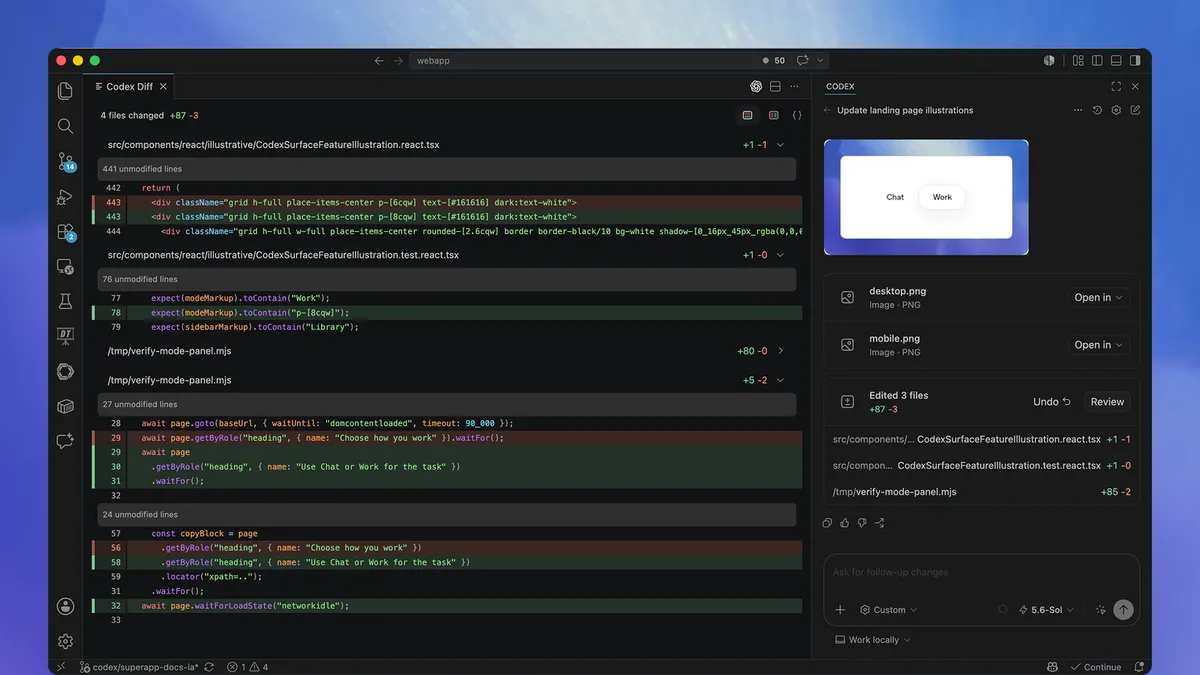
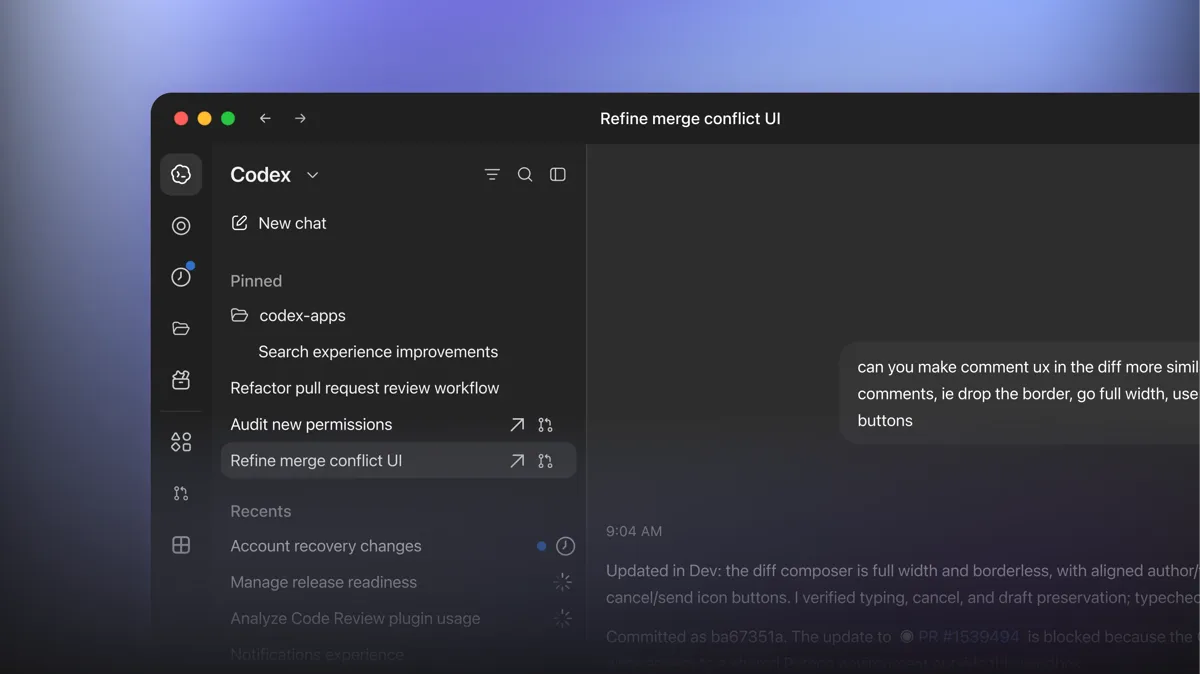
OpenAI's docs now file the Codex app under the ChatGPT desktop app. Its slash commands list is shorter than the CLI's and doesn't include /clear, so typing it there won't do what it does in the terminal.
In the ChatGPT desktop app:
- Type
/newin the Codex composer. The reference describes it as "Start a blank chat in the same local workspace, when available." - Or select New chat. The app's getting started page says to "start with New chat" in Codex.
In the IDE extension (VS Code, Cursor, Windsurf):
- Press Cmd+N on macOS or Ctrl+N on Windows and Linux. That is the default binding for the
chatgpt.newChatcommand, which OpenAI lists as "Create a new chat." - Or open the Command Palette (Cmd+Shift+P or Ctrl+Shift+P) and run the Codex new chat command. You can rebind it under Preferences: Open Keyboard Shortcuts by searching for
chatgpt.newChat.
The IDE extension's slash command list has no /new or /clear. It does have /compact and /status.
How to see how full the context is
Check before you clear. A chat with plenty of room left doesn't need a reset.
- Every surface: type
/status. In the app and the IDE extension, OpenAI says it shows "the chat ID, context usage, and rate limits." In the CLI it shows session configuration and token usage, including remaining context capacity. - CLI footer: the CLI shows a readout under the prompt. OpenAI's CLI page pictures it as "100% context left". If yours is missing,
/statuslinelets you pick the footer items, including context stats, and saves them toconfig.toml.
For the full walkthrough on each surface, see our guide on how to check the context window in Codex.
Compaction or a new chat: which to use
/compact is in the CLI, the app and the IDE extension. In the CLI you type it and confirm when Codex offers to summarize the chat so far. OpenAI says Codex then "replaces earlier turns with a concise summary, freeing context while keeping critical details."
Codex also compacts on its own when a chat gets long. The config reference has two settings for when:
model_auto_compact_token_limit = 200000
model_post_turn_compact_threshold_percent = 80
The first is the token count that triggers automatic compaction; left unset, Codex uses the model's default. The second compacts after a reply once the context reaches that percentage of the usable window, and 0 turns it off. The numbers above are examples, not defaults. Most people leave both unset.
A summary keeps the main points and drops detail. So the choice is about whether the old detail still matters.
| Situation | Use |
|---|---|
| Same task, chat getting long | /compact |
| New task, unrelated to the last one | /clear or /new |
| Codex keeps saying "Context automatically compacted" and stops making progress | Stop it, start a new chat with a short summary |
| You want to try a different approach and keep the original | /fork |
| You only want to summarize for yourself, not shrink context (CLI) | /recap |
| You finished planning in plan mode | "Yes, clear context and implement" |
OpenAI's best practices guide argues for one chat "per coherent unit of work." Staying in one chat preserves the reasoning trail while the work is still the same problem. It lists "using one chat for an entire project" among common mistakes, because it "leads to bloated context and worse results over time."
The help center gives the fix for a chat that compacts in a loop. If Codex "repeatedly shows 'Context automatically compacted' without making progress," OpenAI says to stop the task and start a new chat with a short summary of the goal and the work already done.
Plan mode has its own clear option
When you finish a plan in plan mode, the CLI offers Yes, clear context and implement. That starts a fresh chat that carries only the complete plan, so the back and forth of planning doesn't fill the window during the build. If Codex can't transfer the plan, it keeps the current chat open. Our guide to Codex plan mode covers the rest.
Clearing context doesn't delete anything or reset limits
A new chat leaves the old one saved. In the CLI, /resume reopens it, and codex resume --last picks up the most recent one from your shell. To remove it, /archive hides the session and /delete permanently removes the transcript; our guide on how to delete a chat in Codex walks through both.
Clearing context also doesn't give you more usage. The help center says plainly: "Starting a new chat does not reset your usage limits." The context window is per chat; your plan's allowance runs on its own clock. Our explainer on the Codex context window and the usage limit covers the difference.
A smaller context does help the allowance last, though. OpenAI's pricing page says extended sessions that hold more context use more of your limit per message, so a fresh chat for a new task costs less per turn than a bloated one.
What we ran
We installed the CLI into a local folder with npm install @openai/codex, which gave codex-cli 0.172.0, the release OpenAI's changelog dates November 24, 2026. codex --help lists resume and fork as subcommands. Slash commands only show inside a signed-in session, and we didn't sign in, so we couldn't run /clear or /compact. The command descriptions built into that release match the docs: "clear the terminal and start a new chat," "start a new chat during a conversation" and "summarize conversation to prevent hitting the context limit."
Frequently asked questions
What is the difference between /clear and /new in Codex?
Both start a fresh chat in the same CLI session with empty context. /clear also clears the terminal and resets the visible transcript, while /new leaves the old output on screen.
Does Ctrl+L clear the context in Codex?
No. OpenAI's docs say Ctrl+L only clears the terminal view and keeps the current chat, so Codex still sees the whole conversation.
What does 'clear context and implement' mean in Codex?
It is an option at the end of plan mode in the CLI. It starts a fresh chat that carries the complete plan, so the planning conversation doesn't fill the context during implementation.
Does starting a new Codex chat reset my usage limits?
No. OpenAI's help center says starting a new chat does not reset usage limits. Context is per chat, and the usage limit belongs to your plan.
Sources
- Codex developer commands (CLI slash commands)OpenAI
- Slash commands in the ChatGPT desktop appOpenAI
- Using Codex with your ChatGPT planOpenAI Help Center
- Codex best practicesOpenAI
- Codex configuration referenceOpenAI
- Codex CLIOpenAI
- ChatGPT desktop appOpenAI
- Codex glossaryOpenAI
- Codex pricingOpenAI
- Codex CLI changelogOpenAI