Key takeaways
- Signal's direct device transfer moves your chats from the old phone by QR code, but only iPhone to iPhone or Android to Android.
- Switching between Android and iPhone, or restoring after losing the old phone, needs a Signal Secure Backup with its 64-character recovery key.
- Secure Backups are free for all text and 45 days of media, or $1.99 a month for up to 100 GB of media, as of November 20, 2026.
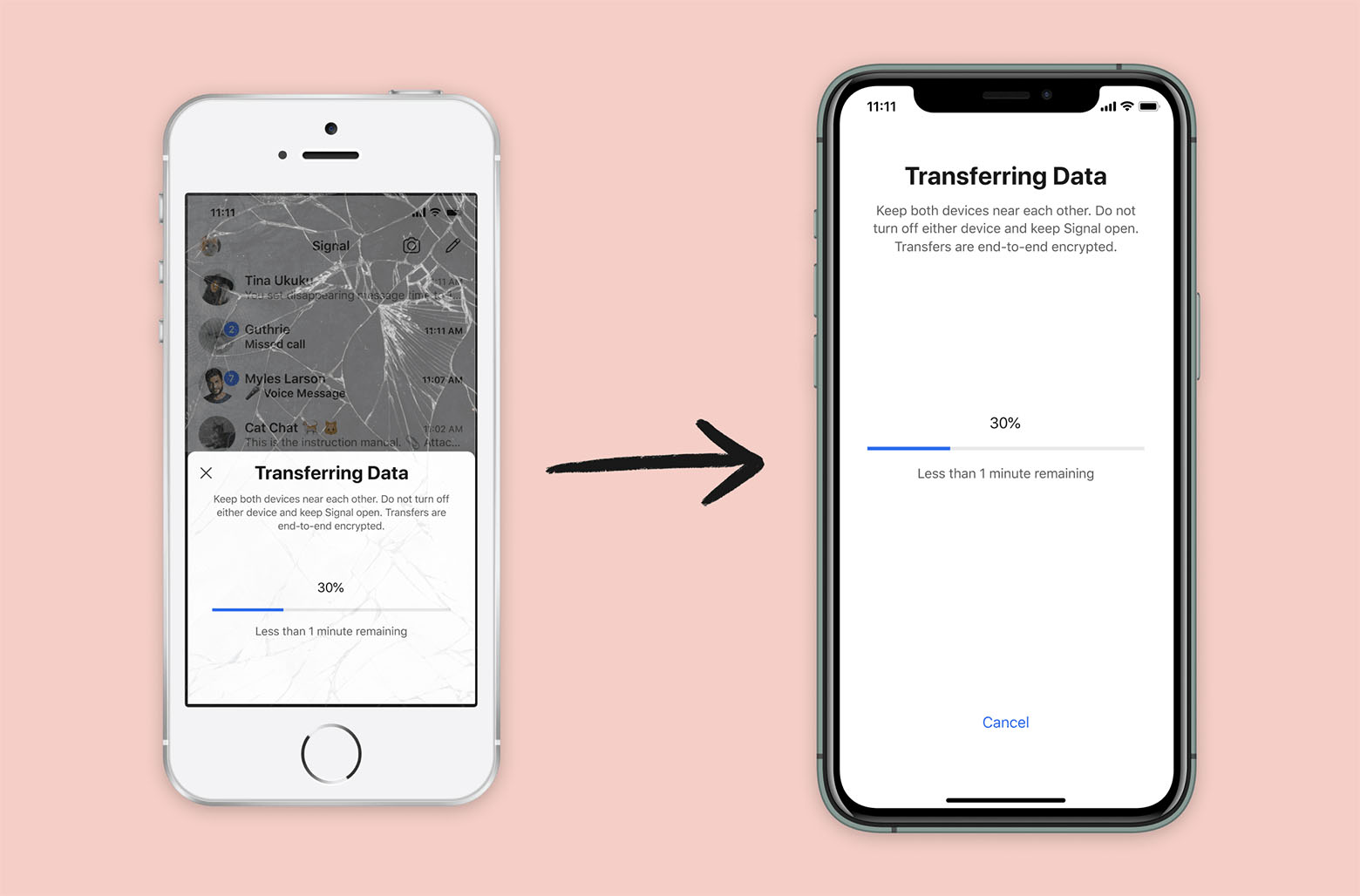
To transfer Signal to a new phone, install Signal on the new phone and pick "I have my old phone" on the Restore or transfer screen during setup, then scan the QR code it shows with your old phone. That direct transfer works only iPhone to iPhone or Android to Android. To switch between Android and iPhone, or if you no longer have the old phone, you need a Signal Secure Backup made beforehand, according to Signal's support center.
Signal keeps your messages only on your devices. Signal's servers have no copy, and iCloud or Google backups of your phone don't include your Signal chats. So whichever route you take, the old phone or a backup you made is the only source of your history. (Signal also changed how it handles AI assistants on November 20; see our report on its new screenshot block.)
Which way to move Signal to a new phone
Pick the method from the phones you have. This table follows Signal's comparison of backups and transfers and its restore guide.
| Your situation | Direct device transfer | Signal Secure Backups | Android on-device backup |
|---|---|---|---|
| iPhone to iPhone, old phone in hand | Yes | Yes | No |
| Android to Android, old phone in hand | Yes | Yes | Yes |
| Android to iPhone, or iPhone to Android | No | Yes | No |
| Old phone lost, stolen or broken | No | Yes, if you turned it on before | No |
| New phone number | No | No | Yes |
| Moving history from a linked iPad or Signal Desktop | No | No | Only Desktop to Android, with a Desktop backup |
Two things hold for every method. You can only transfer or restore during first setup on the new phone. And the transfer moves your history; it does not copy it. Afterward the old phone is unregistered and its Signal data is deleted.
Before you start
Signal's support pages list these requirements for a direct transfer:
- Both phones updated to the latest Signal. The iPhone guide asks for version 7.89 or later, the Android guide for 7.68.4 or later.
- Wi-Fi and Bluetooth turned on on both phones.
- The old phone can open Signal and show your chats, and its camera works.
- Both phones next to each other, unlocked and awake for several minutes.
- The new phone can receive a text or call on your number to finish registration.
- Your Signal PIN at hand. It restores your profile, settings, contacts and block list, but it is not a chat backup.
How to transfer Signal from iPhone to iPhone
These steps come from Signal's iOS to iOS device transfer page.
- On both iPhones, turn on Local Network for Signal in iOS Settings > Signal, and turn off Low Power Mode in iOS Settings > Battery.
- On the new iPhone, install and open Signal, make your permission choices, and tap Restore or Transfer Account.
- Tap I Have my Old Phone. A QR code appears.
- On the old iPhone, tap the camera button at the top of the chat list and scan that QR code.
- Tap Transfer Account on the old iPhone.
- Keep both phones close and don't use them until the transfer finishes. Your chats then appear on the new iPhone and are deleted from the old one.
The same transfer works iPad to iPad, and between an iPhone and an iPad set up as its own device rather than a linked one.
How to transfer Signal from Android to Android
These steps come from Signal's Android to Android device transfer page.
- On the new phone, install and open Signal, and give it storage access.
- Tap Restore or transfer, then I have my old phone. A QR code appears.
- On the old phone, open Signal, tap the camera icon and scan the QR code.
- Tap Transfer account on the old phone. Signal asks whether to make a Secure Backup first; choose either.
- Select From your old phone, move the phones next to each other and tap Continue on both.
- Check that the verification code is the same on both screens, then tap Yes, the numbers match.
- When the transfer ends, the old phone shows a yellow banner saying it is no longer registered. That is expected: only one phone can be your main Signal device.
- Uninstall Signal on the old phone, usually in Settings > Apps > Signal > Uninstall.
An older page in the help center describes a version of the same flow that starts on the old phone under Signal Settings > Account > Transfer account and uses a 7-digit code. If your screens look like that, follow it the same way.
How to switch between Android and iPhone
Direct transfers don't work across platforms, and neither do Android on-device backups. Signal Secure Backups do, in both directions, according to Signal's Secure Backups troubleshooting page. One older help page still says switching platforms isn't supported; the newer Secure Backups pages replace it.
- On the old phone, open Signal Settings > Backups.
- Tap Setup, then Enable Backups.
- Save the 64-character recovery key in a password manager or write it down, then confirm it.
- Choose the free or paid plan and let the first backup finish.
- On the new phone, install Signal and register with the same phone number.
- On the Restore or Transfer Account screen, select From Signal Backups and tap Restore Backup.
- Enter your recovery key.
What Signal Secure Backups include and cost
Signal Secure Backups are optional and end-to-end encrypted. The 64-character recovery key never leaves your device, so Signal can't read the backup, and it can't recover it for you if you lose the key.
| Plan, as of November 20, 2026 | What it backs up | Price |
|---|---|---|
| Free | All text messages and the last 45 days of media | $0 |
| Paid | All text messages and up to 100 GB of media | $1.99 a month |
The paid plan is billed through Google Play or the App Store, and you cancel it there. Unlike a direct transfer, a Secure Backup stays in place after you switch, so it also protects you if the new phone breaks. It is also the only way to get your history back if you lose the old phone, but only if you turned it on before the phone was gone.
Restore an Android on-device backup
Android also has on-device backups: an encrypted folder on the phone, locked with its own recovery key. It suits Android to Android moves when you don't want Secure Backups, and it is the one method that works with a new phone number.
- On the old phone, go to Signal Settings > Backups > On-device backups > Turn on backups, pick a folder, and save the recovery key.
- Copy the whole backup folder, named like signal-backup-YYYY-MM-DD-HH-MM-SS, to the new phone's internal storage, for example over a USB cable through a computer.
- Install Signal on the new phone. On Restore or transfer account, select I don't have my old phone, then Restore on-device backup.
- Enter your phone number, select the entire backup folder (not the files inside it), enter the recovery key and finish registration.
What doesn't transfer
- View-once messages, and messages set to disappear within 24 hours. Android transfers also skip chats with a disappearing timer of one day or less.
- Media older than 45 days, if you restore from the free Secure Backups plan.
- History from a linked iPad or Signal Desktop. Linked devices can't be the source of a transfer to your phone.
- Your old phone's copy. History is moved, and Signal can't merge the chats of two phones.
- Signal Desktop's history on a new computer. Copying Desktop's folders isn't supported; link Desktop again from your phone instead.
Common Signal transfer errors and fixes
These fixes come from Signal's device transfer troubleshooting page and its backup and restore page.
- No transfer option, because setup is already done. Uninstall Signal on the new phone, reinstall it, and start the transfer when asked. The same goes for a skipped Secure Backup restore.
- The QR code won't scan. Turn up the screen brightness, hold the camera close and steady, and turn the phone sideways. On iPhone, Signal also suggests smaller and non-bold system fonts.
- The old iPhone is stuck at "Connecting...". Restart the old phone and check the requirements again, especially Local Network and Low Power Mode.
- "Transfer couldn't complete" on iPhone. Restart both phones, then after scanning, lay the phones so they touch and don't move them.
- The Android transfer won't connect. Turn off any VPN or Wi-Fi hotspot, which can block the direct Wi-Fi link, give Signal all its permissions in Android Settings > Apps > Signal, and restart both phones.
- "Registered too often." Wait an hour and register again.
- The backup doesn't show up. Register with the same phone number you backed up with, and check the network. For Android on-device backups, restart the phone and make sure the folder is in internal storage.
- Lost recovery key or passphrase. The backup can't be opened. Signal can't reset the key.
If a transfer is interrupted before it finishes, Signal warns that the history may not be recoverable. Turning on Secure Backups before you start is the safe fallback.
Frequently asked questions
Can I transfer Signal messages from Android to iPhone?
Yes, but only through Signal Secure Backups. Turn on backups on the Android phone, save the recovery key, then pick From Signal Backups when you set up Signal on the iPhone. Direct transfers and Android on-device backups don't work across platforms.
Does an iCloud or Google backup include my Signal messages?
No. Signal stores messages only on your devices, and an iCloud or iTunes backup holds none of your Signal history. Use a direct transfer or Signal Secure Backups instead.
Can I get my Signal messages back if I lost my old phone?
Only if you turned on Signal Secure Backups before you lost it and still have the recovery key. Without a backup, Signal has no copy of your messages, though your Signal PIN restores your profile, settings, contacts and block list.
Can I keep Signal on both my old and new phone?
No. A transfer moves your history rather than copying it, and the old phone is unregistered when it finishes. Only one phone can be your main Signal device; computers and iPads can be linked to it.
Sources
- Backups and Device Transfers on SignalSignal Support
- iOS to iOS Device TransferSignal Support
- Android to Android Device TransferSignal Support
- Signal Secure BackupsSignal Support
- Troubleshooting Signal Secure BackupsSignal Support
- Troubleshooting Device TransfersSignal Support
- Android On-device BackupsSignal Support
- How to restore your message historySignal Support
- Backup and Restore MessagesSignal Support
- Signal PINSignal Support