Key takeaways
- You create a dot in the ChatGPT mobile app, desktop app or a desktop browser by following the introduction, naming it and connecting apps; mobile web is not supported.
- OpenAI's docs list dots for Pro users outside the EEA, UK and Switzerland, Business Premium, and eligible Enterprise, Edu and Healthcare workspaces, rolling out gradually.
- On iPhone you can open your dot from a Home Screen widget or an Apple Shortcut, and Pro users in the US can text it by iMessage or RCS in beta.
Here is how to use ChatGPT dots: open dots in the ChatGPT mobile app, desktop app or a desktop browser, follow the short introduction, name your dot, and connect the apps you want it to use. Then give it an ongoing job, such as keeping a project on track, rather than a one-off question. As of November 20, 2026, OpenAI's dots documentation says access is rolling out gradually to Pro, Business Premium and eligible Enterprise, Edu and Healthcare workspaces.
A dot is OpenAI's always-on agent inside ChatGPT. It has its own cloud computer and browser, keeps notes between conversations, and messages you when something needs a decision. The steps below come from OpenAI's dots docs and the dots feature page.
Who can get ChatGPT dots
Access depends on your plan, your region and, at work, your workspace settings. According to OpenAI's docs:
| Plan | Who gets dots |
|---|---|
| Pro 100, Pro 200 and Pro 500 | Users 18 and older outside the European Economic Area, the UK and Switzerland |
| Business Premium | Supported ChatGPT regions, subject to workspace eligibility |
| Enterprise, Edu and Healthcare | Eligible workspaces. Admins could turn it on for chosen roles during the preview. From November 18, 2026, it is on by default unless the workspace opts out |
9to5Mac reported on November 19, 2026 that OpenAI has started testing dots with a small number of ChatGPT Plus subscribers and is bringing it to Business Standard users. OpenAI's own docs did not list either plan when this was written. If you are on Plus or Business Standard and don't see dots, you are most likely not in the test yet.
For what each plan costs and how much dot work it includes, see our separate guide to ChatGPT dots pricing and plans.
How to create your dot
You can start on any of the three supported places and keep the same dot on your other devices. Mobile web is not supported.
- Open dots in the ChatGPT mobile app, the desktop app or a desktop browser. The feature page also has a "Create your dot" button. On a phone, update to the latest ChatGPT app first.
- Follow the introduction.
- Give your dot a name and choose how it looks: shape, color, eyes, glasses and accessories. You can keep the defaults and change them later. The name also sets its handle. A new dot starts as @yourname-dot, and naming it Alfred changes that to something like @yourname-alfred.
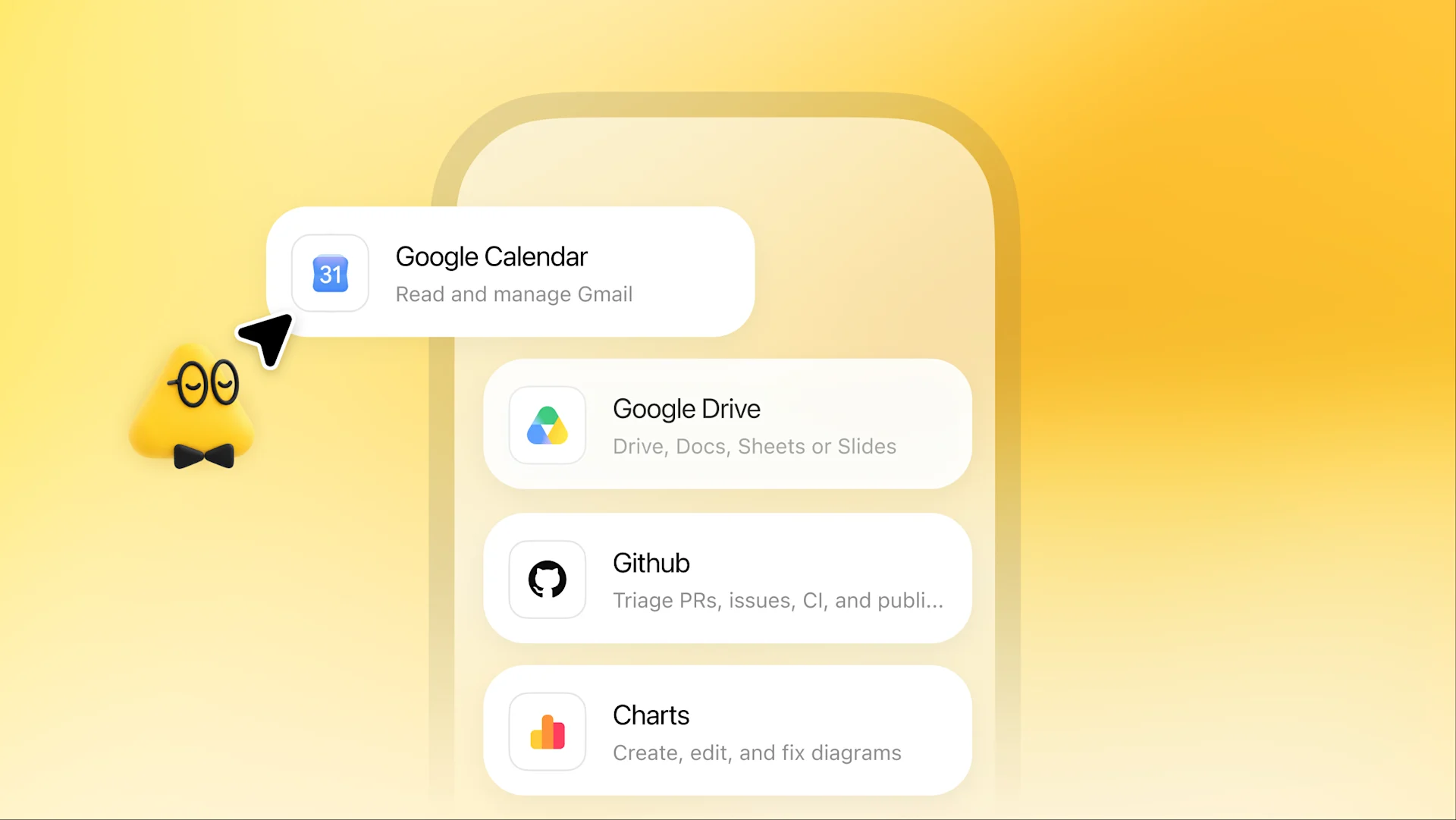
- Connect plugins for the apps you want it to use, such as email, calendar and files. You can skip this and add them later.
- Optional: connect your computer. This only works from the desktop app, even if you created the dot on your phone. In your dot's profile, find your computer under Computers, select Allow, then Allow access.
Connecting your computer lets the dot use local files, your signed-in browser context and local Codex tasks. Your computer has to stay online with the ChatGPT app open while the dot uses it. Without it, the dot still works on its own cloud computer.
Each connection is separate. Adding Slack as a way to message your dot does not give it your inbox, and connecting Gmail does not give it your computer.
How to use your dot
Your dot introduces itself, looks at the context it can reach, starts from relevant ChatGPT memory and suggests where it can help. You can talk to it while it does that.
OpenAI's advice is to hand it work it should keep track of, not a fresh request each time. Describe what matters, share the sources and say which decisions need you. The docs give this example:
Help me keep our offsite on track. Use the plan and venue emails I shared
to keep track of decisions, deadlines, and unanswered questions. Let me know
when something needs my attention, and draft suggested replies for my review.
Some habits that come straight from the docs:
- Correct the first result before giving it more. Review what it produces, fix missing details, then widen the job.
- Say where updates go. For example, routine progress in ChatGPT and decisions in Slack.
- Ask for a schedule when timing matters. Give the time, time zone and an end date, and ask it to confirm. "Check the connected planning channel each weekday at 9 AM Central for the next four weeks" is the docs' example.
- Use events where a source supports them. You can ask it to act when, say, a new bug report appears in a Slack channel. Adding it to a channel alone does not start any monitoring.
- Keep talking in the same conversation. You can change priorities or add context without restarting the work.
The dot can split work among background agents and hand tasks to ChatGPT Work or Codex. In the desktop app, open its profile and select Activity to see that delegated work and any requests waiting on you. Scheduled lists its recurring tasks.
Call your dot
Open your dot's conversation and tap the phone button. In the desktop app you can also select Call in its profile. You can type while you talk, which is handy for sending links. Hanging up ends the call, not the work.
Message it in Slack
Open your dot's profile, select Add and connect Slack. Then send it a direct message or mention it in a thread in a channel you've added it to. By default it replies only to you. It asks privately before sharing anything from a private conversation in a channel.
How to use ChatGPT dots on mobile
The ChatGPT app on iPhone and Android can create, message and call your dot. On iOS there are a few extras, which OpenAI says are rolling out with ChatGPT for iOS 1.2026.279 and need an account with dot access.
Add the Your dot widget on iPhone
- Touch and hold an empty area of your Home Screen, then select Edit > Add Widget.
- Find ChatGPT, choose Your dot, and select Add Widget.
- Place it and select Done.
Tapping it opens your dot's conversation with the keyboard ready. For message and call buttons, touch and hold the widget, select Edit Widget and turn on Show shortcut buttons. It is off by default.
Make an Apple shortcut
- Open the Shortcuts app and create a new shortcut.
- Add an action, search for Open your dot, and pick the ChatGPT action.
- Select your dot and choose a mode: Messaging (the default), Dictation or Call.
- Name and save it.
On an iPhone with an Action button, go to Settings > Action Button, choose Shortcut and pick the one you saved. A "Talk to my dot" shortcut in Call mode gives you a one-press progress check.
You can also reply to a dot's notification by touching and holding it, and send photos to your dot from the iOS share sheet.
Text your dot by iMessage or RCS
Texting is in beta for ChatGPT Pro users in the US.
- Open your dot's profile in the ChatGPT app or a desktop browser and select Texting.
- Enter your phone number and verify it.
- Save the contact card you receive, then send your dot a message.
With iMessage, send from the number you verified. On Android, turn on RCS in your messaging app. You can send text, photos and voice messages. Texting is one-to-one only: no group chats, phone calls or FaceTime. When the dot needs approval, it texts you a link to review the request in ChatGPT. OpenAI says setting this up does not give the dot or OpenAI access to your other text conversations.
How to set rules and instructions for your dot
Your dot has its own custom instructions, separate from your ChatGPT ones. The simplest way to set one is to tell it in chat, for example "When you finish a task, link to the result and tell me what needs my attention."
On mobile, if your app shows it, open the sidebar, select Customize > Behavior, pick your dot's tab, fill in "How [name] handles tasks" and save.
Custom rules control when it may act. On desktop and web, go to Settings > Personalization > Custom rules. On iOS and Android, open the sidebar and select Customize > Custom rules. Select Add, describe the action and choose one of four options: take action without asking, take action when you say so, ask before taking action, or hand off to you. A sensible start is "Ask before taking action" for messages to customers.
OpenAI is clear that rules are instructions the dot tries to follow and it can make mistakes. Some steps stay with you regardless. You must change passwords yourself, and if you use ChatGPT Wallet, you approve each payment with biometrics.
To stop work, Pause halts the dot's current main task only. Stop delegated tasks in Activity and cancel schedules in Scheduled. Stopping does not undo anything already done.
ChatGPT dots not showing: what to check
If you can't find dots in ChatGPT, go through these in order:
- Your plan. Dots is listed for Pro, Business Premium, Enterprise, Edu and Healthcare. Plus and Business Standard access was only reported by 9to5Mac on November 19 as a limited test and a rollout.
- Your region and age. Pro access excludes the EEA, the UK and Switzerland, and users under 18.
- The rollout. OpenAI says dots is rolling out gradually, so an eligible account may not have it yet.
- Where you're looking. Mobile web is not supported. Use the app or a desktop browser, and update the mobile app.
- Your workspace. At work, admins control a "Use dots" permission in the Admin Console, either as the workspace default or through a custom role. Ask your admin whether any of your roles grants it.
- The widget. Adding the iOS widget does not give dot access to an account without it. If the widget asks you to sign in or set up, finish that in the ChatGPT app.
Frequently asked questions
Can ChatGPT Plus users get dots?
OpenAI's docs list dots for Pro, Business Premium and eligible Enterprise, Edu and Healthcare workspaces. 9to5Mac reported on November 19, 2026 that OpenAI has started testing dots with a small number of Plus subscribers, so most Plus accounts won't see it yet.
Can I use ChatGPT dots on my phone?
Yes. You can create, message and call your dot in the ChatGPT app on iPhone or Android, but not on mobile web. Connecting your computer has to be done from the desktop app.
Why are ChatGPT dots not showing in my account?
Check that you are on an eligible plan, are 18 or older, and are outside the EEA, UK and Switzerland if you use Pro. OpenAI is rolling dots out gradually, and in work accounts an admin has to grant the Use dots permission.
Is ChatGPT dots available in the UK or Europe?
Not on Pro. OpenAI's docs say Pro access is for users outside the European Economic Area, the United Kingdom and Switzerland. Business Premium is available in supported ChatGPT regions, subject to workspace eligibility.